

Discord works fine at home, but the moment you join school or office Wi‑Fi it stops loading. Or perhaps messages arrive, yet voice chat remains stuck on “RTC Connecting.” Both scenarios can feel like Discord has been blocked, but they can stem from different causes and need different fixes.
To get Discord unblocked, begin by identifying what has failed. A platform outage, a desktop app issue, and a network restriction on your current connection all demand different approaches. This guide helps you determine the cause, try the simplest options first, and choose the most appropriate solution.
Is Discord Blocked or Just Not Working?
“Discord won’t open” doesn’t always mean it’s blocked. Check where the problem occurs before deciding on a fix:
- It fails across multiple devices and networks: This likely indicates a service issue on Discord’s side.
- It works on mobile data but not on school or office Wi‑Fi: The restriction is probably specific to that network.
- Discord Web works while the desktop app does not: The app or the device settings are the more likely cause.
- Messages work but voice does not: The issue is specific to voice connections or related network ports.
These observations are clues, not definitive diagnoses. For example, working on mobile data suggests the Wi‑Fi connection is at fault, but it does not reveal which particular rule or configuration is responsible.
Why Is Discord Blocked at School or Work?
Educational institutions and workplaces often limit access to messaging platforms on their managed networks or devices. A network rule can prevent Discord’s website from loading, stop the desktop app from establishing a connection, or affect voice chat while leaving other features functional.
Common reasons for blocking Discord include:
- Reducing distractions: Messages, notifications, and voice channels can interrupt classroom learning or professional tasks.
- Managing network bandwidth: Voice calls, video streams, and screen sharing can consume significant bandwidth on shared networks.
- Enforcing security policies: Administrators may restrict platforms that allow file sharing, external links, or unmonitored conversations.
- Controlling managed devices: Organization-issued computers and Chromebooks may have browser or installation restrictions in addition to Wi‑Fi rules.
These controls can affect Discord’s website, the desktop client, or specific features in different ways. If you need Discord for an approved school or work activity, check your organization’s policies before changing settings.
How to Get Discord Unblocked
There is no single method that solves every Discord access problem. Choose a remedy based on what your initial checks reveal.
Check Discord’s Status and Your Local Connection
Before altering your network, check whether Discord is experiencing a service incident. If Discord reports a platform outage, waiting for a resolution is often the best course. If services appear healthy, narrow down where the connection fails:
- Verify other websites load on the same connection.
- Fully close and reopen Discord, and check for application updates.
- Open Discord Web in another browser. If the web version works while the desktop app fails, focus on app and device troubleshooting.
- If Discord remains stuck, consult Discord’s official troubleshooting guide for steps specific to your symptom.
These steps are especially useful when Discord also fails on your home network. An empty or grey desktop window points to different causes than a blocked website; address the most likely root of the symptom you see.
Try Discord Web
If you cannot install the desktop client, open the official Discord Web app in a browser. This is often the easiest way to use Discord without downloading software and helps determine whether the desktop app or the network is causing trouble.
If the web app loads but voice or video doesn’t work, confirm that the browser has permission to use the microphone and camera. In Discord’s User Settings → Voice & Video, ensure the correct input and output devices are selected and that Push to Talk is not enabled by mistake.
Trying Discord Web is a good first step on a school Chromebook because it does not require installation. Keep in mind that managed devices or networks may still restrict site access or browser permissions.
Test Another Permitted Network
On a personal device, switching from Wi‑Fi to mobile data quickly identifies whether the problem is network-specific. If Discord works on mobile data, the Wi‑Fi network or its configuration is the likely issue.
A phone hotspot can give temporary access for a personal laptop where permitted, but watch your data usage if you join calls or stream. A hotspot is a short‑term workaround and does not fix the original Wi‑Fi restriction.
If Discord is required for a school club, class, or work meeting, the most reliable option may be to request access through official channels.
Consider a VPN
A VPN routes your device’s traffic through a remote server and can bypass network‑level restrictions when its use is allowed. However, a VPN changes the route for all device traffic, may require software installation, and can be restricted on managed devices. Importantly, VPNs can interfere with Discord voice connections; Discord’s voice service may require UDP support, and some VPNs do not provide that.
Use a VPN only if permitted by policy, and be aware that it won’t fix a Discord outage, an app bug, or an account restriction.
Use a Browser Proxy for Configurable Connections
A proxy directs traffic from a configured browser through another server. This can be useful for Discord Web when you need control over the browser’s exit IP and have permission to configure the browser or device.
Setting up a proxy requires compatible software, correct connection details, and confirmation that the browser is actually using the proxy. A browser‑level proxy affects only the browser it’s configured for and won’t automatically route other apps through the same connection.
Proxies can provide an alternate route for a permitted browser connection, but they won’t repair Discord’s servers, lift account restrictions, or guarantee voice calls will function. Never enter Discord credentials on unknown “unblocked Discord” sites or untrusted proxies; always sign in through Discord’s official web app.
How to Test a Controlled Proxy Connection for Discord Web
If your troubleshooting points to a connection issue and you can configure your own browser, test Discord Web through a controlled proxy. The aim is to try a different connection route and verify which Discord features work over it.
Step 1: Choose a proxy suited to your use
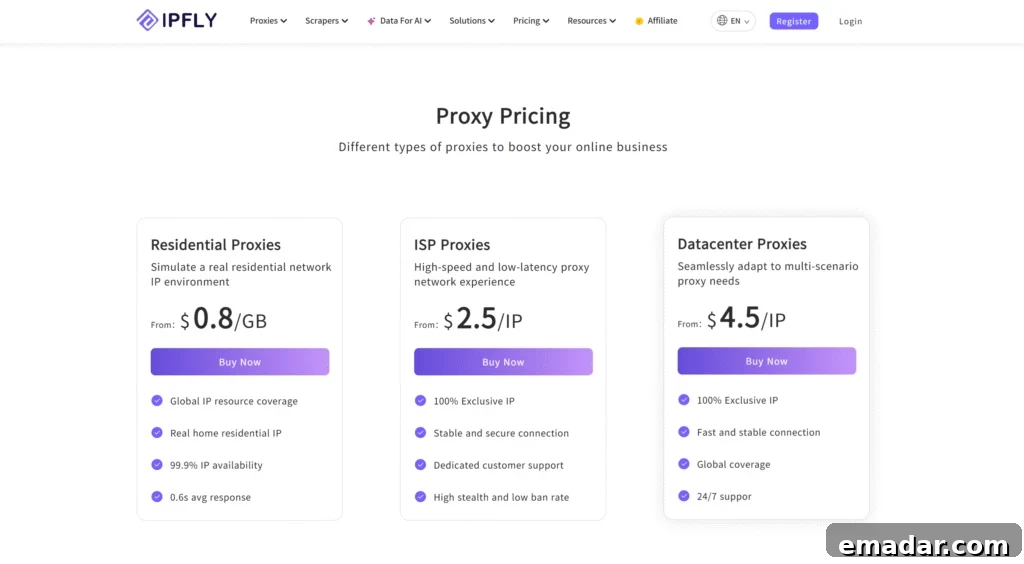
Select a proxy type appropriate for your needs—residential, ISP, or datacenter—with attention to whether you need a static exit IP for persistent sessions. Review product details and choose based on connection stability, privacy, and budget.
Step 2: Obtain proxy connection details
Gather the proxy host, port, supported protocol, and authentication credentials, and keep those credentials private.
Step 3: Configure the browser or system proxy
On systems like Windows or macOS, set the proxy in your operating system proxy settings or use a browser extension that supports manual proxy configuration. Verify you control the environment before changing system settings.
Step 4: Test the connection before signing into Discord
Confirm normal web pages load and that the browser shows the expected exit IP. If pages fail to load, recheck the host, port, protocol, and authentication instead of repeatedly attempting to sign in to Discord.
Step 5: Open Discord Web and test features incrementally
Load the official Discord Web app and test in stages: page loading, sign‑in, text messaging, and then voice calls if needed. A successful page load is only one part of a fully working setup.
Troubleshoot by Symptom
Work from the observable symptom to save time and avoid changing multiple settings at once. Common scenarios and next checks include:
| Symptom | What to check next |
| Discord website will not open | Check Discord status, test another permitted network, and confirm other sites load. |
| Desktop app is stuck loading | Try Discord Web. If the web app works, restart or update the desktop client and follow app troubleshooting steps. |
| Unable to log in | Read the exact error message, verify credentials, and consult Discord account help if needed. |
| Messages work but voice does not | Check browser or system microphone permissions, firewall rules, VPN or proxy interference, and Discord voice settings. |
| Proxy connects but Discord Web fails | Confirm proxy settings and test ordinary browsing first. Then compare Discord Web behavior with and without the proxy. |
When contacting support or a network administrator, describe the error message, the device and browser used, whether Discord Web or the desktop app is affected, and the results of any network tests you ran.
Summary: Get Discord Working Again
Getting Discord unblocked starts with identifying what is stopping it. An outage requires patience, an app or voice issue needs focused troubleshooting, and a restriction on a specific network calls for an allowed connection method. Testing Discord Web and another network helps determine the right next step.
If you plan to use Discord Web through a configurable proxy connection, choose a reliable proxy, confirm the browser is using the selected IP, and then test the Discord features you need. Always follow your organization’s policies and never use untrusted sign‑in pages.
Frequently Asked Questions
How can I get Discord unblocked at school without downloading it?
Try the official Discord Web app in a browser; it requires no desktop installation. If the school network or managed device blocks the website as well, the web app may be unavailable. In that case, request access through the appropriate administrator if Discord is needed for an approved purpose.
Why does Discord work on mobile data but not school Wi‑Fi?
That difference indicates the school Wi‑Fi or its configuration may be restricting access. It’s a useful diagnostic clue but doesn’t identify the exact rule; consult administrators if the service is required for permitted activities.
Can a proxy help with Discord voice chat?
A proxy can change the browser’s connection route, but success with text chat doesn’t guarantee voice will work. Test calls separately and verify UDP support or other required transport protocols if using VPNs or proxies.
Can I use Discord on a Chromebook?
You can use Discord Web in a Chromebook browser. Success depends on device and network settings. A school‑managed Chromebook may limit websites, extensions, installations, or proxy configuration.
Is a network block the same as a Discord account ban?
No. A network block prevents reaching Discord from a particular network, while an account restriction or server ban affects access to your account or a specific community. Identify the message or symptom before selecting a solution.