

Discord works fine at home but fails to load once you connect to your school or office Wi‑Fi. Or you can send text messages, but voice chat gets stuck on “RTC connecting.” Both feel like Discord is being blocked, but the causes can differ.
To restore access, start by identifying where the problem lies. A service outage, an issue with the desktop app, or restrictions on the current network each require a different approach. This guide walks you through how to diagnose the issue, try the simplest fixes first, and choose the right solution.
Is Discord blocked, or just not working correctly?
“Discord won’t open” doesn’t always mean it’s blocked. Before applying fixes, check where the problem occurs:
- The issue appears across multiple devices and networks: Discord may be experiencing a service outage.
- It works on mobile data but not on school or office Wi‑Fi: the problem is likely specific to that network.
- The web version works but the desktop app doesn’t: the problem is probably on the app or the device.
- Text messaging works but voice does not: the issue is limited to voice connections.
These observations are diagnostic clues, not definitive answers. For example, a mobile connection might prompt “connect to Wi‑Fi” without indicating which policy or setting is responsible.
Why would a school or workplace block Discord?
Schools and workplaces often restrict access to real‑time communication platforms on their networks or managed devices. Network rules may prevent Discord’s website from loading, interfere with the app’s connection, or disrupt voice chat while leaving other features functional.
Common reasons organizations limit Discord include:
- To reduce distractions. Messages, notifications, and voice channels can interrupt classes or work.
- To manage bandwidth. Voice, video, and screen sharing can consume significant shared bandwidth.
- To enforce security policies. Administrators may block platforms that allow file sharing, external links, or unapproved conversations.
- To manage managed devices. In addition to Wi‑Fi rules, organization computers may have browser, app, or installation restrictions.
Those policies can affect Discord’s website, desktop app, or specific features in different ways. If you need to use Discord for an approved purpose, check your organization’s access rules before attempting to change settings.
How to unblock Discord
There’s no single fix for every Discord access issue. Choose a solution based on the checks you perform.
Check Discord status and your local network
Before changing network settings, consult Discord’s status page to confirm whether required services are affected. If Discord reports outages, wait for updates. If services are shown as available, further isolate where the connection is failing:
- Verify other websites load over the current network.
- Completely close and restart Discord, and check for app updates.
- Open Discord in another browser. If the web app works but the desktop app does not, focus on the app and device settings.
- If Discord still stalls, follow the official Discord troubleshooting steps for connection and loading issues.
If Discord also fails on your home network, these checks are especially useful. A blank or gray desktop window is different from a blocked website; investigate device‑specific causes before concluding the network is blocking access.
Try the web version of Discord
If you cannot install the desktop app, use the browser at discord.com/app. This is often the simplest way to use Discord without downloads and helps determine whether the problem is the desktop app or the network.
If the page opens but voice or video don’t work, ensure the browser has permission to use your microphone and camera. In Discord’s User Settings → Voice & Video, confirm the correct input/output devices are selected and that “Push to Talk” is not enabled accidentally.
Using the web version is a good first test on managed Chromebooks because it requires no installation. However, a managed device or network may still restrict accessible sites and settings.
Test a different allowed network
On a personal device, switching from Wi‑Fi to mobile data helps pinpoint whether the network is the issue. If Discord works immediately on mobile data, the Wi‑Fi network or its configuration is likely the cause and should be examined.
A phone hotspot can provide a temporary connection for a laptop, but watch your data limits—hotspots are best for quick tests or short‑term use and won’t fix the underlying Wi‑Fi problem.
If you need Discord for school clubs, classes, or work groups, joining approved channels or requesting access through proper channels may be the most reliable solution.
Consider using a VPN
A VPN routes your device’s connection through a remote server. If the issue exists only on your current network and you are permitted to use a VPN, it might help, but it isn’t always the best choice for Discord.
VPNs change the entire device’s connection path and often require software installation, which may be restricted on managed devices. Even if Discord loads, voice calls can still fail—Discord notes that VPNs can interfere with voice connections and that voice features often require UDP support. If messages work but calls show “RTC connecting” or “No Route,” try disabling the VPN to test whether it’s the cause.
VPNs also won’t fix Discord outages, application errors, or account restrictions. If you need to affect only your browser connection, a browser proxy can offer more precise control.
Use a browser proxy to control the connection
A proxy forwards traffic from the configured browser or app through another server. For Discord Web, a proxy is useful when you can configure the device and need to control the browser’s egress IP address.
Using a proxy requires additional setup compared with simply opening Discord Web or switching networks: compatible software, correct connection details, and a way to verify the browser is actually using the proxy. Browser‑level proxies also do not automatically route other device applications through the same connection.
Most importantly, confirm whether the proxy addresses the problem you diagnosed. A proxy might provide an alternate route for an authorized browser but won’t fix Discord’s servers or account restrictions, nor guarantee that voice calls will work. Never enter your Discord credentials on unknown “unblock Discord” sites or free proxies; always sign in via Discord’s official site.
How to set up a proxy for Discord Web (example workflow)
If testing shows a connection problem and you can configure your browser, you can try using a controlled proxy to access Discord Web. The goal is to test an alternate, controllable path and verify whether the Discord features you need work over that path.
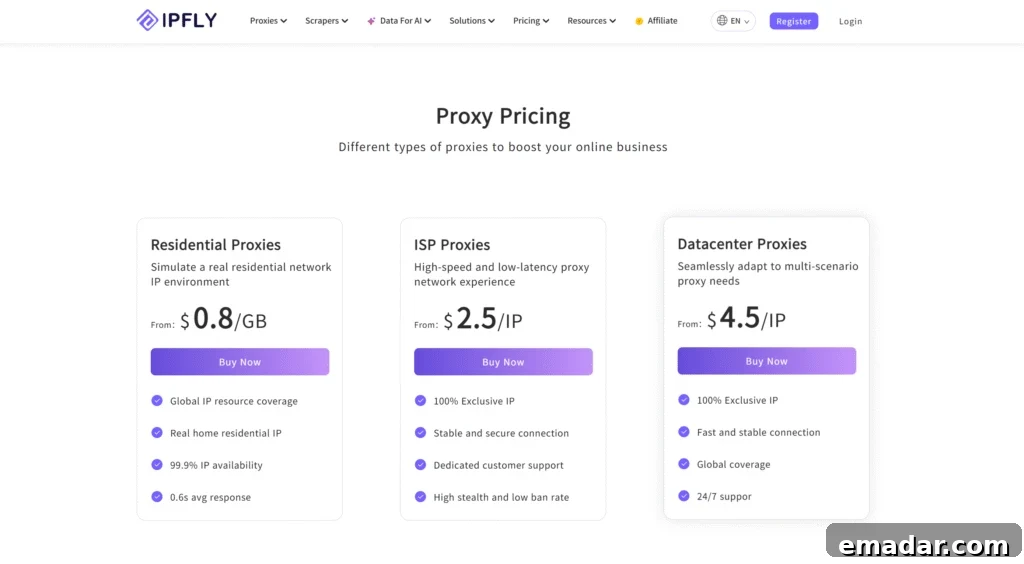
Step 1: Choose a proxy that fits your needs.
Pick a proxy service suitable for persistent browser sessions and the type of access you need. For consistent behavior, choose a static or fixed‑IP proxy option rather than rotating IPs.
Step 2: Retrieve connection details.
Obtain the proxy host, port, protocol support, and authentication details from your proxy provider, and keep those credentials secure.
Step 3: Configure a browser environment you control.
In Chrome, open Settings, search for “proxy,” and open your computer’s proxy settings to enter the connection details. Because this changes the operating system proxy settings, other apps may be affected. If you prefer browser‑level control, use a proxy extension and enter the same connection information there.
Step 4: Test before opening Discord.
Confirm that normal pages load and that the browser shows the expected egress IP address. If pages fail to load, recheck host, port, protocol, and authentication settings before attempting to sign in to Discord.
Step 5: Open the Discord web app and test.
Visit the Discord web app and test in stages: page load, sign‑in, text messaging, and finally voice if needed. Successful page load is only one part of a working setup.
Still having trouble? Troubleshoot by symptom
Start from the symptoms you observe. This saves time and avoids changing multiple settings at once.
| Symptom | What to check next |
| Discord website won’t open | Check Discord status, test another allowed network, and verify other websites load. |
| Desktop app stuck loading | Try Discord Web. If it works, restart or update the desktop app and follow the app troubleshooting steps. |
| Cannot sign in | Read any on‑screen messages closely. Verify your credentials and consult Discord account help; switching networks won’t always fix account issues. |
| Text works but voice does not | Check browser permissions, firewall rules, and whether a VPN or proxy is interfering; consult Discord’s voice connection guidance. |
| Proxy is connected but Discord Web fails | Confirm proxy settings and test regular browsing. Compare Discord Web behavior over the proxy versus a direct connection. |
If you contact support or a network administrator, provide error messages, device and browser details, whether the web app or desktop app is affected, and results from your network tests.
Getting Discord back to working order
To restore Discord access you must identify the root cause. If it’s a service outage, wait patiently. If it’s an app or voice problem, troubleshoot the application. If a specific network is blocking access, choose an allowed connection method. Testing Discord Web and other networks helps you determine the right next steps.
If you require a configurable proxy connection for Discord Web, consider a reputable proxy provider and follow the setup steps above. Make sure your browser is using the intended IP address and then test the Discord features you need.
Frequently asked questions
How can I access Discord at school without downloading it?
Try the official Discord web app first. It doesn’t require a desktop download. If the school network or managed device also blocks the Discord website, the web app will be unavailable—check network policies and apply for access if your use is approved.
Why does Discord work on mobile data but not on school Wi‑Fi?
This difference indicates the Wi‑Fi network or its settings are restricting access. That provides a helpful diagnostic clue; network administrators can explain the rules or open access for approved uses.
Can a proxy help with Discord voice chat?
A proxy can change the route for browser traffic, but text working does not guarantee voice will work. Test voice calls separately—voice often requires specific protocols (such as UDP) that a proxy or VPN might not support.
Can I use Discord on a Chromebook?
You can try Discord Web on a Chromebook. Whether it functions depends on device and network settings. School‑managed Chromebooks may restrict access to certain sites, extensions, or proxy settings.
Is a network block the same as an account ban?
No. A network block restricts connections to Discord. An account restriction limits your account access. A server ban restricts access to a particular community. Identify which situation applies before choosing a solution.