Proxy 101
How to Change MAC Address on Windows, Mac, Linux, and Mobile
Learning how to change MAC address settings starts with one question: do you want to choose a specific address, or simply use a private address on Wi-Fi?…
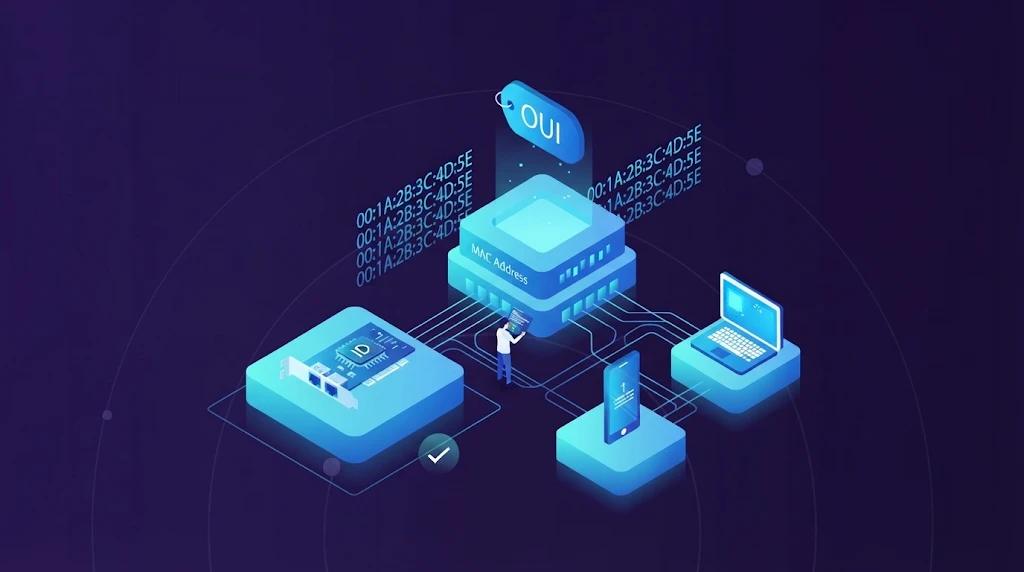
Learning how to change MAC address settings starts with one question: do you want to choose a specific address, or simply use a private address on Wi-Fi?
Some network adapters let you enter a custom MAC address. Other devices provide built-in randomization instead. The right method depends on your operating system, network adapter, and driver.
This guide explains what a MAC address change does, why you might need one, and how to make the change on Windows, Mac, Linux, Android, and iPhone. It also explains when your real task calls for a different public IP—and where IPFLY fits.
What Is MAC Address Spoofing?
Hardware MAC Addresses vs. Software Overrides
A MAC address identifies a network interface on a local network. It usually appears as six pairs of hexadecimal characters, such as:
02:6A:91:3C:7E:B4
Your Wi-Fi adapter and Ethernet adapter normally have separate addresses.
Manufacturers assign hardware addresses to network adapters. A software override makes a supported adapter use a different address when communicating on the network. This is commonly called MAC address spoofing.
The override usually leaves the factory address unchanged. Removing it allows the adapter to use its hardware address again.
Custom MAC Addresses vs. Randomized MAC Addresses
A custom MAC address is a value you choose and enter yourself. It can be useful when testing network rules or reproducing a connection issue.
A randomized MAC address is generated by your operating system. Depending on the platform and setting, it may remain stable for one network or change over time.
These methods serve different needs. Enabling a private address does not necessarily let you choose its value. It also does not mean the address changes every time you reconnect.
MAC Addresses vs. Public IP Addresses
Your MAC address works on the local network segment. Your public IP identifies the internet connection or service through which your traffic reaches a website.
Ordinary websites do not receive your network adapter’s MAC address through a normal browser connection. They can see your connection’s public IP and may recognize you through accounts, cookies, and browser signals.
A proxy changes the route of configured traffic. Our guide to what web proxies can and cannot do explains this separate role.
Changing a MAC address, changing a public IP, and managing browser data are distinct tasks.
Why Change Your MAC Address?
Reduce MAC-Based Tracking on Wi-Fi Networks
Using the same MAC address across networks can make it easier for network observers to connect activity to the same device.
Private Wi-Fi addresses reduce reliance on that fixed identifier. For everyday Wi-Fi privacy, your device’s built-in randomization is usually the simplest starting point.
This protection has limits. A network may still recognize your login, and a website may still recognize your account. MAC randomization does not encrypt your internet traffic or erase browsing data.
Test Network Settings and Troubleshoot Device Registration
On a network you manage, a custom address can help test how DHCP reservations, device registration, and access rules respond to a different interface identity.
For example, an administrator might test whether a registration system correctly detects a newly connected device.
Before changing anything, check whether updating the network record would solve the problem more directly. A new address can interrupt existing reservations or require the device to be registered again.
Know When a MAC Address Change Will Not Help
Changing your MAC address is unlikely to solve a task that depends on the public IP seen by a website.
If you need to check how your own site appears from another country, you need a suitable internet exit location. That is where using a proxy by country becomes relevant.
Browser state is another separate layer. A different network address does not clear existing cookies or account sessions. When a workflow involves browser profiles, understand how browser profiles and proxy connections work together without treating either as a guarantee that sessions cannot be linked.
What to Check Before You Change a MAC Address
Check Your Device and Adapter Support
Use this table to choose a starting point.
| Platform | Starting method | Can you enter a custom address? |
| Windows 11 and Windows 10 | Adapter properties or Wi-Fi randomization | Sometimes; depends on the adapter and driver |
| macOS | Private Wi-Fi Address on supported versions | Manual overrides require separate compatibility checks |
| Linux | ip link or NetworkManager | Often, subject to driver support |
| Android | Per-network randomized MAC setting | Usually unavailable through standard settings |
| iPhone and iPad | Private Wi-Fi Address | No arbitrary address field in standard settings |
Perform the change while you have local access to the device. Disabling the active adapter can disconnect a remote session.
Record Your Settings and Prepare a Valid MAC Address
Save the adapter name, its current address, and any existing custom or privacy settings. The current address may already be randomized, so do not assume it is the factory value.
If you need a custom address, use a valid locally administered unicast address. This means an address intended for local assignment to one interface.
For the examples below, we use:
02:6A:91:3C:7E:B4
This is an illustrative value. Do not assign it to multiple devices on the same local network. Different drivers may also impose their own address restrictions.
How to Change MAC Address on Different Devices
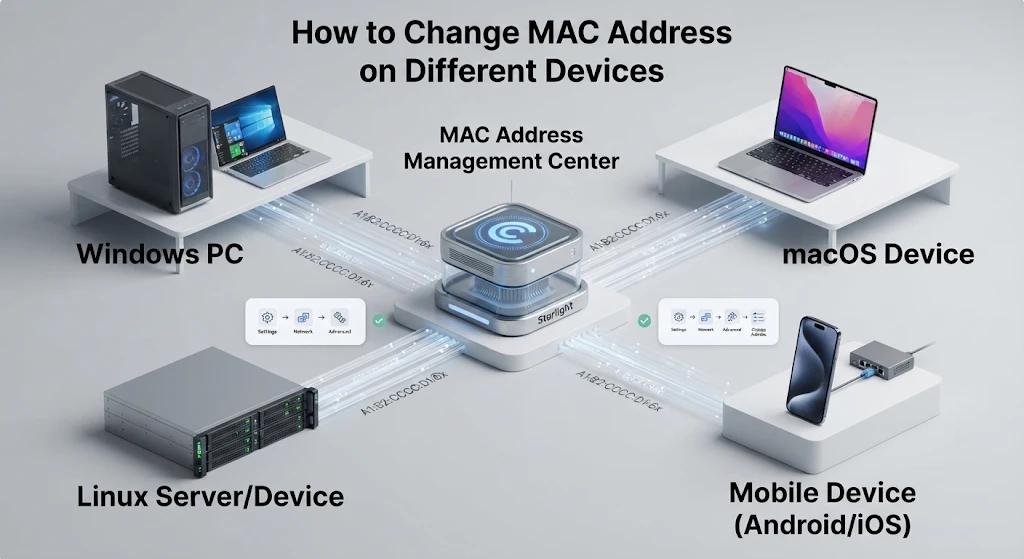
Change MAC Address on Windows 11 and Windows 10
Start by finding the adapter you actually use.
Open Command Prompt and run:
ipconfig /allFind the connected Wi-Fi or Ethernet adapter and record its Physical Address. Ignore disconnected adapters and virtual interfaces that are unrelated to your connection.
To enter a custom address on a supported adapter:
- Open Device Manager.
- Expand Network adapters.
- Right-click the adapter and select Properties.
- Open the Advanced tab.
- Look for Network Address or Locally Administered Address.
- Select the value field and enter the new address in the format required by the driver. A common format is 12 hexadecimal characters without separators:
026A913C7EB4. - Apply the setting. Disable and re-enable the adapter if needed.
This property is driver-dependent. For example, Intel documents a Locally Administered Address setting for supported Ethernet adapters.
To enable Wi-Fi randomization instead:
Open Settings → Network & internet → Wi-Fi, then enable Random hardware addresses if available.
For a specific saved network, open Manage known networks, select the network, and enable its random hardware address setting. Reconnect to apply it. Microsoft describes both controls in its Windows Wi-Fi guidance.
This Wi-Fi feature does not change an Ethernet address.
After reconnecting, run ipconfig /all again and compare the same adapter’s Physical Address.
To remove a manual override, return to the adapter property and choose Not Present, or the equivalent option provided by the driver. To undo a randomization change, restore the network’s previous privacy setting.
Change MAC Address on macOS
On macOS Sequoia 15 or later:
- Open System Settings → Wi-Fi.
- Open Details beside the network.
- Find Private Wi-Fi Address.
- Choose Off, Fixed, or Rotating.
Off uses the hardware address. Fixed keeps a private address for that network. Rotating changes the private address periodically; Apple currently specifies a two-week interval. See Apple’s private Wi-Fi address instructions.
For a custom address, first confirm support for your exact Mac, adapter, and macOS version. Older ifconfig tutorials are not a reliable universal method.
Check the address shown for the current Wi-Fi network after applying the setting. To undo the change, restore the previous option.
Change MAC Address on Linux
First, list your interfaces:
ip link showIdentify the interface used by your connection. The examples below use enp3s0; replace it with your actual interface name.
For a temporary change, run:
sudo ip link set dev enp3s0 down
sudo ip link set dev enp3s0 address 02:6a:91:3c:7e:b4
sudo ip link set dev enp3s0 up
ip link show dev enp3s0
Reconnect through your usual network manager if necessary. The address operation is documented in the ip-link manual. Your driver must support it, and a network manager may replace the temporary value.
For a Wi-Fi connection managed by NetworkManager, find its profile:
nmcli connection showThen set the profile’s address:
nmcli connection modify "My Wi-Fi" \
  802-11-wireless.cloned-mac-address 02:6a:91:3c:7e:b4
Replace "My Wi-Fi" with the real connection name. Reactivate that profile to apply the change.
You can also use random for a generated address on activation or stable for a stable generated value. These options are described in the NetworkManager wireless settings reference.
For Ethernet profiles, use 802-3-ethernet.cloned-mac-address instead.
Check the effective address with ip link show. To undo a profile change, restore its recorded previous value and reactivate it. On a supported interface, permanent requests the hardware address, but it may differ from your previous privacy configuration.
Change Wi-Fi MAC Address on Android
Most current Android devices offer a MAC privacy setting for each Wi-Fi network.
- Open Settings.
- Open Wi-Fi, usually under Network & internet or Connections.
- Select the network or its settings icon.
- Look for Privacy, MAC address type, or a similar option.
- Choose Randomized MAC or Use randomized MAC.
- Reconnect if prompted, then inspect the address in the network details.
Menu names vary by manufacturer.
Android can use persistent or non-persistent randomization. A persistent randomized address can remain the same for a saved network. Switching the setting or reconnecting does not guarantee a fresh value. The distinction is explained in Android’s MAC randomization documentation.
Standard settings usually do not let you enter an arbitrary address. For an exact custom value, check device-specific support rather than relying on a generic app.
To undo your change, return to the same network and restore its previous MAC setting.
Change Wi-Fi MAC Address on iPhone and iPad
Open Settings → Wi-Fi, tap the information button beside the network, then select Private Wi-Fi Address.
On iOS 18 and iPadOS 18 or later, choose Off, Fixed, or Rotating. Earlier supported versions provide an on/off switch.
Check the Wi-Fi address in that network’s details. These controls let the system manage the address; they do not provide a field for an arbitrary custom value.
To undo the change, restore the previous option. Turning the feature off exposes the hardware address to that network. Apple provides the version-specific steps in its official instructions.
Why Your MAC Address Change Is Not Working
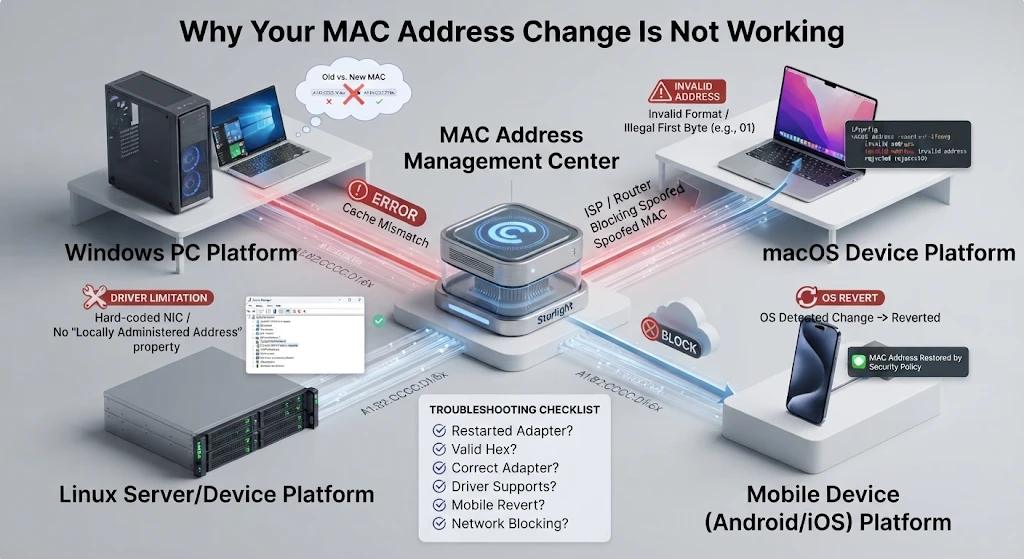
The Setting Is Missing or the New Address Is Rejected
First, confirm that you selected the correct physical adapter.
Next, check the address format. A driver may expect 12 hexadecimal characters without colons or hyphens. An invalid address or an unsupported value can be rejected.
If the setting is absent, check the adapter manufacturer’s documentation. A missing option can reflect a driver or hardware limit.
A MAC address changer may simplify supported Windows overrides, but it cannot guarantee support where the driver lacks it. Technitium’s official page explains its registry-based method and provides a restore function. Check its stated system support before installing it.
The MAC Address Reverts After Reconnecting or Restarting
A temporary command may last only until the interface resets. A saved network profile may also reapply a different address when the connection starts.
Check which component controls the interface:
- On Windows, inspect the adapter override and Wi-Fi randomization settings.
- On Linux, inspect the active NetworkManager profile.
- On Apple and Android devices, inspect the privacy setting for that network.
Use the saved configuration that matches your goal. Avoid applying several address-changing methods at once, since that makes the result harder to explain.
The Device Loses Network Access After the Change
A changed address can cause the network to treat your device as a new client.
Check for an address conflict, an old DHCP reservation, or a device registration tied to the previous address. Reconnect so the device can request network settings again.
If the problem started immediately after the change, restore the original configuration first. On a managed network, ask the administrator to update the registration rather than copying another device’s address.
Need a Different Public IP? How Emadar Complements a MAC Address Change
Choose Emadar for Tasks That Require a Different Exit IP
Once you understand how to change MAC address settings, the next step is deciding whether that change meets your goal.
For local Wi-Fi privacy, a private MAC address may be enough. For checking a website through a different internet exit location, you need a separate connection method.
IPFLY rotating residential proxies provide residential exit IPs with location selection and rotation options. They support HTTP(S) and SOCKS5 connections.
These features can support tasks such as checking regional versions of your own pages, verifying ad placement, or conducting market research. Choose the location and session behavior required by the task. A sticky session can help preserve continuity for a limited period, but it should not be treated as a permanent IP.
You do not need to change your MAC address before using a proxy. The two settings work at different layers. Our guide to using residential proxies covers the broader setup process.
Configure Your Application to Use an Emadar Proxy
Use the connection details supplied for your current IPFLY plan:
- Copy the proxy hostname or IP, port, and authentication details.
- Select the required location and session options, where available.
- Open the proxy settings in the application that will perform the task.
- Select a protocol supported by both the application and your endpoint.
- Enter the supplied connection details and save.
- Run a small connection test before starting the full task.
Use your actual dashboard values. Example hostnames and ports from older tutorials may not match your service.
If the application supports SOCKS5, our SOCKS5 configuration guide explains the main setup fields. SOCKS5 alone does not encrypt traffic; continue using HTTPS for sensitive web connections.
Verify Your Proxy IP and Understand Its Limits
Check the public IP from inside the same application you configured. Confirm that the address and reported location fit your task. Location databases can disagree, so a city label alone is not proof that every website will classify the connection identically.
Only traffic routed through the proxy uses its exit IP. Other applications may continue using your normal connection.
IPFLY does not change your network adapter’s MAC address. It also does not remove cookies, change account history, or automatically alter browser fingerprints. Test the full workflow with these limits in mind.
FAQs About Changing a MAC Address
Does Each Network Adapter Have Its Own MAC Address?
Each Ethernet or Wi-Fi interface normally has its own MAC address. A laptop’s built-in Wi-Fi, Ethernet port, and USB network adapter can therefore show different values. Virtual interfaces may have software-assigned addresses.
Does Replacing a Network Adapter Change Its MAC Address?
A replacement adapter normally comes with a different factory address. An existing software override or privacy setting may still affect the address used by the operating system, so check the active value after installing it.
Will Changing My Wi-Fi MAC Address Affect Bluetooth?
A Wi-Fi MAC setting normally applies to the Wi-Fi interface. It does not change Bluetooth’s address settings, even when both functions are built into the same physical card.
Can Changing a MAC Address Improve Internet Speed?
It is not a general speed improvement method. A speed problem is more likely to involve signal quality, interference, network load, connection limits, or the internet service itself. Diagnose those factors before changing interface identity.
Will a Factory Reset Restore the Original MAC Address?
The hardware address normally remains with the adapter. A reset may remove software overrides or cause the system to generate new private addresses. The result depends on the device and the kind of reset performed; a full factory reset is unnecessary for undoing most MAC changes.
Click to get High-Quality IP Global ProxiesConclusion
The right approach to how to change MAC address settings depends on your device and purpose. Use built-in privacy controls for routine Wi-Fi privacy, use supported custom overrides for network testing, and verify the result after reconnecting. If your task requires a different public exit IP, explore IPFLY’s residential proxy options and test a configuration that fits your location and session needs.