Use Case
The Best Way to Change Your iPhone’s IP Address for Privacy & Access
Your iPhone is your window to the digital world, but its IP address can sometimes feel like a limitation. It can expose your location and be the reason you…
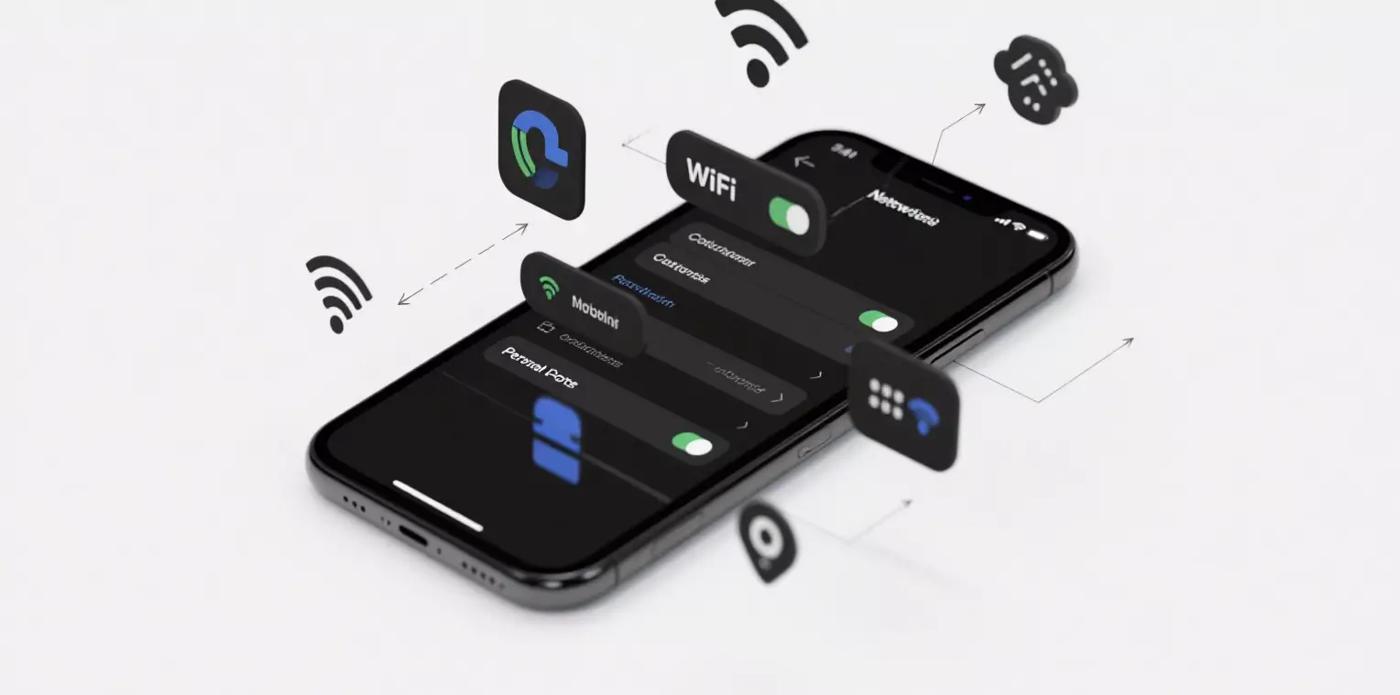
Your iPhone is your window to the digital world, but its IP address can sometimes feel like a limitation. It can expose your location and be the reason you can’t access a favorite streaming app from back home or a specific website. Understanding how to change your IP address is key to a more private and unrestricted mobile experience.
First, Understanding the Basics
You might have heard of simple tricks like toggling Airplane Mode or restarting your router.
What this does: This can sometimes assign you a new IP address from your Internet Service Provider’s (ISP) local pool.
What it doesn’t do: It does not change your geographical location. Your new IP will still be linked to your area, and it won’t help you bypass regional content blocks or significantly enhance your privacy.
For true control, you need a method that can change your virtual location entirely.
The Superior Method: Using a Secure Proxy Server
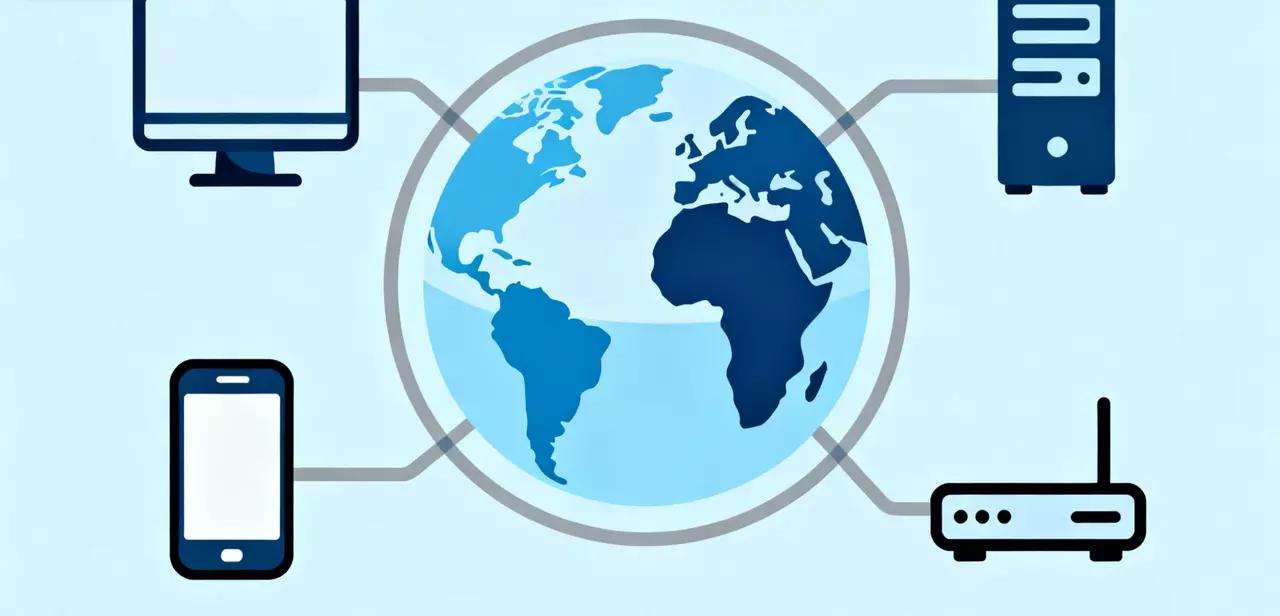
A proxy server acts as a secure intermediary for your iPhone’s internet traffic. It’s like giving your device a digital passport to another city or country. When you connect through a proxy, websites and apps see the proxy’s IP address and location, not your own.
Why a proxy is the best choice for your iPhone:
Total Location Control: Choose a server from a specific country to access its content.
Enhanced Privacy: Mask your real IP address from websites, trackers, and snoopers on public networks.
Bypass Restrictions: Overcome geo-blocks on streaming services, apps, and websites.
Step-by-Step: How to Set Up a Proxy on Your iPhone with Emadar
Configuring a proxy on iOS is straightforward. To do this, you need the server details from a reliable proxy provider. We’ll use IPFLY as our example, as their service provides the exact information needed.
1.Get Your Proxy Details:
First, sign up for a service like IPFLY. In your user dashboard, you will find the necessary details:
- Server Address (e.g.,
gw.ipfly.com) - Port Number (e.g.,
8080) - Username and Password for authentication.
2.Open iPhone Settings:
Go to Settings > Wi-Fi on your iPhone.
3.Select Your Network:
Tap the blue “i” icon next to the Wi-Fi network you are currently connected to.
4.Configure Proxy:
Scroll to the bottom and tap on Configure Proxy.
5.Enter the Details:
- Select Manual.
- In the Server field, enter the address provided by IPFLY.
- In the Port field, enter the corresponding port number.
- Turn on the Authentication toggle.
- Enter the Username and Password you received from IPFLY.
6.Save Your Settings:
Tap Save at the top right.
Your iPhone’s traffic on this Wi-Fi network will now be routed securely through your IPFLY proxy server. Websites and apps will see you as being in the location of the server you chose.
Pro-Tip: Choosing the Right Proxy for a Smooth Mobile Experience
For an iPhone, performance is key. You want smooth streaming and fast Browse. When selecting a proxy provider, prioritize one that offers:
High-Speed Connections: To avoid buffering on videos or slow page loads.
Residential IPs: Services like IPFLY offer residential proxies, which are highly effective because they appear as genuine, local users, making them less likely to be blocked.
Strong Security: Ensure your mobile data is encrypted and protected.
Take Control of Your Digital Identity
While simple network tricks offer a superficial IP refresh, they don’t provide real privacy or freedom. To truly change your iPhone’s IP address and unlock a more secure and open internet, using a proxy service is the definitive method. By leveraging a high-quality provider like IPFLY, you can easily configure your device to appear from virtually anywhere in the world, all while protecting your valuable data.