
You open an Amazon product page or try to check out, but instead of the page you expect you see the message: “Sorry, something went wrong on our end.” The message gives no details about the cause, leaving you uncertain whether to wait, try again, or change a setting on your device.
This error can result from several different issues. Below is a clear, practical guide that explains what that message means, lists the most common causes, and walks through step-by-step fixes. If you use a proxy for Amazon research or seller work, you’ll also find specific checks and best practices to reduce repeated errors.
What Does “Sorry, Something Went Wrong on Our End” Mean on Amazon?
Amazon’s “Sorry, something went wrong on our end” message simply indicates that the page you requested could not load or complete the requested action. You can encounter it on a product page, in your cart, during checkout, or when opening account-related pages. Because the error page often shows a photo of a dog, many people call it the “Amazon dog page.”
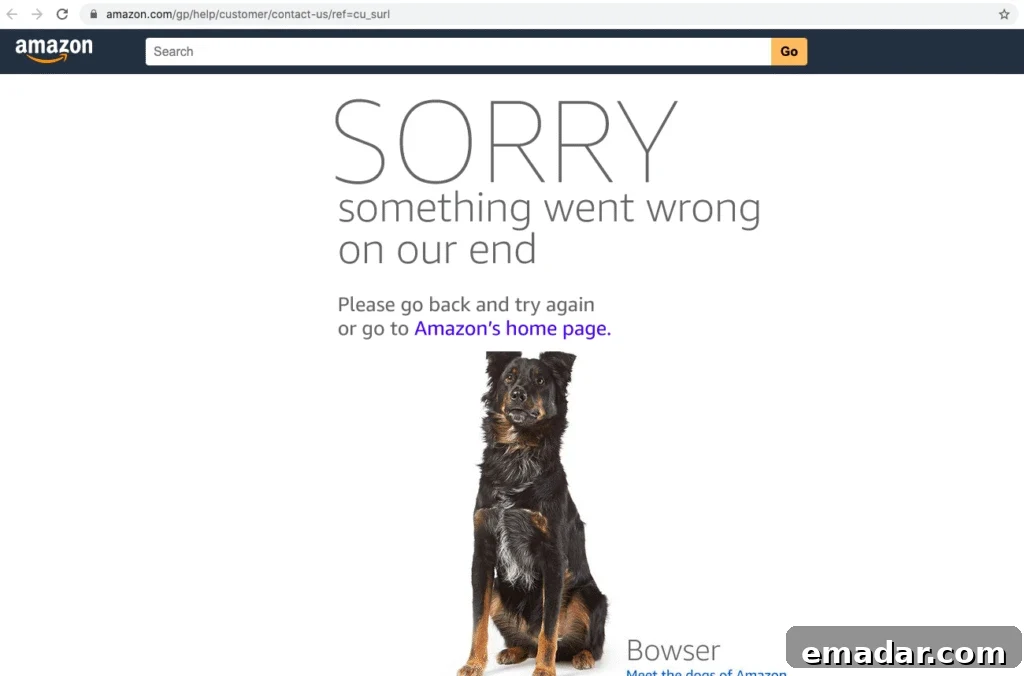
The message does not identify a precise cause. Amazon could be experiencing a temporary problem, the specific product link may have moved or become unavailable, or something in your browser, device, or network may be interfering. In some cases, access or configuration restrictions can also trigger the error. But the error alone is not proof that your IP address has been blocked.
Why Does Amazon Keep Saying “Something Went Wrong on Our End”?
The same Amazon error page can appear for different reasons. Recognizing the common triggers helps you narrow down the cause before attempting a fix. Typical causes include:
- Temporary Amazon issue. Amazon may be experiencing internal errors that prevent pages from loading or actions from completing. In this case, changing local settings may not help.
- Broken or outdated link. Product listings sometimes move, get removed, or their URLs change. One product page can fail while the rest of the site works normally.
- Browser or sign-in session problems. Corrupt cookies, expired sessions, or outdated cached data can interfere with how Amazon serves pages, especially when you are signed in.
- Connection, VPN, or proxy issues. An unstable internet connection, a misconfigured VPN, or an unreliable proxy can prevent requests from reaching Amazon or returning valid responses.
- High request volume or rate limits. If automated tools or rapid repeated requests access Amazon pages, the request pattern may trigger security checks or access limits. The error page alone does not confirm a rate limit, but it can appear in such scenarios.
How to Fix Amazon’s “Something Went Wrong on Our End” Error
When Amazon repeatedly shows this message, start with basic checks and proceed step by step. Try each action and stop once the site loads correctly again.
- Refresh the page and verify the link
Reload the page once. If you landed on a product page from an external link, go to Amazon’s homepage and search for the item instead of reopening the same link. If other pages load but that product page does not, the listing or URL is likely the issue.
- Wait a few minutes
Try opening a different Amazon page or check the same page on another device. If the error appears across multiple devices, the problem is likely on Amazon’s side. Pause briefly and try again, especially if the error occurred during checkout. Before placing a duplicate order, check Your Orders to see whether the first attempt succeeded.
- Use a private window or a different browser
Open Amazon in a private or incognito browsing session. If the page works there, something in your normal browser session—cookies, extensions, or cached data—may be causing the problem. Trying a different browser can also isolate browser-specific issues.
- Clear Amazon site data
If Amazon works in a private window but not in your regular browser, clear cookies and cached site data for Amazon in your browser settings, then sign back in. Clearing cookies will sign you out, so ensure you can access your account credentials before doing this.
- Update your browser or the Amazon app
Install any available updates and restart your browser. If the error appears in the Amazon Shopping app, update the app through your device’s app store and then reopen it. If Amazon works in a browser but not in the app, the problem is likely app-specific.
- Compare different network connections
Test the same Amazon page on another network, for example, switch from Wi‑Fi to mobile data. If you use a VPN or proxy, try without it. If the page loads on one connection but not another, the issue is related to the network or its configuration rather than to the Amazon site itself.
- Contact Amazon customer support when required
If you cannot access your account, complete checkout, or confirm whether an order was placed, contact Amazon Customer Service. Explain which page showed the error, when it happened, and what troubleshooting steps you already tried.
Still Getting the Amazon Error While Using a Proxy?
If the error appears when using a proxy, first verify the proxy connection itself. A proxy connection error and Amazon’s error page reflect issues at different stages of the request, so they require distinct checks.
Check the proxy connection first
Ensure proxy host, port, username, and password match the details provided by your proxy service. If your browser or tool cannot connect through the proxy, you may be facing a proxy connection error. Confirm the proxy connection before troubleshooting the Amazon error.
Compare the same Amazon page with and without the proxy
Open the identical Amazon URL on the same country site using your normal connection, then try it through the proxy. If the page works directly but repeatedly fails through the proxy, review the proxy’s location and configuration. If the error appears on both connections, the problem is likely not with the proxy.
Match the proxy setup to your workflow
How you use Amazon affects the best proxy approach:
- Sellers or workflows that require a persistent login: A stable, consistent IP is often preferable to frequent rotations. Choose a proxy or service designed for IP consistency for seller operations or long sessions.
- Research across regions or high-volume public page checks: Location selection and request patterns become more important. Rotating residential IPs and respecting reasonable request rates can reduce errors and security responses.
A proxy can help if the problem is specific to your current connection, but it will not fix broken links or an Amazon-wide outage. Use the comparison steps above to narrow down the cause before changing proxy configurations.
How to Reduce Repeat Errors in Amazon Research Workflows
If you frequently check public Amazon pages, adopt a few habits to diagnose recurring errors effectively:
- Record each failure. Log the URL, time, Amazon country site, connection used, and whether other pages loaded. Patterns in these details reveal causes more quickly than treating each failure as unique.
- Start with small batches. Test a limited number of pages before scaling to high volumes. If errors increase with volume, review timing and request rates rather than simply retrying failed pages.
- Change one variable at a time. When testing direct versus proxy access, keep all other settings identical so you can clearly attribute any change in behavior to the variable you modified.
- Differentiate page failures from connection failures. Confirm whether other pages succeed on the same connection. A connection failure needs different troubleshooting than a specific Amazon page error.
These practices help identify recurring issues, but they cannot guarantee uninterrupted access. Follow Amazon’s terms and consider official data sources when available for sustained research needs.
Conclusion
If Amazon keeps showing “Something went wrong on our end,” begin by checking the page and its link, then verify your browser and network. The message has multiple possible causes and does not by itself indicate that your account or IP has been blocked. If you use a proxy for Amazon research or selling, confirm the proxy connects properly and choose a configuration suited to your task.
Frequently Asked Questions
Why do I keep getting “Sorry, something went wrong on our end” on Amazon?
The message can appear when Amazon cannot load a page or complete an action. Causes include a temporary Amazon issue, a broken link, a browser session problem, or a network or proxy issue. The message alone does not identify the exact cause.
Does this Amazon error mean my IP address is blocked?
No. That error page is not proof of an IP block. If the issue occurs only on one connection, test the same page on a different connection to narrow down the cause.
Why does Amazon work on my phone but not my computer?
Phones and computers may use different browsers, cached data, apps, or network connections. If Amazon works on one device, try a private window on the other to determine whether the issue is tied to the browser session or network.
Can a proxy fix Amazon’s “Something went wrong” error?
A proxy may help only if the issue is specific to your current connection. It will not fix a broken product link or an Amazon-wide outage. If you use a proxy, confirm it connects correctly and compare the same page with and without the proxy before altering your setup.
What should I do if the error appears during checkout?
Before re-ordering, check Your Orders to see whether the order went through. If no order appears, wait a short time and retry checkout. If the error persists or you cannot confirm the order status, contact Amazon Customer Service for assistance.