
When you open an Amazon product page or try to check out and instead of the expected content see a message like “Sorry, something went wrong,” it can be unclear what went wrong or whether you should wait or change something on your device.
This error can have many causes. Below, we explain what that message means, walk through practical troubleshooting steps, and outline what to check if you are using a proxy while researching Amazon or working as a seller.
What does Amazon’s “Sorry, something went wrong” mean?
Amazon’s “Sorry, something went wrong” message means the page you requested could not be loaded or the action you attempted could not be completed. You might encounter it on a product page, in the cart, during checkout, or when opening your account page. Because the error page frequently shows a picture of a dog, many users informally call it the “Amazon dog page.”
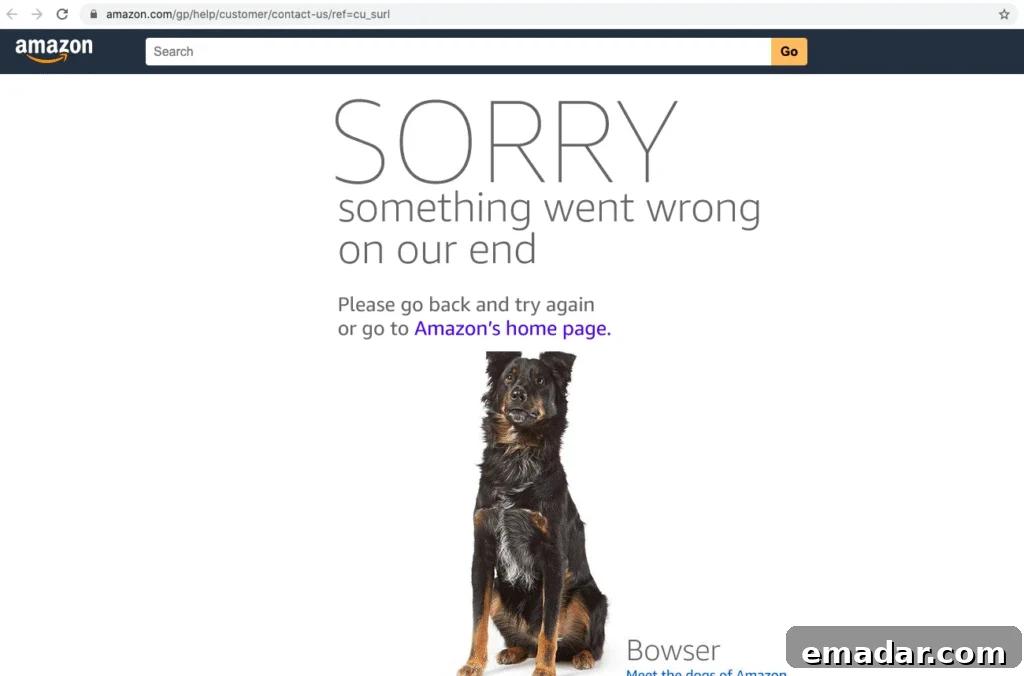
The message alone does not identify the underlying cause. Amazon could be experiencing a temporary service issue, the URL may be outdated or broken, or something in your browser or network could be interfering with the request. In some cases, access restrictions are involved. However, the message by itself does not prove that your IP address has been blocked.
Why does Amazon keep showing “Sorry, something went wrong”?
The same Amazon error page can appear for several different reasons. Understanding the possibilities helps you narrow down the cause before you attempt fixes. Common reasons include:
- Temporary Amazon outage. Amazon may be having trouble rendering pages or processing certain actions, such as opening your cart or completing checkout. If the issue is on Amazon’s end, changing your browser settings won’t help.
- Broken or outdated links. A product page may have been moved or removed, or the URL might contain an error. In this case, other parts of Amazon may work while a specific page remains inaccessible.
- Browser or session problems. Stale cookies, cached data, or expired login sessions can prevent pages from loading correctly, especially when you are signed in.
- Network, VPN, or proxy issues. An unstable connection or a misconfigured VPN/proxy can prevent your request from reaching Amazon as expected. The error message alone cannot reveal which part of the connection failed.
- Excessive requests in a short time. Tools or scripts that repeatedly access Amazon pages can trigger rate limits or security checks. This occurs more frequently in automated research workflows than in ordinary shopping, and the generic error message does not confirm that you hit a rate limit.
How to fix Amazon’s “Our system ran into a problem” error
If Amazon keeps showing “Our system ran into a problem,” start with the simplest troubleshooting steps. The message doesn’t specify a cause, so try the steps below in order and stop once the page works again.
- Refresh the page and check the link
Reload the page once. If the problem appears on a product page, search for the product from Amazon’s home page instead of reopening the same URL. If other pages load normally but one product page does not, the issue is likely with that link or product listing.
- Give Amazon a few minutes
Try opening another Amazon page or check the same page from a different device. If multiple pages fail on different devices, the problem is likely on Amazon’s side. Wait a few minutes and try again—especially during checkout. Before attempting another purchase, check Your Orders to see if the first attempt succeeded.
- Open an incognito window or try a different browser
Open Amazon in an incognito/private window. If the page loads there, something in your normal browser session is interfering. You can also test a different browser to determine whether the problem is limited to the browser you usually use.
- Clear Amazon site data
If Amazon works in private mode but not in your regular browser, clear Amazon’s cookies and cached site data in your browser settings, then sign in again. Clearing cookies will log you out, so ensure you can access your account credentials before doing this.
- Update your browser or the Amazon shopping app
Install any available updates and restart the browser. If you’re using the Amazon app, update it via your device’s app store, then close and reopen it. If Amazon works in the browser but not in the app, the issue may be app-specific.
- Compare network connections
Test the same Amazon page using a different network—for example, switch from Wi‑Fi to mobile data. If you use a VPN or proxy, check whether the error occurs without them. If a page loads on one network but not another, you likely face a connection or configuration problem; this does not by itself prove Amazon blocked an IP address.
- Contact Amazon if account or order issues persist
If you still cannot access your account, complete checkout, or verify whether an order went through, contact Amazon customer service. Tell them which page showed the error, when it happened, and which troubleshooting steps you already tried.
Still seeing the error while using a proxy?
If you encounter the error while using a proxy, first verify that the proxy itself connects successfully. Proxy connection errors and Amazon’s “Sorry, something went wrong” page point to different parts of the request lifecycle, so they require different checks.
Check the proxy connection first
Make sure the proxy host, port, username, and password match the details in your provider’s control panel. If your browser or tool cannot connect through the proxy, you may be experiencing a proxy connection error. Confirm these settings before troubleshooting Amazon-specific issues.
If the proxy connects but Amazon returns the error page, you still cannot tell from the message whether the issue lies with the proxy, your browser session, the page itself, or a temporary Amazon outage.
Compare access with and without the proxy
Open the same Amazon country site and URL using your usual connection, then try again through the proxy. If direct access works but proxy access fails, check the proxy’s location and configuration. If both methods fail, switching proxies may not fix the problem.
If you are logged into Amazon during tests, avoid switching IP addresses repeatedly. A stable connection helps determine whether a specific change produced an effect.
Match the proxy to your Amazon workflow
Choose a network approach that fits how you use Amazon:
- For seller tasks that require staying logged in, a stable IP address is usually better than frequent rotation. Consistent IPs reduce the chance of session interruptions.
- For market research across regions, geographic diversity and controlled request patterns matter more. Use proxies that provide residential or regional IPs and keep request rates reasonable to avoid triggering security checks.
If the problem is limited to your current connection, a proxy may help. But a proxy cannot fix an invalid product link or widespread Amazon service issues. Use the comparison steps above to narrow the cause before changing proxy settings.
How to reduce repeated errors during Amazon research
If you frequently view public Amazon pages, adopting these habits makes recurring errors easier to diagnose:
- Log every failure. Record the URL, time, Amazon country site, connection type, and whether other pages loaded. When Amazon repeatedly shows “Sorry, something went wrong,” these details help identify patterns rather than treating every failed load as the same problem.
- Start small before increasing request volume. Test a few pages first. If errors increase when you scale up, pause and examine your workflow timing. Repeatedly retrying failed pages can add traffic without revealing the root cause.
- Change only one thing at a time. When comparing direct access and proxy access, test the same page on the same country site without changing other settings. That makes it easier to see which change affected the result.
- Distinguish page errors from connection errors. Verify whether the same connection can reach other Amazon pages. Troubleshooting differs depending on whether the issue is the connection or the specific page.
These practices help you diagnose recurring errors, though they cannot guarantee uninterrupted access. Follow Amazon’s terms and, when available, prioritize official data sources for research.
Conclusion
If Amazon keeps displaying “Our system ran into a problem,” check the specific page first, then review your browser and network. The message can have multiple causes and does not by itself indicate that your account or IP address has been blocked.
If you use a proxy for Amazon research or seller tasks, confirm the proxy connects correctly and choose a configuration that fits your workflow. If a proxy fails, consider switching to a provider or plan that matches your stability and geographic needs.
Frequently Asked Questions
Why do I keep seeing “Sorry, something went wrong” on Amazon?
This message appears when Amazon cannot load a page or complete an action. Possible causes include temporary Amazon outages, broken links, browser session issues, or network problems. The message alone cannot identify the specific cause.
Does this Amazon error mean my IP is blocked?
No. The “Sorry, something went wrong” page does not prove your IP is blocked. If the error occurs only on one connection, test the same page from another connection to help narrow the cause.
Why does Amazon work on my phone but not on my computer?
Your phone and computer may use different browsers, cached data, apps, or network connections. If Amazon works on one device, try an incognito window on the other to see whether the issue is related to the browser session or network.
Can a proxy fix Amazon’s error message?
A proxy can help only if the problem is specific to your current network connection. It cannot fix broken product links or Amazon-wide issues. If you use a proxy, verify its connection and compare access with and without the proxy before changing settings.
What should I do if checkout fails?
Before trying to place the order again, check Your Orders to confirm whether the order was submitted. If no order is listed, wait a short while and try checkout again. If the error persists or you cannot confirm the order status, contact Amazon customer support for assistance.