
“Why can’t my iPhone open webpages or connect to Wi-Fi consistently?” “Am I being targeted by a hacker?” Don’t panic! You’ve most likely encountered issues related to an accidentally configured network proxy.
This comprehensive guide will walk you through **how to disable proxy settings on your Apple iPhone**, making it easy for even beginners to understand and resolve their internet connection problems.
Understanding Network Proxies: What Are They and How Do They Work?
At its core, a network proxy acts as an intermediary between your iPhone and the internet. Instead of your device connecting directly to a website or online service, it first sends your request to the proxy server. The proxy then forwards that request to the destination server, receives the response, and finally relays it back to your iPhone. Think of it as sending your mail through a postal service instead of directly delivering it yourself; the postal service (proxy) handles the forwarding.
Users often configure proxies for various reasons, such as enhancing privacy, bypassing geo-restrictions to access content unavailable in their region (like certain streaming services or apps), improving security on public Wi-Fi networks, or even caching data to speed up subsequent requests. For instance, if you need to access international websites, utilize specific social media platforms like TikTok, ChatGPT, or X (formerly Twitter) that might be regionally restricted, or engage in cross-border e-commerce activities, a proxy can be an invaluable tool. It allows your iPhone to appear as if it’s browsing from a different geographical location, thus circumventing local content blocks.
However, when a proxy is incorrectly configured, left enabled by mistake, or points to a server that is slow or malicious, it can lead to a host of frustrating internet issues. These problems can range from a complete inability to access the internet, significantly slower browsing speeds, to specific applications like the App Store or popular social media apps failing to connect. It’s crucial to understand that while proxies offer benefits, a mismanaged proxy can severely degrade your online experience and potentially expose you to security risks.
How to Identify if Your iPhone is Using a Proxy Server
Before proceeding with disabling a proxy, it’s wise to confirm whether one is actually active on your device. This diagnostic step is quick and straightforward, requiring only a few taps within your iPhone’s settings. Identifying an active proxy can save you time and help pinpoint the root cause of your connectivity woes.
Step One: Navigate to Your Wi-Fi Settings
Begin by unlocking your iPhone and opening the “Settings” application. This is typically represented by a gear icon on your home screen. Once inside “Settings,” locate and tap on “Wi-Fi” (or “WLAN” in some regions). Here, you will see a list of available Wi-Fi networks, with the one your iPhone is currently connected to at the top. To view its specific network details, tap the “ⓘ” (information) icon situated to the right of your active Wi-Fi network’s name.
Step Two: Examine the “Configure Proxy” Section
After tapping the “ⓘ” icon, you will be directed to a detailed page displaying various network settings for your connected Wi-Fi. Scroll down to the very bottom of this page until you find the section labeled “CONFIGURE PROXY.” This is the critical area where you’ll determine your proxy status.
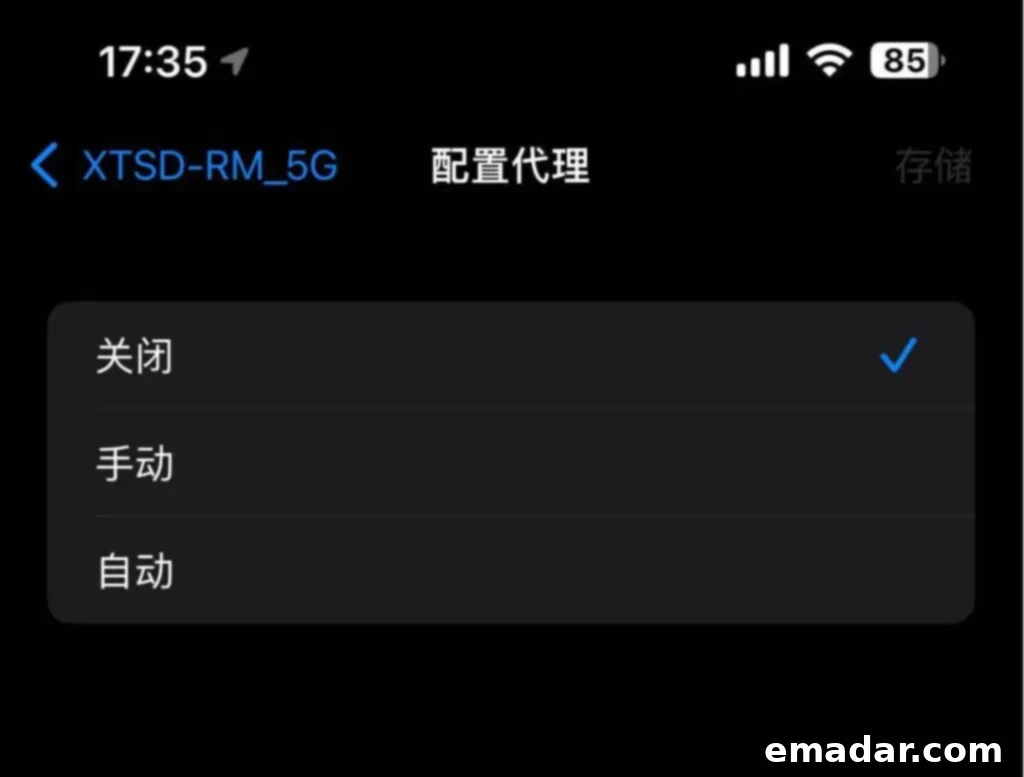
Observe what is displayed under “CONFIGURE PROXY.” If it shows “Off,” then no proxy is currently active for this Wi-Fi network, and your internet issues are likely stemming from another cause. However, if you see either “Automatic” or “Manual” selected, it indicates that a proxy is indeed configured. If “Manual” is chosen, you will typically see specific fields containing a server address and port number, which are the details of the proxy server your iPhone is attempting to use. If “Automatic” is selected, it usually means your device is trying to fetch proxy configuration from a URL (often a PAC file). Either of these states, “Automatic” or “Manual,” suggests that an active proxy could be interfering with your internet connection.

Simple Steps to Disable Your iPhone’s Network Proxy
If your diagnostic check confirmed an active proxy and you suspect it’s the culprit behind your internet woes, don’t worry—disabling it is incredibly straightforward. Follow these three simple steps to restore your direct internet connection and often resolve common connectivity problems.
✅ Step One: Access Wi-Fi Settings for Your Connected Network
Start by going to your iPhone’s “Settings” app from your home screen. From there, tap on “Wi-Fi” to view your network connections. Identify the Wi-Fi network you are currently connected to (it will have a checkmark next to it). Tap the “ⓘ” (information) icon located on the right side of that Wi-Fi network’s name. This action will take you to the detailed settings page for that specific network, where you can modify advanced options like proxy configurations.
✅ Step Two: Locate the “Configure Proxy” Section
Once you are on the detailed Wi-Fi network settings page, scroll down towards the bottom. You will find a distinct section labeled “CONFIGURE PROXY.” This is the section you need to interact with to manage your proxy settings. It will currently show either “Automatic,” “Manual,” or “Off.” If it’s anything other than “Off,” it means a proxy is active.
✅ Step Three: Set the Proxy Configuration to “Off”
Tap on the “CONFIGURE PROXY” option. You will be presented with three choices: “Off,” “Manual,” and “Automatic.” To disable any active proxy, simply select “Off.” Once you tap “Off,” the settings will be immediately applied. There’s no need to tap a “Save” or “Apply” button; the change is instant. This action will instruct your iPhone to stop using any intermediary server and connect directly to the internet through your chosen Wi-Fi network.
After successfully turning off the proxy, it’s a good idea to perform a quick test to ensure your internet connection has been restored. Go back to your iPhone’s home screen and try opening Safari or any other web browser. Attempt to visit a few websites. Also, try opening apps like the App Store, TikTok, or other services that might have been affected. If pages load quickly and apps connect successfully, you’ve resolved your proxy-related internet issues!
Frequently Asked Questions About iPhone Proxy Settings
Even after learning how to manage your proxy settings, you might have lingering questions. Here are answers to some common concerns regarding proxies on your iPhone:
| Question | Solution/Explanation |
| My webpages load very slowly; could it be a proxy issue? | Absolutely, slow browsing is a classic symptom of a poorly configured or overloaded proxy server. It’s highly recommended to disable the proxy and test your connection speed again. If the speed improves, the proxy was likely the cause. |
| I keep getting a “Cannot connect to server” error. Is this proxy-related? | Yes, this error frequently occurs when a proxy is misconfigured, pointing to a non-existent server, or if the proxy server itself is offline or blocked. Disabling the proxy will allow your iPhone to attempt a direct connection, often resolving this error. |
| Was the proxy set up by someone else on my iPhone? | While unlikely for personal devices unless shared, it’s a possibility, especially if you’ve connected to public Wi-Fi networks (e.g., in hotels, airports, or cafes). Some public networks automatically configure proxy settings to manage traffic or for security reasons. Always be cautious on public Wi-Fi and consider disabling proxies that are automatically set if you experience issues. If you suspect malicious activity, reset your network settings or consult a professional. |
| I can’t access the App Store or certain apps like TikTok. Why? | This is a common proxy-related problem. Many apps, especially those with stringent geographic restrictions or integrated payment systems, might fail to connect if they detect unusual routing via a proxy server, or if the proxy itself is blocking their necessary ports/servers. Disabling the proxy often resolves these app-specific connectivity issues. |
| Will disabling the proxy affect my privacy or security? | If you were using a trusted proxy for specific privacy or security reasons (e.g., on an untrusted public Wi-Fi), disabling it means your traffic will no longer be routed through that intermediary. For home networks, disabling the proxy typically poses no additional security risk and can actually improve performance. Always ensure you understand why a proxy was enabled before disabling it, especially in corporate or managed network environments. |
When to Utilize a Proxy and When to Avoid It
Proxies are powerful tools, but like any tool, they have specific use cases where they excel and situations where they should be avoided. Understanding these scenarios is key to maintaining a smooth and secure online experience on your iPhone.
✅ Suitable Scenarios for Using a Proxy:
Proxies offer distinct advantages in certain situations, particularly for advanced users or specific professional tasks:
- Accessing Geo-Restricted Content: If you need to use international services like TikTok, ChatGPT, X (Twitter), or other applications and websites that are restricted in your geographical region, a proxy can help bypass these blocks by making your device appear to be in a different location.
- Cross-Border E-commerce and Social Media Management: Businesses or individuals involved in cross-border e-commerce or managing multiple social media accounts (especially those with geographic targeting) often use proxies. This helps them simulate local access, test content for different regions, or manage multiple accounts without triggering security flags related to IP addresses.
- “Scientific Internet Access” or Content Collection: For research, data scraping, or accessing information that might be censored or unavailable through standard connections, proxies provide a gateway to a broader internet. This allows for comprehensive data collection and circumventing local firewalls.
- Enhanced Privacy and Anonymity: When browsing sensitive information or simply wishing to keep your IP address private from websites, a proxy can mask your true location and identity, adding a layer of anonymity to your online activities.
- Security on Untrusted Networks: In some cases, a properly configured and trusted proxy can add a layer of security by encrypting your traffic before it reaches the public internet, particularly useful on open Wi-Fi networks.
❌ Situations Where You Should Avoid Using a Proxy:
While beneficial, proxies can also introduce risks and complications if used improperly:
- General Daily Use: For everyday browsing, emailing, and using common apps, a proxy is generally unnecessary and can often slow down your connection or cause connectivity issues. Your regular internet connection is usually the most efficient and direct path.
- Unclear Proxy Configuration: If you don’t understand how a proxy is configured, or if the settings seem suspicious, it’s best to disable it. Incorrect configurations can lead to data leaks, connection failures, or inadvertently route your traffic through untrustworthy servers.
- Forced Configuration on Unfamiliar Wi-Fi: If you connect to an unfamiliar public Wi-Fi network (like in a hotel, airport, or cafe) and find that a proxy has been automatically configured without your consent or clear notification, proceed with extreme caution. Malicious public Wi-Fi networks might use proxies to intercept your data, monitor your activity, or inject ads. In such cases, it’s safer to disable the proxy or avoid using that network for sensitive activities.
- Untrusted Proxy Providers: Using free, unknown, or untrusted proxy services can expose your data to theft, introduce malware, or significantly compromise your privacy. Your internet traffic, including personal information, passes through these servers, making their trustworthiness paramount.
Important Tip: Always Prioritize Security and Compliance!
When you do need to use a proxy, it is paramount to use services from **legitimate and reputable proxy service providers**. Choosing a trusted provider ensures that your data is handled securely, your connection is stable, and you remain compliant with legal and ethical standards. Avoid free, public proxies as they often come with significant risks, including poor performance, security vulnerabilities, and potential data harvesting.
For example, if you are engaged in activities that genuinely require reliable and secure proxy services, consider providers like 👉 IPFLY. They offer a variety of proxy types that support iOS configuration, including dynamic residential IPs, static residential IPs, and data center proxies. IPFLY focuses on delivering pure, secure IPs that don’t leak information, catering to diverse needs like cross-border e-commerce and social media management. They even support **free trials**, allowing you to test their service’s quality and compatibility with your specific needs.
In Summary: Safeguard Your Online Experience
Improper proxy settings on your iPhone can disrupt your internet connection in an instant, leading to frustrating browsing experiences and app failures. Learning how to quickly disable an unwanted proxy is a fundamental skill for any iPhone user, ensuring a smooth online experience. Furthermore, when the need for a proxy arises, always remember to **choose a legitimate and reputable proxy provider to protect your account and personal information security**.
IPFLY stands out as a professional proxy service provider dedicated to the cross-border industry, offering robust solutions for various online needs:
- ✔ Extensive global coverage across 190+ countries;
- ✔ Supports static/dynamic residential proxies, native IPs, and data center proxies;
- ✔ Provides exclusive, pristine IPs for dedicated use, ensuring account safety;
- ✔ Guarantees no logs and high anonymity, with seamless integration for fingerprint browsers;
- ✔ Offers API docking support for easier batch configuration and management.
👉 Claim your offer today and get access to premium IPs for a superior online experience!