
Where to Find Proxy Settings in Different Browsers: A Comprehensive Guide
Optimizing your network environment often involves using proxy networks. However, a common challenge many users face is locating the browser proxy settings. The interface layout and functionality access points vary across different browsers, making the proxy settings location inconsistent. Many users spend considerable time searching for the exact entry point.
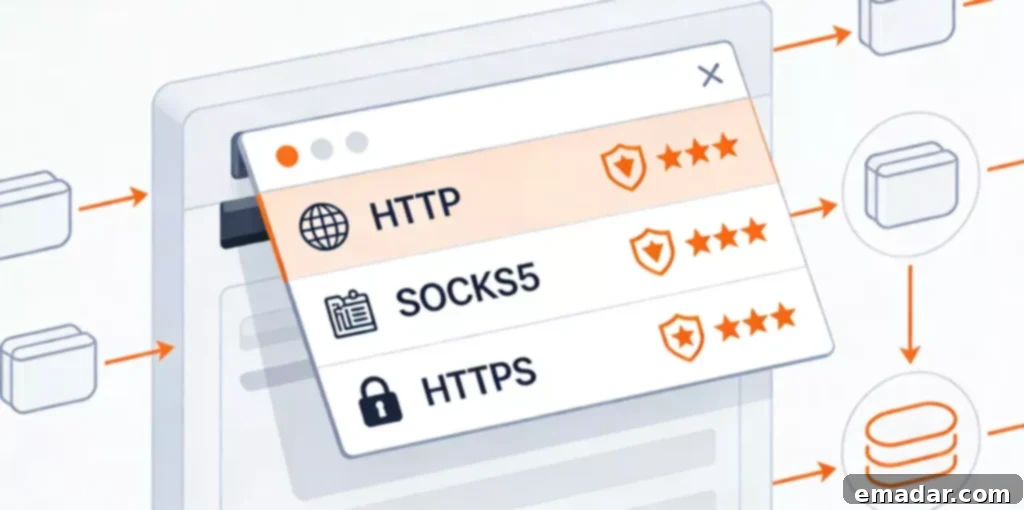
Comprehensive Guide to Browser Proxy Settings Locations
Chrome Browser: A Two-Step Guide to Finding Proxy Settings
Chrome, one of the most widely used browsers, hides its proxy settings within the deeper options of the settings menu. Here’s how to find it:
Step 1: Open Chrome, click the three dots (Customize and control Google Chrome) in the upper right corner, and select “Settings” from the drop-down menu. This will take you to the browser settings page.
Step 2: In the settings page’s left navigation bar, find and click “System.” Then, on the right side, click “Open your computer’s proxy settings.” This will directly redirect you to the system’s corresponding proxy settings interface, where you can configure the proxy parameters.
It’s important to note that Chrome itself doesn’t offer independent proxy parameter configuration. Clicking the option redirects you to the operating system’s proxy settings page. The interface varies between Windows and macOS, but the core settings remain consistent. To use a proxy network, configure the corresponding parameters in the redirected interface. For example, when using IPFLY’s proxy network service, accurately enter the IP address, port, and other information to ensure the settings take effect.
Configuring a proxy server within Chrome can enhance security, bypass geographical restrictions, and improve network performance. By routing your internet traffic through a proxy server, you can mask your IP address, making it more difficult for websites and online services to track your online activity. Furthermore, proxies can cache frequently accessed content, reducing bandwidth usage and improving loading times for web pages.
Edge Browser: Choose Between Two Routes to Find Proxy Settings
Edge, the default browser for Windows, offers two convenient paths to find the proxy settings, catering to different user preferences.
Path 1: Through browser settings. Open Edge, click the three dots in the upper right corner, select “Settings,” and click “System and performance” in the left navigation bar. Then, find the “Open your computer’s proxy settings” option on the right and click it to access the system proxy configuration interface.
Path 2: Through a quick command. Open Edge and directly enter “edge://settings/proxy” in the address bar, then press Enter. This will directly redirect you to the proxy settings page, significantly reducing search time.
Similar to Chrome, Edge’s proxy parameter configuration relies on the system interface. After setting up, close and reopen the browser to ensure the proxy settings take effect. When configuring a proxy network, choosing a stable proxy service is crucial. IPFLY’s proxy network service offers stable transmission links. When used with Edge, it effectively ensures smooth network access and reduces network fluctuations caused by improper proxy settings.
Proxy servers can also assist in accessing content that may be restricted in certain regions. By connecting through a proxy server located in a different country, you can bypass these restrictions and access the desired content. However, it is important to use reputable proxy services to avoid potential security risks associated with malicious proxies.
Firefox Browser: Independent Proxy Settings Interface
Firefox provides an independent proxy settings interface, eliminating the need to navigate to system settings, making finding and configuring easier. Here’s how:
Step 1: Open Firefox, click the three horizontal lines (menu button) in the upper right corner, and select “Settings.”
Step 2: In the left navigation bar, find the “General” option, then scroll down to the “Network Settings” section and click the “Settings” button. This will open the independent proxy configuration window.
In Firefox’s proxy configuration window, you can choose modes such as “No Proxy,” “Auto-detect proxy settings,” “Use system proxy settings,” or “Manual proxy configuration” based on your needs. If manual configuration is required, directly enter the proxy server address, port, and other parameters in the corresponding fields. After completing the settings, click “OK” to save. The settings take effect without restarting the browser. This independent setting mode is more flexible, suitable for users who frequently switch proxy states. When used with IPFLY, you can quickly complete parameter configuration, increasing operational efficiency.
Firefox’s independent proxy settings provide users with greater control over their network configuration. You can easily switch between different proxy servers or disable the proxy altogether, depending on your current needs. This flexibility is particularly useful for users who need to access different websites or services that may require different proxy settings.
Safari Browser: macOS Exclusive Search Path
Safari is exclusively available for macOS. Its proxy settings entry is deeply integrated with the system settings. Follow these steps:
Step 1: Open Safari, click “Safari” in the top menu bar, and select “Preferences” (or use the shortcut Command+,).
Step 2: In the pop-up settings window, click the “Advanced” tab, then click the “Change Settings” button at the bottom of the page. This will redirect you to the macOS system’s “Network” settings interface. In this interface, select the network you are currently using, click “Advanced,” and then switch to the “Proxies” tab to configure the proxy parameters.
Safari’s proxy settings need to be completed at the system level. During configuration, ensure a stable network connection to avoid parameter configuration errors caused by interruptions.
Configuring proxy settings in Safari can also improve your browsing experience. By using a proxy server, you can potentially reduce latency and improve loading times, especially when accessing websites located in different geographical regions.
Basic Precautions for Browser Proxy Settings
Preparation Before Setting Up
Before configuring browser proxy settings, prepare complete proxy parameters, including the proxy server address, port number, and protocol type. The parameters vary for different proxy network services, so obtain them accurately before configuration to avoid the proxy being unusable due to incorrect parameters. Also, disable the browser’s automatic proxy detection function to prevent the system from automatically modifying the proxy settings, which can affect the configuration effect.
Verification Method After Setting Up
After the proxy settings are complete, verify whether they are effective. The verification method is simple and convenient. Open the browser and visit a website to see if the network can connect normally. Alternatively, use an IP lookup tool to check if the current IP address matches the proxy server address. If it matches, the proxy settings are effective. If not, check whether the parameter configuration is correct, or restart the browser and reconnect to the proxy network before trying again.
Verifying your proxy settings ensures that your internet traffic is being routed through the proxy server as intended. This is crucial for maintaining privacy and security, as well as for accessing content that may be restricted in your region.
The Core Logic of Quickly Finding Proxy Settings
Although the proxy settings locations vary across different browsers, the core search logic remains consistent: all are accessed through the browser’s “Settings” entry, finding the “System,” “Network,” or “Advanced” related sections to locate the proxy settings function. Among them, Chrome, Edge, and Safari need to redirect to the system settings interface to complete the configuration, while Firefox has an independent configuration window.
Understanding this core logic can help you quickly locate the proxy settings in any browser, even if the specific interface layout differs. By familiarizing yourself with the general settings structure of your preferred browser, you can easily navigate to the proxy settings section and configure your proxy server as needed.
IPFLY Proxy:
- Stable nodes supporting 190+ countries and regions globally
- Second-level connection, unobstructed operation, simulating real home broadband scenarios