
In our increasingly connected and mobile-first world, smartphones and tablets have become our primary devices for consuming digital content. YouTube, in particular, dominates our daily commutes, coffee breaks, and downtime, serving as a constant source of entertainment, education, and news. However, the convenience of streaming on the go often clashes with network restrictions. Imagine settling down to watch your favorite creator or catch up on a trending video, only to be met with a frustrating “Video unavailable” message or a blank screen, all because the Wi-Fi network you’re connected to has blocked YouTube.
While switching to mobile data is always an option, it’s often a costly one. High-definition video streaming can quickly deplete data allowances, leading to unexpected charges or throttled speeds. This is precisely where the power of mobile proxies becomes indispensable. By skillfully configuring your phone’s Wi-Fi settings to route your internet traffic through a proxy server, you gain the ability to effortlessly bypass these network restrictions. This means you can enjoy uninterrupted access to YouTube on virtually any Wi-Fi network, without touching your precious mobile data allowance.
This comprehensive guide is designed to empower you with the knowledge and steps needed to seamlessly set up a proxy on both Android and iOS devices. We’ll meticulously cover everything from system-level proxy configurations that affect all apps to browser-specific adjustments, and even advanced techniques to optimize your streaming experience. Get ready to reclaim your mobile streaming freedom and watch YouTube whenever and wherever you choose.
Why YouTube Access is Often Blocked on Mobile Wi-Fi Networks
Before diving into the technicalities of setting up a proxy, it’s beneficial to understand the underlying reasons why YouTube and other streaming platforms are frequently restricted on various Wi-Fi networks. This context will help you appreciate the effectiveness of proxy solutions.
Educational and Corporate Network Restrictions
One of the most prevalent reasons for YouTube blocks is to minimize distractions in academic and professional environments. Educational institutions, such as schools and universities, and corporate offices often implement stringent network policies to enhance productivity, foster a focused learning or working environment, and prevent excessive bandwidth consumption. Streaming high-definition video uses a significant amount of network resources, which can slow down internet speeds for everyone, impacting critical operations.
These blocks are typically enforced at the router or firewall level, meaning they apply universally to all devices connected to that particular Wi-Fi network, including your personal smartphone, tablet, or laptop. The network administrator configures these restrictions to filter out specific websites or categories of content, making YouTube inaccessible regardless of the device you’re using.
Navigating Geo-Restrictions and Content Licensing
Beyond local network policies, another common hurdle for mobile YouTube viewers is geo-restriction. Content providers and rights holders often impose geographical restrictions due to licensing agreements. This means that certain videos, including popular music videos, TV shows, movies, live sports broadcasts, and exclusive content, are only made available in specific countries or regions.
If you’re traveling abroad, you might discover that your favorite content, which was readily available back home, is now inaccessible, even if you have a premium YouTube subscription. A proxy server effectively helps you circumvent these geographical barriers by masking your actual location. By routing your connection through a server in a different country, your device appears to be accessing YouTube from that location, thus unlocking geo-restricted content and allowing you to enjoy a truly global viewing experience.
The Swift Mobile Connectivity Test: Pinpointing the Problem
To accurately determine whether your YouTube access issues stem from a network block or a geo-restriction, a simple mobile test can provide immediate clarity:
- Disable Wi-Fi: Turn off the Wi-Fi connection on your smartphone or tablet. This will force your device to rely solely on its mobile data connection.
- Attempt to Load Video: Try to play the YouTube video that was previously blocked or unavailable.
- Analyze the Result: If the video loads and plays without any issues when using mobile data, it’s a clear indication that you are facing a Wi-Fi network restriction. In such cases, a proxy is an ideal and straightforward solution to bypass the block.
Conversely, if the video still fails to load or remains inaccessible even when you’re using your mobile data, the problem is likely not a simple network block. It could point to a geo-restriction specific to your current physical location, or it might be related to a device policy if you’re using a phone issued by your school or workplace, which might have its own set of application-level restrictions.
Understanding Mobile Proxies: Essentials for On-the-Go Streaming
While the fundamental principles of proxies remain consistent across all platforms, there are specific nuances to consider when utilizing them on mobile devices for optimal performance and reliability.
The Mechanism of Mobile Proxies Explained
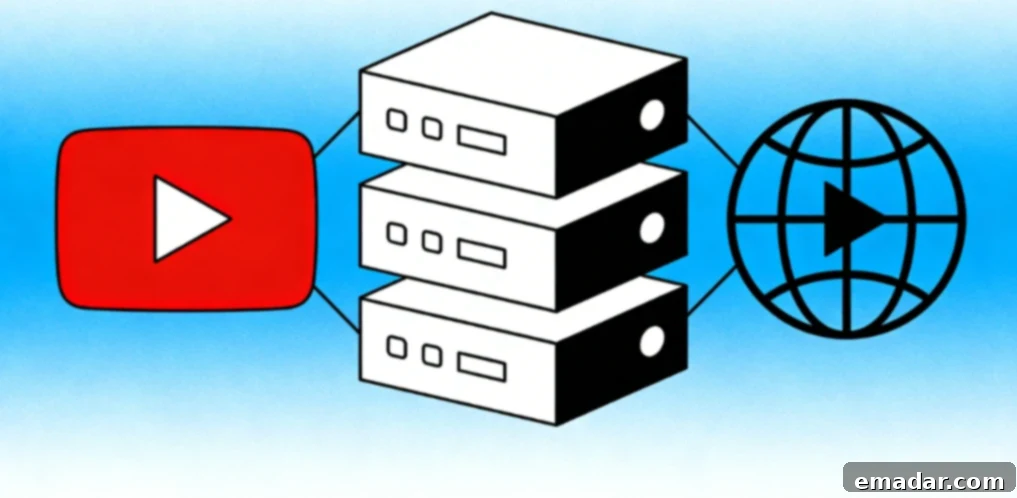
When you configure a proxy on your mobile device, you’re essentially redirecting your internet traffic. Instead of your phone communicating directly with YouTube’s servers, all data requests originating from your Wi-Fi connection – whether from the YouTube app, your mobile browser, or any other internet-dependent application – are first sent to the designated proxy server. The proxy server then forwards these requests to their intended destination (e.g., YouTube) and relays the responses back to your device.
From the perspective of your local Wi-Fi network administrator, all they observe is your phone establishing a connection with the proxy server. They cannot discern the content of this encrypted traffic or its ultimate destination. This effectively camouflages your activity, allowing you to access YouTube unnoticed and unblocked. It’s like sending your mail through a friend’s address before it reaches its final recipient; the local post office only sees mail going to your friend, not directly to your actual correspondent.
The Undeniable Advantage of Residential Proxies for Mobile YouTube Access
Just as with desktop usage, residential proxies stand out as the superior choice for seamless mobile YouTube access. The primary reason lies in their authenticity and inherent difficulty to detect. Data center proxies, which use IP addresses associated with commercial servers, are often flagged by sophisticated anti-proxy systems employed by platforms like YouTube. This detection can lead to frustrating experiences such as constant CAPTCHA challenges, outright blocked access, or even temporary account restrictions.
Residential proxies, in contrast, utilize IP addresses assigned by Internet Service Providers (ISPs) to genuine residential homes and legitimate mobile devices. This makes your connection appear indistinguishable from regular internet traffic originating from a real user’s home or smartphone. Consequently, residential proxies are significantly harder for YouTube’s detection algorithms to identify and block, ensuring a smooth, uninterrupted, and buffer-free streaming experience without drawing unwanted attention or triggering security measures.
IPFLY’s Tailored Mobile-Optimized Network for Unrivaled Performance
IPFLY’s expansive residential proxy network is meticulously engineered and specifically optimized to cater to the unique demands of mobile devices. With servers strategically distributed across more than 190 countries worldwide, we guarantee that you can always find a fast, low-latency connection point geographically close to your location, minimizing buffering and maximizing streaming quality.
We go a step further by offering dedicated mobile proxy endpoints, designed for effortless integration with both Android and iOS devices. This optimization ensures that whether you’re navigating through the intuitive YouTube app, browsing with Chrome or Safari, or using any other mobile browser, you’ll consistently enjoy a fluid, high-definition streaming experience. Our commitment to seamless performance means you can say goodbye to complex configurations and technical headaches, and simply immerse yourself in your favorite content.
Step-by-Step Android Proxy Setup Guide
Configuring a proxy server on an Android device is a straightforward process. However, due to the diversity of Android manufacturers and versions, the exact menu labels or icon placements might vary slightly. These instructions are generally applicable across most modern Android smartphones and tablets.
System-Wide Proxy Configuration for Comprehensive Coverage
This method configures the proxy for all Wi-Fi traffic on your Android device. This means that once set up, the proxy will route traffic for the YouTube app, all installed browsers, and any other applications that rely on your Wi-Fi connection.
- Access Settings: Open the “Settings” app on your Android device. This is usually represented by a gear icon.
- Navigate to Network & Internet: Tap on “Network & internet” or, on some devices, it might be labeled “Connections” or “Wi-Fi & internet.”
- Select Wi-Fi: Tap on “Wi-Fi” to view a list of available and connected networks.
- Manage Current Network: Locate the Wi-Fi network you are currently connected to. Tap the gear icon (or a small arrow) next to its name to access its settings.
- Edit Network Settings: Tap the “Edit” icon (often a pencil icon) in the top right corner of the screen to modify the network’s configuration.
- Expand Advanced Options: Look for and tap on “Advanced options” or “Advanced settings” to reveal more configuration choices.
- Locate Proxy Setting: Scroll down until you find the “Proxy” setting. Tap on it.
- Choose Manual Configuration: From the dropdown menu, select “Manual.” This allows you to input proxy details manually.
- Enter Proxy Details: Carefully enter the proxy hostname (server address) and the corresponding port number provided by your chosen proxy service (e.g., IPFLY).
- Authentication (if required): If your proxy service requires authentication, you will be prompted to enter your proxy username and password. Ensure these credentials are correct.
- Save Changes: Tap “Save” or “Connect” to apply the new proxy settings.
After saving, all your Wi-Fi-based internet traffic will now be routed through the specified proxy server. Open the YouTube app or your browser and try playing a video; it should now load without encountering any network restrictions.
Browser-Specific Proxy Setup for Targeted Use
If your goal is to use a proxy exclusively for web browsing, leaving other applications (like the YouTube app) to use your direct Wi-Fi connection, you’ll need a browser that supports its own internal proxy settings.
- Chrome for Android: Google Chrome on Android typically adheres to the system-level proxy settings. Therefore, if you configure a system-wide proxy, Chrome will automatically use it. For browser-specific proxy usage, you would need to explore alternative browsers.
- Firefox for Android: Mozilla Firefox for Android is an excellent choice for browser-only proxy configuration, as it offers independent internal proxy settings:
- Launch Firefox: Open the Firefox browser app on your Android device.
- Access Menu: Tap the menu button, usually represented by three vertical or horizontal dots, located in the top right or bottom right corner.
- Go to Settings: Select “Settings” from the menu.
- Find Network Settings: Scroll down to the “Advanced” section and tap on “Network Settings.”
- Choose Manual Proxy: Select the option for “Manual proxy configuration.”
- Input Proxy Details: Enter the proxy server address and port number as provided by your proxy service.
- Apply to All Protocols: Check the box that says “Use this proxy for all protocols” for broader coverage.
- Confirm: Tap “OK” or “Save” to apply these browser-specific proxy settings.
Troubleshooting Common Android Proxy Issues
- Proxy Not Functioning After Reconnection: Some Android versions or device manufacturers might not persistently save proxy settings after you disconnect and then reconnect to a Wi-Fi network. If you notice the proxy is no longer active, you may need to re-enter the settings each time you connect to that specific Wi-Fi network.
- YouTube App Compatibility: Older iterations of the YouTube app can sometimes exhibit compatibility issues with proxy servers. Ensure your YouTube app is updated to the latest version. If problems persist, consider using the YouTube mobile website directly through your browser as an alternative.
- Experiencing Slow Speeds: If video buffering or slow loading times become an issue, it could be due to the geographical distance to your proxy server. Try switching to a proxy server that is physically closer to your current location for improved latency and speed.
Step-by-Step iOS Proxy Setup Guide
Setting up a proxy on Apple’s iPhone or iPad is often regarded as even more straightforward than on Android, with a consistent process across various recent iOS versions.
Per-Network Wi-Fi Proxy Configuration on iOS
iOS handles proxy settings on a per-Wi-Fi network basis. This means that if you frequently connect to different Wi-Fi networks that block YouTube, you will need to configure the proxy settings for each individual network. The settings will be remembered for that specific network once configured.
- Open Settings: Launch the “Settings” app on your iPhone or iPad.
- Navigate to Wi-Fi: Tap on the “Wi-Fi” option from the main Settings menu.
- Select Network Information: Find the Wi-Fi network you are currently connected to. Tap the blue “i” icon (information icon) situated next to its name. This will open the network’s detailed settings.
- Configure HTTP Proxy: Scroll down to the “HTTP Proxy” section. Tap on “Configure Proxy.”
- Choose Manual: Select “Manual” from the available options.
- Input Server Address and Port: Enter the server address (hostname) and the port number precisely as provided by your proxy service (e.g., IPFLY).
- Enable Authentication (if applicable): If your proxy requires a username and password, toggle the “Authentication” switch to the ON position. Then, enter your proxy username and password in the respective fields.
- Save Changes: Tap “Save” in the top right corner of the screen to apply the new proxy configuration.
Upon saving, your iOS device will immediately begin routing all Wi-Fi traffic through the configured proxy server for that specific network. You can now open the YouTube app and enjoy unrestricted access to videos.
Proxy Usage with Safari and Chrome on iOS
Both Safari, Apple’s native browser, and Google Chrome for iOS are designed to utilize the system-level proxy settings configured for the Wi-Fi network. This means that once you have successfully set up the proxy within your Wi-Fi settings, it will automatically extend its functionality to both Safari and Chrome, allowing you to browse and stream through the proxy without any additional browser-specific configurations.
Should you require a distinct proxy for your browser compared to the rest of your device’s traffic, you would need to explore third-party browsers that incorporate their own independent proxy settings. However, for the vast majority of users, the unified system-level proxy configuration provides ample and effective coverage for all their mobile internet needs.
Essential iOS-Specific Proxy Tips
- Per-Network Configuration Reminder: Always remember that iOS proxy settings are specific to each Wi-Fi network. You will need to reconfigure these settings individually every time you connect to a new Wi-Fi network where you wish to use the proxy.
- Potential VPN Conflicts: If you have a Virtual Private Network (VPN) application active on your iOS device, it can override or conflict with your manually configured proxy settings. To ensure your proxy functions correctly, always make sure to disconnect or disable any active VPN connections before attempting to use a proxy.
- YouTube App Updates: Occasionally, significant updates to the YouTube app might introduce temporary compatibility issues with proxy servers. If you encounter problems after a recent app update, a viable workaround is to use the YouTube mobile website directly in Safari or Chrome until any potential proxy compatibility issues are resolved by subsequent app updates.
Advanced Mobile Proxy Techniques for Enhanced Streaming
Once you’ve mastered the basic proxy setup on your mobile device, exploring advanced tips can further optimize your streaming experience, especially when dealing with high-quality content or more sophisticated network blocks.
Leveraging SOCKS5 Proxies for Superior HD Streaming Performance
For users who frequently stream high-definition (HD) or even 4K video content on their mobile devices, transitioning from a standard HTTP/HTTPS proxy to a SOCKS5 proxy is highly recommended. SOCKS5 proxies operate at a lower level of the network stack, making them protocol-agnostic. This capability allows them to handle diverse types of network traffic, including large video data packets, with greater efficiency and less overhead.
The result of using SOCKS5 proxies is often a significant improvement in streaming speeds, leading to reduced buffering and a smoother overall viewing experience for demanding video content. IPFLY’s advanced SOCKS5 proxies are fully compatible with both Android and iOS devices and come with unlimited bandwidth, ensuring that your high-resolution streaming needs are met without compromise.
Strategies for Bypassing DNS and SNI Blocks
Some more advanced and persistent network administrators employ techniques like DNS (Domain Name System) and SNI (Server Name Indication) filtering to block specific websites, even when a proxy is in use. DNS converts human-readable domain names (like youtube.com) into IP addresses, while SNI helps servers host multiple websites on the same IP address. By manipulating these, networks can prevent access.
To circumvent these sophisticated blocks, you can modify your device’s DNS settings to use a public, uncensored DNS server:
- Changing DNS Settings on Android:
- Navigate to “Settings” > “Network & internet” > “Wi-Fi.”
- Tap the gear icon next to your connected Wi-Fi network.
- Tap “Edit” (pencil icon) > “Advanced options.”
- Change “IP settings” from DHCP to “Static.”
- In the DNS 1 field, enter “8.8.8.8” (Google Public DNS).
- In the DNS 2 field, enter “8.8.4.4” (Google Public DNS alternative).
- Tap “Save” to apply the changes.
- Changing DNS Settings on iOS:
- Go to “Settings” > “Wi-Fi.”
- Tap the blue “i” icon next to your connected Wi-Fi network.
- Scroll down and tap “Configure DNS.”
- Select “Manual.”
- Tap “Remove Server” to delete any existing DNS entries, then tap “Add Server.”
- Enter “8.8.8.8” for the first DNS server.
- Tap “Add Server” again and enter “8.8.4.4” for the second DNS server.
- Tap “Save” in the top right corner.
By using public DNS servers, you effectively bypass the local network’s potentially filtered DNS resolvers, allowing your device to correctly resolve YouTube’s IP address and potentially circumvent SNI-based blocks.
Optimizing Mobile Streaming Speed for Peak Performance
To ensure the fastest possible streaming speeds and minimal buffering on your mobile device when using a proxy, consider these optimization techniques:
- Proximity to Proxy Server: Always select a proxy server that is geographically closest to your current physical location. Reduced physical distance translates to lower latency and faster data transfer rates.
- Residential Proxy Preference: Prioritize using high-quality residential proxies over data center proxies. Residential IPs are less likely to be throttled or detected, maintaining higher speeds.
- Avoid Free Proxies: Steer clear of free public proxies. These services are almost always overloaded with users, offer unreliable speeds, and often pose significant security risks. Invest in a reputable paid service for consistent performance.
- Close Background Applications: Ensure that any other applications on your device that might be actively using bandwidth are closed. Background downloads or updates can consume valuable resources and slow down your streaming.
- Utilize 5GHz Wi-Fi: Whenever possible, connect to a 5GHz Wi-Fi network instead of a 2.4GHz network. 5GHz bands generally offer faster speeds and less interference, which is ideal for streaming high-quality video.
Essential Mobile Proxy Best Practices for Security and Reliability
While mobile proxies offer incredible freedom, adopting certain best practices is crucial to ensure a safe, private, and reliable experience.
- Choose a Reputable Proxy Provider: The most critical step is to select a trustworthy and established proxy service. Never use free public proxies on your mobile device, as they are often insecure, can log your activities, inject malware, or even steal your personal data. A reputable provider like IPFLY offers secure and reliable connections.
- Prioritize Your Privacy: Always review your proxy provider’s privacy policy. Ensure they have a strict no-logs policy, meaning they do not record your online activities or share your data with third parties. Your anonymity is key to effective proxy usage.
- Avoid Highly Sensitive Activities: While proxies effectively mask your IP address and traffic from your local network, they do not provide the same level of end-to-end encryption as a Virtual Private Network (VPN). Therefore, it’s advisable to avoid engaging in highly sensitive activities, such as online banking, financial transactions, or entering highly personal passwords, when solely relying on a proxy. For these tasks, a VPN offers superior encryption and security.
- Disconnect When Not Required: If you are no longer actively using YouTube or require bypassing a network restriction, consider disconnecting from the proxy server. This typically restores your direct internet connection, which can sometimes result in marginally faster speeds for general browsing or other non-proxy-dependent activities.

Unblocking YouTube on your mobile device through the use of a proxy server is a highly effective, efficient, and surprisingly simple solution to regain control over your streaming experience. Whether you’re navigating the menus of an Android smartphone or an Apple iPhone, the setup process typically takes just a few minutes, and the benefits—unrestricted access to your favorite videos without depleting your mobile data—are immensely rewarding.
By opting for a high-quality residential proxy service like IPFLY, you unlock the full potential of mobile streaming. Experience smooth, buffer-free playback in stunning resolutions, including 4K, without the constant annoyance of CAPTCHAs or the frustration of detected proxies. Our robust, global network of mobile-optimized servers guarantees you fast, reliable, and consistent access to YouTube, regardless of your geographical location or the restrictions imposed by local Wi-Fi networks. Empower yourself to stream freely and without limits.
In our upcoming guide, we will delve into more advanced proxy techniques, exploring methods for bypassing even the most stubborn and sophisticated network restrictions, including those implemented through deep packet inspection and highly advanced filtering systems. Stay tuned to elevate your online freedom even further.