
Encountering a NoCaptcha verification failure when attempting to log in to LinkedIn can be incredibly frustrating. This issue, which suddenly prevents you from accessing your professional network, typically arises when LinkedIn’s sophisticated security system cannot confidently verify that you are a legitimate human user. For millions of professionals who rely on LinkedIn for daily networking, job searching, lead generation, and business development, such login interruptions are more than just an inconvenience; they can lead to wasted time, missed opportunities, and even hinder critical business or recruitment efforts. This comprehensive guide aims to demystify NoCaptcha errors, providing an in-depth understanding of their root causes, identifying common triggers, and offering actionable, practical steps to both resolve and prevent them, ensuring your LinkedIn access remains seamless and uninterrupted.
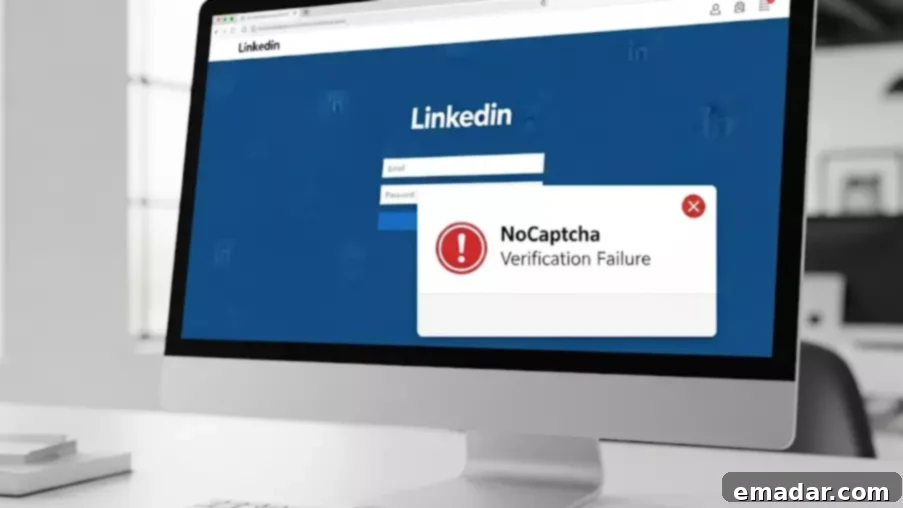
Understanding LinkedIn’s NoCaptcha Verification System
NoCaptcha is LinkedIn’s advanced, often invisible, mechanism designed to safeguard its platform against automated bots, spammers, and malicious actors. Unlike traditional CAPTCHAs that demand users to decipher distorted text or identify objects in images, LinkedIn’s NoCaptcha (similar to Google’s reCAPTCHA v3 or invisible reCAPTCHA) is designed to be largely frictionless. For most legitimate users, verification occurs seamlessly in the background, often requiring nothing more than a simple click on an “I’m not a robot” checkbox, or in many cases, no explicit action at all.
Behind this apparent simplicity lies a complex algorithm that meticulously analyzes various signals to assess user legitimacy. These signals include your IP address, browser fingerprint, browsing history, mouse movements, login patterns, device characteristics, and the general behavior of your session. The system continuously evaluates these factors in real-time to determine whether your interaction with the platform aligns with human behavior or exhibits patterns typical of automated scripts and bots. When this sophisticated background process fails to confidently establish your humanity, you are met with the dreaded login screen obstruction, often accompanied by a message such as “Verification failed, try again later,” or a similar error preventing account access.
Core Reasons Behind NoCaptcha Verification Failures on LinkedIn
NoCaptcha failures on LinkedIn are rarely attributable to a single fault. Instead, they typically arise from a combination of suspicious signals that collectively raise red flags within LinkedIn’s robust security infrastructure. The system is designed to err on the side of caution, prioritizing platform integrity over allowing potentially malicious access. Understanding these common triggers is the first step toward effective troubleshooting and prevention.
-
Suspicious or Shared IP Addresses
One of the most frequent culprits behind NoCaptcha failures is the nature of the IP address from which you are attempting to log in. If LinkedIn detects a high volume of login attempts from a single IP address—especially one known to belong to a data center, public network, or a blacklisted range—it will immediately flag this activity as suspicious. This is a common pitfall for users relying on free or unreliable virtual private networks (VPNs) and public proxies, which often use heavily shared or compromised datacenter IPs. These IPs are frequently used by bots, spammers, and other malicious entities, leading LinkedIn to automatically distrust any activity originating from them.
-
High Frequency of Requests
LinkedIn’s security system is highly sensitive to rapid and repetitive actions. Attempting to log in multiple times in quick succession, refreshing the login page too frequently, or sending automated requests to the platform can trigger its bot detection mechanisms. Such behavior mimics that of automated scripts trying to brute-force accounts or scrape data, even if you are simply an impatient human. The system interprets these high-frequency requests as a sign of automation, leading to a NoCaptcha verification failure as a protective measure.
-
Outdated Browser or Corrupted Browser Data
Sometimes, the issue isn’t directly related to your account or network, but rather to your browsing environment. An outdated web browser might lack the necessary security protocols or JavaScript rendering capabilities required for NoCaptcha to function correctly. Similarly, corrupted browser cookies, cached data, or conflicting browser extensions can interfere with the verification process. These elements can prevent LinkedIn’s system from accurately assessing your browser’s trustworthiness and consistent identity, leading to verification errors.
-
Geographic Inconsistencies or Rapid Location Changes
LinkedIn’s security protocols monitor your login location to detect potential account compromises. If your typical login location is, for example, New York, but you suddenly appear to be logging in from a different country or even a distant city in a very short timeframe, the system will flag this as highly unusual activity. Frequent and abrupt changes in your apparent geographic location, often caused by switching between different VPN servers or unstable proxy connections, are interpreted as suspicious behavior, potentially indicating automation or a compromised account, thus triggering a NoCaptcha failure.
-
Using Low-Quality Proxies or VPNs
The use of free or public proxy networks and cheap VPN services is a common reason for verification failures. These services often provide IP addresses that are overused, widely shared, and frequently blacklisted by major online platforms, including LinkedIn. Once an IP address or an entire range of IPs from such a service is identified as suspicious or associated with malicious activities, any login attempt originating from it will almost certainly result in an immediate NoCaptcha verification failure, regardless of whether you are a legitimate user.
Effective Solutions to Fix LinkedIn NoCaptcha Verification Failures
Having identified the primary causes of these frustrating errors, let’s explore a range of proven strategies and actionable steps you can take to resolve LinkedIn NoCaptcha verification failures and regain access to your account.
-
Clear Browser Data (Cookies and Cache)
This is often the simplest and most effective first step. Over time, your browser accumulates cookies, cached data, and temporary files that can become corrupted or outdated, interfering with website functionality and security checks. To resolve this, clear your browser’s cookies and cache entirely. For Chrome, go to `Settings > Privacy and security > Clear browsing data`. For Firefox, navigate to `Options > Privacy & Security > Cookies and Site Data > Clear Data`. After clearing, restart your browser and attempt to log in again. This process removes any stale session tokens or conflicting data that might be confusing the NoCaptcha system.
-
Update Your Browser to the Latest Version
Ensure that you are running the most current version of your preferred web browser (Chrome, Firefox, Edge, Safari, etc.). Outdated browsers may lack the latest security patches, JavaScript engine updates, or compatibility features necessary for LinkedIn’s NoCaptcha scripts to execute correctly. Browser developers regularly release updates that include performance improvements and critical security fixes, which are vital for interacting with modern web applications securely. An updated browser ensures that all necessary components for verification are functioning as intended.
-
Switch to a Clean and Reputable IP Address
If the issue stems from your IP address’s poor reputation or its association with suspicious activity, switching to a clean, trusted IP is crucial. Traditional datacenter IPs used by many cheap VPNs and proxies are often flagged. The most reliable solution is to use high-quality residential proxies. These proxies route your connection through real, genuine IP addresses provided by Internet Service Providers (ISPs) to actual homes and mobile devices. This makes your login attempts appear legitimate to LinkedIn, as they originate from locations that are indistinguishable from regular users’ home internet connections. Providers like IPFLY offer such residential proxies that are far less likely to trigger bot detection compared to flagged datacenter IPs.
-
Reduce Login Frequency and Practice Patience
If you’ve attempted to log in repeatedly, clicked too many times, or refreshed the page excessively, LinkedIn’s system might have temporarily locked you out due to suspicious activity. The best course of action here is to pause and wait. Give LinkedIn’s security system ample time to reset and clear any temporary flags associated with your IP or account. Try waiting for 30 minutes to an hour before attempting to log in again, ensuring your next attempt is calm and deliberate.
-
Maintain Consistent Geographic Location
For users who frequently travel, switch networks, or utilize VPNs, ensuring location consistency is vital. If your IP address keeps jumping between different countries or distant regions, LinkedIn will view this as highly suspicious. Try to stick to a single, stable geographic region for your LinkedIn access. If you use a proxy or VPN, choose a server location that you will consistently use for LinkedIn, preferably one close to your actual physical location or your usual access point. Reliable proxy services with stable geolocation support can help ensure LinkedIn perceives consistent and predictable login patterns from your account.
-
Avoid Free VPNs and Overused Shared IPs
While the allure of free services is strong, free VPNs and public proxies are often detrimental to secure and reliable online access, especially for platforms like LinkedIn. These services are typically oversubscribed, leading to heavily shared and often blacklisted IP addresses. Instead of relying on these problematic services, invest in a dedicated, high-quality proxy service. IPFLY, for instance, provides both residential proxies and high-performance ISP proxies that offer superior stability, dedicated or less-shared IPs, and are significantly less likely to trigger LinkedIn’s NoCaptcha verification failures, ensuring smoother and more reliable access.
Proactive Strategies for Preventing NoCaptcha Verification Issues on LinkedIn
Resolving an immediate NoCaptcha failure is helpful, but adopting preventative measures is key to saving time, avoiding future hassles, and maintaining uninterrupted access to your professional network. By integrating these strategies into your routine, you can significantly reduce the likelihood of encountering these verification roadblocks again.
- Utilize Stable and Reputable IP Addresses: Consistently logging in from the same, trusted IP address builds a history of legitimate behavior with LinkedIn. Employing dedicated or static residential proxies ensures that your access consistently originates from a clean, stable, and reputable IP, mimicking a consistent home or office internet connection. This consistency helps LinkedIn’s algorithms recognize you as a legitimate user over time.
- Limit and Optimize Automation Tools: If your workflow involves using LinkedIn scrapers, automation bots, or other tools, it’s crucial to configure them to operate within LinkedIn’s terms of service and mimic human-like behavior. This includes setting realistic delays between actions, rotating user-agents, avoiding excessive requests, and respecting rate limits. Overly aggressive automation is a guaranteed trigger for bot detection and NoCaptcha failures.
- Maintain Consistency with Devices and Browsers: LinkedIn, like other major platforms, uses browser fingerprinting and device identifiers to build a profile of your typical access patterns. Logging in consistently from the same browser, device, and network environment helps establish a trust score. Frequent changes in these parameters, or using multiple devices/browsers for the same account without a good reason, can raise suspicion and lead to verification challenges.
- Proactively Monitor IP Reputation: For those who manage multiple accounts or rely heavily on proxies, understanding and monitoring the reputation of your IP addresses is crucial. A reliable proxy provider, such as IPFLY, actively manages and cleans its IP pools, ensuring that you are always using healthy, unflagged IPs. Proactive management of IP reputation significantly reduces the risk of being flagged by LinkedIn’s security systems.
How IPFLY Empowers Seamless LinkedIn Access
For professionals and businesses leveraging LinkedIn for critical operations, uninterrupted access is not just a convenience—it’s an absolute necessity. IPFLY specializes in providing advanced proxy solutions meticulously engineered to align with the stringent security checks of platforms like LinkedIn, ensuring that your online activities remain secure, private, and uninterrupted. Our diverse range of proxy types is designed to address various use cases while mitigating NoCaptcha risks:
- Dynamic Residential Proxies: These proxies offer rotating IP addresses sourced from real user devices and ISPs globally. This dynamic rotation ensures that your requests always appear to originate from a fresh, legitimate residential IP, making it incredibly difficult for LinkedIn’s bot detection systems to flag your activity. Ideal for large-scale data collection or managing numerous accounts with varying access patterns.
- Static Residential Proxies: For users requiring consistent access from a single, stable IP address, our static residential proxies provide an unchanging, dedicated residential IP. This ensures unparalleled session stickiness and helps build a strong trust profile with LinkedIn, as your access consistently originates from the same perceived geographic location and ISP.
- ISP Proxies: Offering enterprise-grade stability and speed, ISP proxies are essentially datacenter IPs that are registered with an Internet Service Provider, giving them the appearance and trust level similar to residential IPs. They combine the performance of datacenter proxies with the enhanced reputation of residential ones, making them excellent for consistent, high-volume operations on LinkedIn without triggering verification failures.
By leveraging IPFLY’s clean, reliable, and diverse range of IP addresses across more than 190 countries, professionals can virtually eliminate the chances of NoCaptcha verification failures. Our solutions empower users to log in smoothly, securely manage multiple LinkedIn accounts without suspicion, and maintain crucial networking or business workflows without disruptive interruptions, thus maximizing productivity and operational efficiency on the world’s leading professional platform.
Final Thoughts on Navigating LinkedIn’s NoCaptcha Challenges

While LinkedIn’s NoCaptcha verification failures can seem arbitrary and bewildering, they are invariably triggered by specific, identifiable signals, ranging from suspicious IP addresses and an excessive frequency of requests to inconsistent login patterns and outdated browser environments. Successfully resolving and, more importantly, proactively preventing these errors hinges on understanding these underlying causes and implementing targeted solutions. Simple steps such as clearing browser data and ensuring your browser is up-to-date are good starting points. However, for consistent, reliable, and secure LinkedIn access, particularly for power users or those managing multiple accounts, the strategic adoption of trusted, high-quality proxies is paramount.
Solutions like IPFLY proxies are specifically designed to navigate LinkedIn’s sophisticated security architecture, providing the clean, stable, and reputable IP addresses necessary to maintain seamless connectivity. By choosing the right proxy solution, you can ensure that LinkedIn’s essential security checks never impede your professional productivity or access to your vital network. Empower yourself with knowledge and the right tools to keep your LinkedIn experience smooth and uninterrupted. To further enhance your online presence and ensure reliable access, keep learning and exploring—follow IPFLY on Telegram today for the latest insights and updates.