
Navigating the professional landscape often involves leveraging platforms like LinkedIn. However, many users frequently encounter a frustrating roadblock during registration or login: the persistent message, “Your noCAPTCHA user response code is missing or invalid.” This seemingly simple error can bring your progress to a grinding halt, leaving you unable to access your account or create a new profile. Instead of endless refreshing and re-attempts that yield no results, this comprehensive guide will delve into the root causes of this common LinkedIn CAPTCHA error, provide step-by-step troubleshooting solutions, and equip you with the knowledge to overcome this verification “deadlock” for good.
Understanding the “noCAPTCHA User Response Code Missing or Invalid” Error on LinkedIn
The “noCAPTCHA user response code is missing or invalid” message is LinkedIn’s way of telling you that its automated security check, often powered by reCAPTCHA or similar technologies like Arkose Labs, has failed to verify that you are a human user. These systems are designed to distinguish between real users and automated bots, protecting the platform from spam, fraudulent activity, and account breaches. When this error appears, it means the CAPTCHA challenge either didn’t load correctly, couldn’t be interacted with, or its response was deemed suspicious by LinkedIn’s servers. This can be incredibly frustrating, especially when you know you’re not a bot and simply trying to connect professionally.
I. Why Does This LinkedIn CAPTCHA Error Occur? Decoding the Root Causes
Pinpointing the exact reason for the noCAPTCHA error can be tricky, as several factors might be at play. Understanding these underlying causes is the first step toward a lasting solution.
1. IP Address or Network Environment Anomalies
- VPNs, Proxies, and Shared Networks: LinkedIn, like many other large platforms, employs sophisticated security measures that analyze your IP address and network behavior. If you are using a Virtual Private Network (VPN), a shared proxy server, or an unstable public Wi-Fi network, your IP address might be flagged. This happens because these IPs are often associated with a large volume of traffic, some of which could originate from bots or malicious actors. LinkedIn’s noCAPTCHA verification mechanism is triggered in such scenarios, requiring your actions to “come from a trusted network” to prevent automated abuse.
- IP Reputation and Trust Scores: Every IP address carries a reputation. Datacenter IPs, often used by VPNs and proxies, can have lower trust scores compared to residential IPs. LinkedIn might perceive traffic from such IPs as higher risk, initiating more stringent CAPTCHA challenges or outright rejecting responses.
- Mobile Hotspot Success: Many users report successfully bypassing the verification by switching from Wi-Fi to a mobile hotspot. This often works because mobile data connections typically assign you a unique, residential IP address directly from a mobile carrier, which LinkedIn’s system trusts more readily.
2. Browser Cache, Cookies, or Extension Interference
- Conflicting Browser Data: Your browser stores a vast amount of data, including cookies and cached files, to speed up your browsing experience. However, corrupted or outdated cache files and conflicting cookies related to LinkedIn or reCAPTCHA can interfere with the proper loading and execution of the CAPTCHA module. This often leads to the verification box failing to appear or function correctly.
- Security and Privacy Extensions: Browser extensions designed to enhance security, block ads, or protect privacy (e.g., AdBlock Plus, Ghostery, uBlock Origin, browser-specific privacy shields) can sometimes be overzealous. These extensions might block essential scripts required for the CAPTCHA to load and interact, inadvertently disrupting the verification process. They might interpret the CAPTCHA’s script as tracking software or an unwanted ad, thus preventing it from running.
3. Browser or Device Compatibility Issues
- Outdated Browsers: Older browser versions, such as an antiquated version of Microsoft Edge, Internet Explorer, or even older iterations of Chrome/Firefox, may lack the necessary JavaScript engines or security protocols to correctly render and interact with modern CAPTCHA challenges. This can result in the verification box simply not appearing or becoming unresponsive.
- Device Limitations: While less common, some older or less powerful devices might struggle to execute the CAPTCHA scripts smoothly, especially if they are running an outdated operating system or have limited processing power/RAM. Using an incompatible browser or an unsupported device can often lead to a stalled registration or login process. Modern browsers like the latest versions of Chrome, Firefox, Safari, or Chromium-based Edge are generally recommended for optimal compatibility.
4. Temporary Platform Server Anomalies
- LinkedIn or CAPTCHA Provider Issues: Occasionally, the problem isn’t on your end at all. LinkedIn’s backend servers, or those of its CAPTCHA provider (e.g., Arkose Labs, Google reCAPTCHA), might experience temporary outages, maintenance, or other technical glitches. During such periods, the verification module might be ineffective or fail to communicate correctly with the main LinkedIn platform, even if you are prompted to interact with it. In these rare cases, the best solution is usually to wait a few hours and try again, as the issue often resolves itself.
II. Comprehensive Solutions: Step-by-Step Troubleshooting for LinkedIn CAPTCHA Issues
Now that we understand the potential causes, let’s explore practical, actionable solutions to get you past the noCAPTCHA hurdle and onto LinkedIn.
Method 1: Optimize Your Network Connection
Your network environment is often the most critical factor. Start here:
- Disconnect Wi-Fi, Use Mobile Data: This is a highly recommended first step. Turn off your Wi-Fi connection on your computer or mobile device and switch to your mobile data (e.g., using your phone as a hotspot or directly on your phone’s app). Mobile IPs are generally considered more “trusted” by platforms like LinkedIn due to their residential nature and unique assignment.
- Try a Different Network: If possible, try connecting from a completely different Wi-Fi network (e.g., a friend’s house, a different public Wi-Fi if secure, or a workplace network) to rule out issues specific to your home network or ISP.
- Utilize High-Quality Residential Proxies: If you frequently encounter this issue or manage multiple accounts (for legitimate business purposes like lead generation or recruitment), investing in a high-quality residential proxy service is often the most reliable solution. Services like IPFLY offer highly pure residential proxy IPs that mimic real user connections, making your network source appear credible to LinkedIn’s security systems. This dramatically reduces the likelihood of triggering CAPTCHA challenges.
Method 2: Clean Browser Data and Switch Browsers
Browser-related issues are common and often easily resolved:
- Clear Browser Cookies and Cache: This is crucial. Go into your browser settings and clear all cookies, cached images, and site data, specifically focusing on data related to
linkedin.com. For a comprehensive clean, clearing all browser history, cookies, and cache for “all time” is often effective. This ensures no corrupted data is interfering. - Disable Browser Extensions: Temporarily disable all browser extensions, especially ad blockers, privacy tools, and security plugins, before attempting to log in or register again. If the issue resolves, re-enable them one by one to identify the culprit.
- Try a Different, Modern Browser: If you’re using an older browser or encountering persistent issues, switch to a different, up-to-date browser. Recommended options include:
- Google Chrome (latest version)
- Mozilla Firefox (latest version)
- Apple Safari (latest version, especially on Mac/iOS)
- Microsoft Edge (Chromium-based, latest version)
Avoid older, unsupported browsers as they are more prone to compatibility issues.
Method 3: Test with a Different Device
Device-specific problems can sometimes be overlooked:
- Switch Devices: If you’re failing on a desktop computer, try registering or logging in using a different computer, a tablet, or your smartphone. Often, the LinkedIn mobile app can provide a smoother experience, as its environment is more controlled.
- Isolate the Problem: This method helps you determine if the issue is with your specific device’s hardware, operating system, or installed software, rather than your account or network.
Method 4: Reset Your Password (For Login Scenarios)
If you’re trying to log in and hitting the noCAPTCHA wall:
- Utilize “Forgot Password” Flow: Instead of repeatedly trying to log in, initiate the “Forgot password” process. This often involves receiving a verification code via email or SMS. Some users have reported that successfully resetting their password and then logging in with the new credentials bypasses the problematic noCAPTCHA mechanism entirely. It might reset certain session tokens or trust parameters on LinkedIn’s end.
Method 5: Control Your Operational Frequency
Avoid actions that mimic automated behavior:
- Avoid Rapid Attempts: LinkedIn’s security algorithms are designed to detect “bot-like” behavior. Rapidly refreshing the page, making multiple failed login attempts in quick succession, or trying to register too many times can flag your activity as suspicious.
- Patience is Key: If you encounter the error, take a break. Wait for 10-15 minutes or even an hour before trying again with one of the suggested solutions. This gives the system time to reset and can prevent further rate-limiting.
III. Real-World Success Stories: From Stuck to Successfully Connected
These anecdotes from the LinkedIn community underscore the effectiveness of the solutions listed above:
A recent graduate shared their experience: “I was desperate to apply for jobs and kept getting the noCAPTCHA error. After switching from my home Wi-Fi to my phone’s mobile hotspot, the verification code went through instantly, and I was able to log in normally. It was such a relief!”
Another professional, struggling with a login issue, added: “I tried everything – clearing cache, different browsers – nothing worked. Then I remembered the ‘forgot password’ trick. I successfully reset my password, and when I logged in with the new one, the noCAPTCHA problem simply vanished. It was a game-changer.”
A user involved in international trade recounted: “My VPN seemed to be the problem. I switched to Firefox, turned off my VPN entirely, and the page skipped the CAPTCHA verification instantly. It’s clear that LinkedIn prioritizes a trusted, direct connection.”
These real-life examples vividly illustrate that the problem typically stems from network conditions, browser data, or environmental compatibility issues, rather than an inherent flaw with your LinkedIn account itself. By methodically applying the troubleshooting steps, you can reliably resolve this common hurdle.
IV. The Foundational Role of a High-Quality Network Environment
You may have heard seasoned professionals or online communities emphasize the importance of using “premium IPs” or “dedicated network segments” for sensitive online operations, and for good reason. For platforms like LinkedIn, the quality and reputation of your IP address are paramount.
- Building Trust with LinkedIn: Using a stable, high-quality residential proxy IP makes your originating network appear far more credible and legitimate to LinkedIn’s security systems. Residential IPs are issued by Internet Service Providers (ISPs) to real homes and businesses, mimicking genuine user traffic. This significantly reduces the chances of your connection being flagged as suspicious or bot-like, thus minimizing noCAPTCHA challenges.
- Why Residential Proxies Excel: Unlike datacenter proxies, which are often shared by many users and can quickly get blacklisted, residential proxies leverage real devices and locations. This authenticity is key to seamless access on platforms with stringent anti-bot measures.
- IPFLY’s Advanced Proxy Solutions: Services like IPFLY understand these requirements, providing a robust suite of proxy IPs, including static residential, dynamic residential, and data center proxies sourced from real ISPs. These proxies cover over 190 countries, offering high success rates due to meticulously selected, high-performance network pathways. Such an infrastructure is ideal for a variety of demanding scenarios, including multi-account management, secure cross-regional login verification, and extensive data collection without triggering security alerts.
By leveraging a reliable, high-quality proxy solution, you can avoid the constant hassle of switching networks or devices, ensuring that your verification processes on LinkedIn are smooth and successful from the outset, allowing you to focus on your professional networking and business objectives.
V. Conclusion: Your Step-by-Step Guide to a Seamless LinkedIn Registration or Login
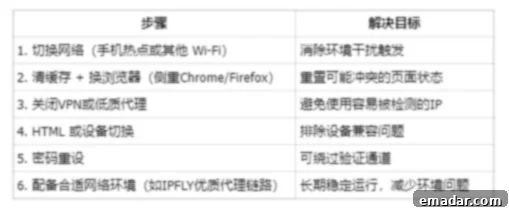
Encountering the “Your noCAPTCHA user response code is missing or invalid” error on LinkedIn can be a significant setback, but it’s a solvable problem. By systematically working through the solutions outlined in this guide—starting with optimizing your network, then cleaning your browser data, trying different devices, and managing your login attempts—you can effectively troubleshoot and overcome this frustrating verification roadblock.
For individuals who frequently interact with LinkedIn for critical activities such as foreign trade, intensive lead generation, or submitting numerous job applications, the stability and trustworthiness of your network environment become even more critical. A high-quality network connection, particularly through reputable residential proxies, acts as a foundational element for secure and uninterrupted operations.
Don’t let technical glitches impede your professional aspirations. Take control of your LinkedIn experience. Consider enhancing your connectivity with a reliable proxy service to ensure your interactions are always smooth and secure.
Register with IPFLY today to provide your accounts with a trusted, ‘invisible’ presence globally, truly enabling secure and efficient operation on LinkedIn and beyond.