
Hey there, digital explorer! As we navigate the exciting landscape of 2025, where AI art, autonomous vehicles, and the metaverse dominate conversations, it’s easy to get lost in the jargon. Yet, beneath these cutting-edge innovations lies a fundamental, indispensable component of our digital lives: the computer IP address.
You’ve likely encountered this term while setting up software, configuring network connections, or listening to tech enthusiasts. But if asked to pinpoint your computer’s IP address right now, would you, like many, pause and instinctively reach for your phone to search, “How to check my computer’s IP address?”
You’re not alone! This comprehensive guide is designed to demystify this common knowledge gap. In just a few minutes, we’ll thoroughly explore and understand your computer’s unique “digital address.” Get ready to master one of the most basic yet crucial aspects of network connectivity.
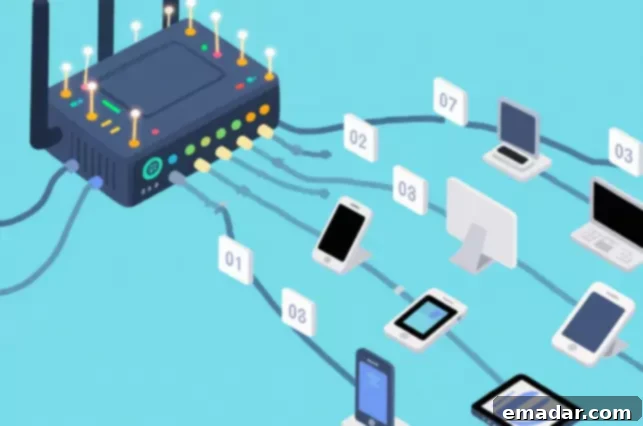
Decoding Your Digital Identity: Why Your Computer Has More Than One IP Address
Before we dive into the practical steps, it’s crucial to grasp a core concept that often confuses many users: your computer typically possesses two distinct types of IP addresses. This distinction is the first step towards truly understanding your network configuration.
Let’s use a simple, relatable analogy to illustrate this concept:
Imagine you reside in an apartment building called “Harmony Towers,” and your specific unit is “Apartment 701, Building 3.”
Public IP Address: Your Building’s Address
This is akin to the main address of “Harmony Towers” itself. Delivery drivers, mail carriers, and your friends use this primary address to locate your entire building. Your public IP address is assigned by your Internet Service Provider (ISP), such as Verizon, AT&T, or Comcast. It’s the single address that your entire home network (including all your connected devices like computers, phones, and smart TVs) uses to communicate with the vast internet outside your home. When you browse a website, that website sees your public IP address. It’s your face to the wider internet, enabling global communication and interaction.
Local IP Address (or Private IP): Your Apartment Number
This is comparable to your specific apartment number, “Apartment 701, Building 3.” Once a delivery arrives at “Harmony Towers,” the building’s internal staff (like a router) needs this specific internal address to ensure the package reaches your exact dwelling. Your local IP address is assigned by your home router and is used to uniquely identify each device connected to your private home network. This includes your computer, smartphone, tablet, smart TV, and any other Wi-Fi enabled gadget. These addresses are not routable on the public internet; they only function within your local network. Common local IP address ranges include 192.168.x.x, 10.0.x.x, or 172.16.x.x. Understanding this distinction makes the process of checking your IP address much clearer and more intuitive.
Locating Your “Room Number”: How to Find Your Local IP Address
Your local IP address acts as your computer’s unique identifier within your home or office network. Here’s how to find it on the most common operating systems: Windows and macOS.
Windows Systems (Illustrated with Windows 11)
Method One: The Graphical User Interface (Recommended for Beginners)
This is the most user-friendly approach, ideal for those who prefer visual navigation.
- Access Network Settings: Right-click on the “Network” icon located in the bottom-right corner of your screen (it looks like a Wi-Fi symbol or a small computer monitor). From the context menu that appears, select “Network and Internet settings.”
- Navigate to Adapter Properties: In the newly opened “Network & Internet” window, locate and click on the specific network connection you are currently using. If you’re on Wi-Fi, it will likely be labeled “Wi-Fi.” If you’re connected via an Ethernet cable, it will be “Ethernet.” Once selected, click the “Properties” button associated with that connection.
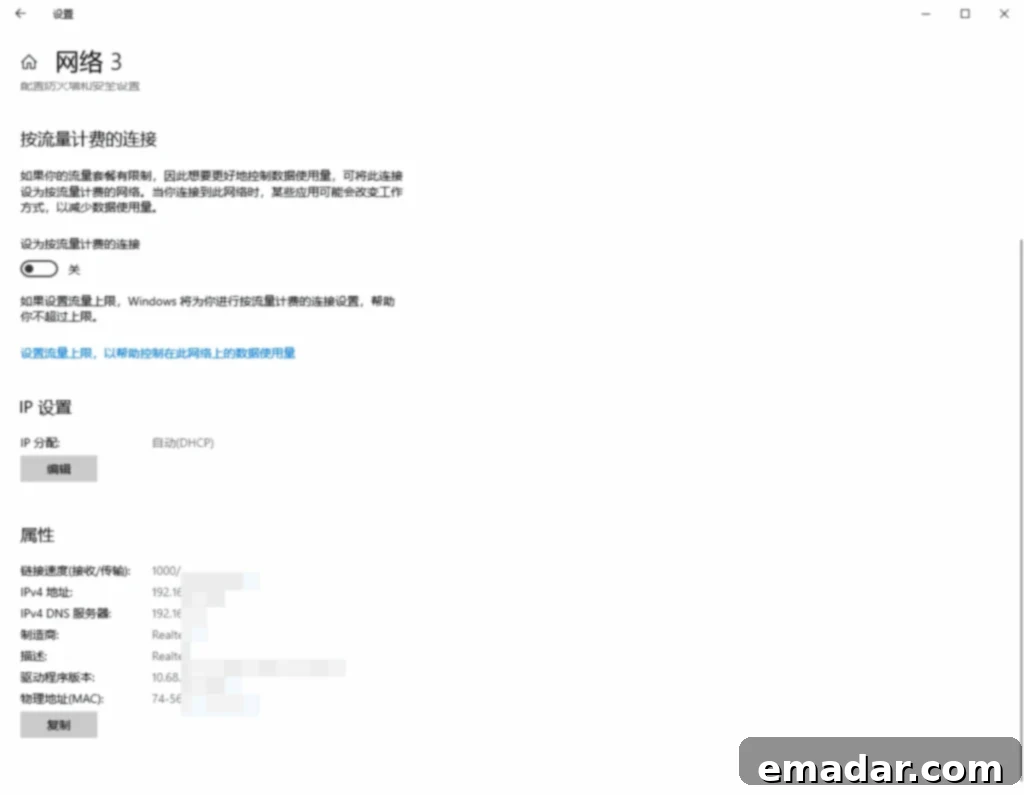
- Identify Your IP Address: Scroll down the properties page. You’ll find a section detailing your network information. Look for an entry titled “IPv4 address.” The sequence of numbers next to it, typically starting with 192.168.x.x or 10.0.x.x, is your computer’s local IP address. This method provides a clear and straightforward way to view your network details.
Method Two: The Command Prompt (For the Tech-Savvy)
This method utilizes Windows’ command-line interface, offering a quick and efficient way for those comfortable with text-based commands.
- Open the Run Dialog: Press the Windows key + R simultaneously on your keyboard. This will bring up the “Run” dialog box.
- Launch Command Prompt: In the “Run” dialog box, type
cmdand press Enter. A black window, known as the Command Prompt, will appear. - Execute the IP Configuration Command: In the Command Prompt window, type
ipconfigand press Enter. You will see a detailed list of your network adapters and their configurations. - Locate Your IP: Scroll through the output. Look for the section corresponding to your active connection, typically labeled “Wireless LAN adapter Wi-Fi” (for Wi-Fi connections) or “Ethernet adapter Ethernet” (for wired connections). Underneath this section, find “IPv4 Address.” The numbers listed beside it are your computer’s local IP address. This output also provides other useful network details such as your Subnet Mask and Default Gateway.
macOS Systems
Apple’s macOS offers elegant ways to view your network configuration, both graphically and via the command line.
Method One: System Settings (The Most Intuitive)
This is the simplest and most direct way to find your local IP address on a Mac.
- Access System Settings: Click on the Apple icon in the top-left corner of your screen, then select “System Settings” from the dropdown menu.
- Navigate to Network: In the sidebar of the System Settings window, scroll down and click on “Network.”
- Identify Your Connection: On the right-hand side, you’ll see a list of your network connections. Click on the one you are currently using (e.g., “Wi-Fi” or “Ethernet”).
- View Your IP Address: Your local IP address will be clearly displayed right below the connection status, often next to “IP Address.” It’s designed to be immediately visible, making this method incredibly user-friendly.
Method Two: Terminal (For Advanced Users)
The Terminal provides a powerful command-line interface for more detailed network diagnostics.
- Open Terminal: You can open Terminal in several ways:
- Using Spotlight Search: Press Command (⌘) + Spacebar, type “Terminal,” and press Enter.
- Through Finder: Go to “Applications” > “Utilities” > “Terminal.”
- Execute the Network Interface Command: In the Terminal window, type the command
ifconfig | grep "inet "and press Enter. This command displays all network interface configurations and then filters the output to show only lines containing “inet,” which typically represent IP addresses. - Identify Your Active IP: You will see several lines of output. Look for the IP address that is NOT 127.0.0.1 (which is the loopback address, representing your own computer internally). The other “inet” address, usually starting with 192.168.x.x or 10.0.x.x, corresponds to your active local IP address.
Discovering Your “Building’s Address”: How to Find Your Public IP Address
While your local IP address lives within your private network, your public IP address is what the rest of the internet sees. Interestingly, you cannot find your public IP address directly within your computer’s operating system settings. This is because it’s assigned by your ISP and is external to your individual device’s configuration. To see it, you need to use an “outside mirror”—a website specifically designed for this purpose.
The process is incredibly straightforward:
- Visit an IP Lookup Website: Open your web browser (Chrome, Firefox, Safari, Edge, etc.) and navigate to a dedicated IP address lookup website. Popular options include:
- WhatIsMyIP.com
- IPinfo.io
- MyIP.com
- Instantly See Your IP: As soon as the page loads, the website will automatically detect and display your current public IP address. These sites often provide additional information, such as your Internet Service Provider (ISP), estimated geographical location (city, region, country), and sometimes even your timezone. This information is derived from databases that map IP address ranges to specific ISPs and locations.
This simple method allows you to quickly verify the global identity of your network, which is essential for understanding how your online activities are perceived by external services and websites.
Beyond Discovery: From “Checking” to “Mastering” Your IP Address in 2025
Congratulations! You’ve now fully mastered the art of checking your computer’s IP addresses. But in 202 dynamic digital world, merely knowing your IP isn’t enough. The real power comes from understanding how to “manage” and “leverage” it to your advantage.
You might wonder, “Does it matter if websites know my IP address?”
For most casual browsing, it doesn’t pose an immediate problem. However, there are numerous scenarios where actively managing your public IP becomes not just beneficial, but crucial:
- Enhanced Privacy and Security: You want to protect your personal privacy and prevent every website you visit from recording your real geographic location, potentially creating a detailed profile of your online activities. Masking your IP helps you browse more anonymously.
- Geo-Unblocking Content and Services: You need to access content or services that are restricted to specific geographical regions (e.g., streaming services, news portals, online stores).
- Market Research and SEO Analysis: As a marketing expert, you might need to simulate users from different regions to test advertisement effectiveness, compare product prices, or see how your website ranks in various countries.
- Secure E-commerce and Account Management: If you’re an international e-commerce seller, managing multiple accounts, or accessing your stores from different locations, using a local IP can help prevent security flags and account suspensions.
- Data Scraping and Web Crawling: For businesses that rely on collecting large amounts of public data from websites, changing IPs frequently can bypass rate limits and IP blocking mechanisms.
- Preventing IP Bans: If your IP address has been mistakenly blocked by a service or website, changing it allows you to regain access.
In these situations, you need the capability to effectively change your public IP address. This is precisely where proxy IP services come into play. A proxy acts as an intermediary server between your computer and the internet. When you route your internet traffic through a proxy, all websites you visit will see the proxy server’s IP address instead of your own. It’s like having a professional “digital stand-in” that handles your requests.
Professional IP service providers, such as IPFLY, offer sophisticated solutions to this need. They don’t just enable you to “hide” your IP; they provide access to a vast, globally distributed network of proxy IP addresses. This resource library allows you to virtually relocate yourself to almost any part of the world.
For instance, if you need to conduct business operations that require a Japanese identity, you can connect through IPFLY to a Japanese residential proxy IP. This makes your “neighborhood address” in the digital world temporarily appear to be in Japan, ensuring all your online activities appear authentic and local to that region. This is crucial for maintaining trust and avoiding detection by sophisticated anti-bot systems.
This transition from passively checking your IP address to actively managing and utilizing your digital identity represents a significant upgrade in your online capabilities.
Conclusion: Become an IP Address Pro in 2025
You’ve made it! By now, you’ve not only learned how to locate your computer’s local IP address and public IP address, but you also understand the underlying logic behind them. More importantly, you’ve been introduced to advanced concepts like proxy IPs and how they empower you to manage your online identity for enhanced privacy, security, and operational flexibility.
The next time someone mentions “computer IP address,” you can confidently open this guide or, better yet, demonstrate your newfound expertise with flair. In the increasingly interconnected digital landscape of 2025, being an IP-savvy individual means you’re not just a user, but a master of your online presence. Doesn’t that feel pretty cool?
Elevate Your Online Presence with IPFLY Residential Proxies
IPFLY stands out by offering a premium proxy service designed for reliability and authenticity. With our self-built server infrastructure and advanced big data filtering system, we provide:
- Genuine ISP-Assigned Residential IPs: Access real IP addresses assigned by Internet Service Providers to residential users, ensuring maximum anonymity and authenticity.
- Pure, Undetected IP Segments: Our IPs are meticulously vetted to be clean, free from shared usage, and devoid of any historical abuse records, minimizing the risk of detection or blocking.
- Advanced IP Management: Enjoy features like IP detection, precise geographical filtering, and seamless multi-country switching, giving you unparalleled control over your virtual location.
Mitigate risks, bypass restrictions, and ensure your operations run smoothly. For robust IP isolation and unparalleled digital flexibility, choose IPFLY today!