
In our increasingly connected world, sharing a computer with family members, housemates, or colleagues has become incredibly common. Whether it’s a family desktop, a shared laptop for roommates, or a workstation in an office environment, these shared devices offer convenience but also introduce a unique set of digital privacy challenges. When multiple individuals access the same machine, your personal browsing history, saved passwords, and sensitive information are at a higher risk of unintended exposure or misuse. Imagine settling down at your home computer, only to have your partner’s search suggestions pop up, revealing details you weren’t meant to see. Or perhaps you’ve inadvertently left your email open on an office computer, making your private correspondence visible to anyone who walks by. These aren’t just isolated incidents; they represent the most overt privacy pitfalls associated with shared computing.
Navigating the digital landscape while ensuring your personal data remains private on a shared device requires a proactive approach to digital hygiene. This comprehensive guide will equip you with essential strategies and best practices for safeguarding your online privacy, even when you’re not the sole user of a computer. From fundamental browser configurations to advanced proxy setups, we will cover everything you need to know to keep your browsing activities secure and discreet. By adopting these habits, you can significantly reduce your digital footprint and protect your personal information from prying eyes, fostering a safer and more private computing experience for everyone involved.
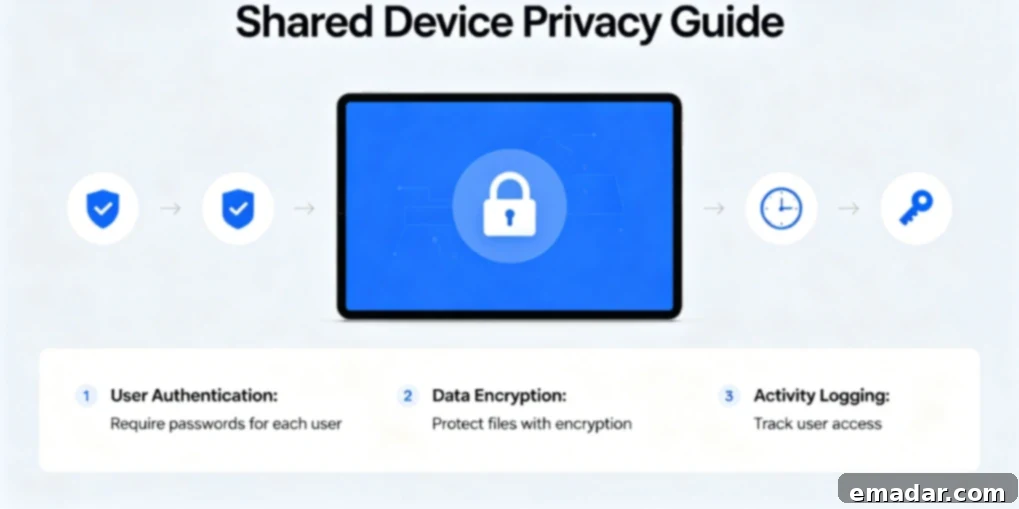
Understanding the Unique Risks of Shared Devices
Shared computers present a distinct array of privacy risks that are generally not encountered when using a personal, single-user device. Awareness of these dangers is the first step toward effective mitigation:
- Accidental Exposure: This is perhaps the most common risk. Anyone who uses the computer after you can inadvertently stumble upon your browsing history, automatically saved passwords, autofill form data, and open tabs. A simple oversight can lead to the exposure of highly personal or sensitive information. For instance, a search query about a medical condition or a gift idea could easily be seen by another user, compromising your privacy or spoiling a surprise.
- Cross-Contamination of Data: Browser cookies and tracking data collected from one user’s browsing behavior can sometimes inadvertently track another user. This can lead to personalized ads appearing for the wrong person or create a confusing digital profile that mixes data from multiple individuals, making it harder for each user to maintain their unique online identity and privacy.
- Malware and Virus Risks: The browsing habits of one user, if careless, can expose the entire computer to malware, viruses, spyware, or ransomware. If one person visits suspicious websites, downloads untrustworthy files, or falls for phishing scams, the shared system can become compromised, putting everyone’s data and privacy at risk. This communal vulnerability underscores the need for collective digital responsibility.
- Account Hijacking and Theft: Forgetting to log out of an account – whether it’s email, social media, banking, or online shopping – leaves it wide open for the next person to access. This can range from minor embarrassment to serious financial fraud or identity theft. A shared device acts as a gateway; if an account is left unlocked, anyone with physical access to the computer can potentially take control.
- Lack of Individual Control: You have limited or no control over what other users do on the shared computer. This lack of oversight means you cannot dictate their security practices, software installations, or browsing habits, all of which could potentially jeopardize the security and privacy of your own data stored or accessed on that machine.
Despite these inherent challenges, adopting the right digital security practices can significantly mitigate these risks. By implementing conscious habits and utilizing available tools, you can ensure the safety and privacy of your personal information, even in a shared computing environment.
Rule 1: Never Use the Main Browser Profile for Personal Browsing
Perhaps the most critical rule when operating on a shared device is to **never utilize the default, main browser profile for your personal internet activities**. The default profile is typically where all users initially log into their accounts, save passwords, and conduct their web browsing. Using this shared space means all your personal data becomes intermingled with that of others, making it accessible to anyone who subsequently uses the computer. Your entire browsing history, login credentials, and session data could be exposed.
Instead, the best practice is to create a dedicated, separate, and ideally password-protected browser profile exclusively for yourself. This personal profile will operate in complete isolation from all other users’ profiles, effectively creating a private digital sandbox. Other users will not have access to your browsing data, ensuring your activities remain confidential.
How to Create a Password-Protected Browser Profile
Most modern web browsers offer robust profile management features. Here’s how you can set up a secure profile:
- Google Chrome & Microsoft Edge: In these Chromium-based browsers, you can create a new profile by clicking on your profile icon (usually in the top-right corner) and selecting “Add” or “Manage profiles.” You can then sign in with your Google or Microsoft account. Once linked, you have the option to “Lock” the profile after you’re done browsing. This means no one can access it without your account password, providing a strong layer of protection. Ensure that you always sign out and lock your profile upon completing your session.
- Mozilla Firefox: Firefox approaches profile security slightly differently. While it doesn’t offer a direct profile lock linked to an online account like Chrome or Edge, it allows you to create separate user profiles, each with its own settings, bookmarks, and data. To manage profiles, you typically need to access the “about:profiles” page in the address bar. Furthermore, Firefox enables you to set a Master Password, which encrypts all saved passwords and login information within that profile. This means even if someone gains access to your Firefox profile, they cannot view your saved credentials without the Master Password. It’s crucial to ensure your profile is always properly closed and that a Master Password is in place.
The Golden Rule of Shared Browsing
Once you have finished your browsing session, it is absolutely imperative to **log out of your personal profile and close the browser**. Never leave your personal profile open and unattended on a shared computer. Even with a password-protected profile, an open session is an open invitation for privacy breaches. Make this a non-negotiable habit for every interaction with a shared device.
Rule 2: Utilize Incognito or Private Browsing Mode for All One-Off Tasks
For any quick, ephemeral browsing tasks that you do not wish to be saved anywhere – neither in your personal profile nor in the shared history – always opt for Incognito Mode (Chrome, Edge) or Private Browsing Mode (Firefox, Safari). This feature creates a temporary browsing session that is completely erased the moment you close the window. No browsing history, cookies, site data, or information entered into forms will be saved on the computer.
Ideal scenarios for using Incognito/Private Browsing Mode on a shared device include:
- Quick Personal Email Checks: Accessing your personal inbox for a brief moment without leaving a trace.
- Researching Sensitive Topics: Looking up medical information, legal advice, or financial planning details without them being logged.
- Logging into Temporary Accounts: Accessing a guest Wi-Fi portal or a one-time service login that doesn’t require a persistent session.
- Shopping for Surprise Gifts: Browsing for presents for family members or housemates without revealing your intentions through search history or targeted ads.
- Visiting Websites You Don’t Want Associated with Your Profile: Any site that you prefer not to have linked to your regular browsing habits or personal data.
When employing Incognito Mode on a shared device, always adhere to these critical guidelines:
- Never Save Passwords or Form Data: Explicitly decline any prompts to save login credentials or autofill information.
- Log Out of All Accounts: Before closing the Incognito window, ensure you are manually logged out of every account you accessed.
- Close All Incognito Windows: Once your task is complete, meticulously close every single Incognito or Private Browsing window to terminate the temporary session and clear its data.
- Avoid Downloading Files: Unless absolutely necessary, refrain from downloading files to the shared computer. If you must, ensure they are deleted and the recycle bin is emptied immediately after use.
It’s important to remember that Incognito mode primarily prevents local data storage on your device. It does not hide your IP address from your Internet Service Provider (ISP), your employer (if on an office network), or the websites you visit. For true anonymity, additional measures like a proxy or VPN are necessary, which we will discuss next.
Rule 3: Never Save Passwords on a Shared Computer
This point cannot be stressed enough and should be considered a fundamental principle of shared device digital hygiene: **Absolutely never save your passwords directly within the browser on a shared computer.** While the convenience of auto-filling login details is tempting, the security risks far outweigh any benefits.
Even if you are diligent about using separate user accounts and browser profiles, saving passwords directly in the browser on a shared computer exposes you to significant vulnerabilities. Should the computer become infected with malware – a not-uncommon occurrence, especially with multiple users – sophisticated threats like keyloggers or information stealers could easily compromise and exfiltrate all your saved credentials. Furthermore, if someone were to gain unauthorized access to your user account, even momentarily, they would instantly have access to all your stored passwords, effectively unlocking all your online accounts.
Instead, the unequivocally secure approach is to leverage a reputable, dedicated password manager application. Tools like 1Password, Bitwarden, LastPass, or Dashlane are specifically designed to store your passwords in an encrypted vault, protected by a single, strong master password that only you know. Key benefits of using a password manager include:
- Strong Encryption: Your passwords are encrypted with robust algorithms, making them virtually unreadable to unauthorized parties.
- Centralized Access: You can access your secure password vault from any device – your personal phone, tablet, or another computer – without needing to save them locally on the shared machine.
- Automatic Filling (Securely): Password managers offer secure auto-fill capabilities, reducing the risk of phishing and ensuring the correct credentials are used.
- Strong Password Generation: They can generate complex, unique passwords for all your accounts, significantly enhancing your overall security posture.
- Two-Factor Authentication (2FA) Integration: Many password managers also integrate with 2FA, adding an extra layer of security to your logins.
By employing a password manager, you eliminate the need to ever save sensitive login information directly in the browser on a shared device, drastically reducing your risk of account compromise and ensuring your digital identity remains under your control.
Rule 4: Use a Proxy for Browsing Sensitive Content
When you absolutely need to browse highly sensitive content on a shared computer, especially in environments like an office where network traffic might be monitored, employing a proxy server adds a crucial layer of security and privacy. A proxy server acts as an intermediary between your computer and the internet, routing your requests through its own servers. This effectively hides your real IP address from the websites you visit, preventing your browsing activities from being directly linked to the shared computer’s network connection or your personal identity.
For individuals on office computers, this is particularly vital. Many employers monitor all network traffic, which means every website visit, search query, and download could potentially be recorded and reviewed. A proxy can help obscure your personal online activities from such surveillance.
How to Safely Use a Proxy on a Shared Device
To maximize privacy and minimize risks when using a proxy on a shared computer, follow these stringent steps:
- Create a Dedicated Browser Profile for Proxy Use: Just as you have a personal profile, create an entirely new, separate browser profile specifically for proxy-enabled browsing. This isolates all proxy-related settings and activities from your other browsing data.
- Configure Proxy Settings Only in This Profile: Set up your IPFLY proxy settings exclusively within this dedicated profile. Ensure that no other profiles have proxy configurations that could inadvertently reveal your activities.
- Avoid Logging into Personal Accounts: Under no circumstances should you log into any personal accounts (email, social media, banking, etc.) while using this proxy profile. The goal is complete anonymity for sensitive tasks, not linking them to your identity.
- Always Use Incognito Mode within the Proxy Profile: Combine the power of a proxy with Incognito Mode. This ensures that even within the dedicated proxy profile, no local browsing history, cookies, or temporary files are saved.
- Clear All Website Data and Cookies After Use: Even with Incognito, as an extra precaution, manually clear all site data and cookies from the proxy profile before closing it.
- Thoroughly Log Out from the Profile: Once your sensitive browsing is complete, ensure you fully log out and close the dedicated proxy browser profile.
IPFLY’s proxy services are particularly well-suited for shared device usage. They offer flexibility because you can access and configure the proxy settings directly in your browser without needing to install any software on the computer, which is ideal for shared or public machines where installations might be restricted. Simply input the connection information into your designated browser profile, and you’re immediately connected via a secure proxy. After your session, logging out and closing the profile leaves no trace of the proxy session on the computer, ensuring your activities remain private and discreet.
Rule 5: Clear Your Tracks When You’re Done
Even if you diligently adhere to all the rules outlined above, it is always a best practice to perform a thorough clean-up after using a shared computer. This final step helps ensure that absolutely no residual traces of your activity are left behind, further safeguarding your privacy.
At a minimum, you should undertake the following actions:
- Close All Open Browser Windows and Tabs: Confirm that every browser window and tab, especially any Incognito or private windows, has been completely shut down.
- Log Out of All Accounts: Double-check that you are signed out of every single online account you accessed. Even if a browser session appears closed, some sites can maintain login status, so a manual logout is crucial.
- Clear Browsing History, Cookies, and Cache: Access your browser’s settings and perform a comprehensive clearing of your browsing history, cached images and files, and cookies. This removes any local data that might have lingered despite other precautions. For Chrome, go to `Settings > Privacy and security > Clear browsing data`. For Firefox, go to `Options > Privacy & Security > Clear Data`.
- Delete Any Downloaded Files: If you downloaded any documents, images, or other files during your session, locate them in the Downloads folder or wherever they were saved, and delete them immediately.
- Empty the Recycle Bin or Trash: After deleting files, ensure you empty the Recycle Bin (Windows) or Trash (macOS) to permanently remove them from the system, preventing others from recovering them.
For an extra layer of security and convenience, consider using specialized tools like CCleaner (for Windows and macOS) or other system cleaning utilities. These applications can automate the process of cleaning temporary files, clearing browser data, and removing other activity traces across various applications on the computer, ensuring a more comprehensive wipe.
Home Network Security: Protecting Children Online
When children use the family computer, cybersecurity and online safety take on even greater importance. In addition to the general rules for shared devices, implement these guidelines to protect your children online:
- Create Independent User Profiles for Each Child: Each child should have their own distinct user account on the operating system, separate from adult profiles. This isolates their data and allows for individualized settings.
- Enable Parental Controls: Utilize the operating system’s built-in parental controls (e.g., Windows Family Safety, macOS Screen Time) or third-party software to filter inappropriate content, set screen time limits, and monitor activity.
- Use a Family-Friendly DNS Service: Configure your router to use a DNS service like Cloudflare Families (1.1.1.3/1.0.0.3) or Google Family DNS. These services automatically block access to known malicious sites and adult content across all devices connected to your home network.
- Talk to Your Children About Online Safety and Privacy: Educate them about the dangers of sharing personal information, interacting with strangers, recognizing phishing attempts, and understanding the permanence of online content.
- Regularly Review Their Browsing History and Online Activity: Periodically check their browsing history and engage in open discussions about their online experiences. This is not just about surveillance but also about guidance and support.
- Place the Computer in a Common Area: Position the shared family computer in a public space within your home, such as the living room or kitchen, rather than in a child’s bedroom. This promotes transparency and makes it easier for adults to supervise computer usage.
Digital Hygiene for Office Computers
Using an office computer for personal browsing always carries inherent risks. Most employers implement monitoring systems that can track and record all activity on company-owned devices and networks. This means your employer could potentially view everything you do online, including personal emails, social media interactions, and even sensitive searches.
If you absolutely must use an office computer for personal matters, observe these stringent precautions:
- Avoid Highly Private Activities: Never use an office computer for sensitive personal activities such as online banking, medical consultations, legal matters, or managing highly confidential personal documents. These activities require maximum privacy and should be reserved for personal devices.
- Always Use Incognito Mode for Personal Browsing: For any personal browsing, activate Incognito or Private Browsing mode to prevent local storage of your history and cookies. Remember, this does not stop network monitoring.
- Never Save Personal Passwords or Files: Do not save any personal login credentials in the browser or store any personal files on the office computer’s hard drive.
- Do Not Associate Personal Accounts: Refrain from logging into your personal Google, Apple, Microsoft, or other cloud accounts on an office computer if it syncs personal data or settings.
- Assume Everything is Monitored: Operate under the assumption that every action you take on an office computer is being monitored, recorded, and potentially reviewed by your employer. This mindset fosters a cautious approach.
- Utilize a Proxy Server: To enhance your privacy and separate your personal browsing from your work identity, use a reliable proxy server. This helps obscure your IP address from your employer’s network logs and adds a layer of anonymity to your personal online activities.
IPFLY’s proxy services are particularly effective in office environments. They allow you to browse the internet privately and securely without the concern of your employer seeing your browsing history. Crucially, because IPFLY proxies are configured at the browser level, they do not require any software installation on the computer, thus avoiding potential IT department restrictions or alerts.
Shared Device Digital Hygiene Checklist
To summarize and help you maintain robust privacy on shared computers, here’s a quick checklist:
- ✅ Always use a separate, password-protected browser profile for personal browsing.
- ✅ Use Incognito/Private mode for all one-off personal tasks.
- ✅ Never save passwords directly in the browser; use a dedicated password manager instead.
- ✅ Employ a proxy server, like IPFLY, for browsing highly sensitive content.
- ✅ Thoroughly clear all traces of your activity (history, cookies, cache, downloaded files) after each session.
- ✅ Completely log out of your personal browser profile and all online accounts.
- ✅ Never leave the computer unattended while you are logged into your personal accounts or profiles.

Sharing a computer does not inherently mean sacrificing your digital privacy. By consistently adhering to these straightforward digital hygiene guidelines – creating isolated browser profiles, enabling Incognito mode for temporary tasks, strictly avoiding saving passwords in the browser, using a proxy server for sensitive browsing, and meticulously clearing your tracks after each use – you can significantly bolster the security of your personal information, even on shared devices.
The core principle is conscious and deliberate management of your online habits. Do not simply use the computer passively; instead, actively consider what information you might be leaving behind and take proactive measures to protect it. Embrace these practices as a fundamental part of your daily digital routine, and you’ll create a much safer and more private online experience for yourself and everyone else who uses the shared device.
IPFLY’s secure and user-friendly proxy services are the ideal complement to your shared device digital security arsenal. With our expansive network of residential and mobile proxies located globally, you can browse the internet privately and securely from any computer, anywhere in the world, ensuring your digital footprint remains discreet and protected.