

Mastering Digital Anonymity: A Comprehensive Guide to Configuring IPFLY Static Native IPs with VMLogin Anti-Detect Browser
In today’s digital landscape, maintaining anonymity and managing multiple online accounts without detection is crucial for various professional endeavors, from e-commerce and social media marketing to web scraping and ad verification. The combination of a reliable proxy service like IPFLY, offering high-quality static native IPs, and a sophisticated anti-detect browser like VMLogin, provides a robust solution. This guide will walk you through the essential steps to seamlessly integrate IPFLY’s static native IPs into your VMLogin profiles, ensuring enhanced online privacy, security, and operational efficiency.
IPFLY stands out for its premium static native IPs, which offer unparalleled stability and a high trust score, making them ideal for tasks requiring consistent online presence. VMLogin, on the other hand, is a powerful fingerprint browser designed to create unique and undetectable browsing environments, effectively preventing platforms from linking your activities across multiple profiles. By combining these two tools, you can establish a secure, distinct digital footprint for each of your online operations.
Step 1: Acquiring Your Dedicated Static Native IP from IPFLY
The first critical step involves securing your static native IP. Choosing a static native IP over other proxy types like dynamic or data center proxies is vital for long-term account health and avoiding suspicion. Static native IPs are typically residential IPs that remain constant, mimicking a regular user’s home internet connection, thus offering superior anonymity and stability.
To begin, navigate to the official IPFLY website. If you don’t already have an account, you’ll need to complete a quick registration process. Once registered, log in to your IPFLY user dashboard. The intuitive interface is designed to make the purchasing process straightforward, guiding you toward the optimal proxy solution for your needs.
1、Firstly, you need to purchase an IPFLY Static Native IP. Visit the IPFLY Official Website, register an account, and log in to the backend panel;
2、Click on Residential Static IP – Package Purchase – Static Native IP. From here, you can browse available countries and select the one that best suits your operational requirements. The geographical location of your IP is often a critical factor for geo-targeting specific markets or bypassing regional restrictions. IPFLY offers a wide array of countries, allowing you to tailor your proxy selection precisely.
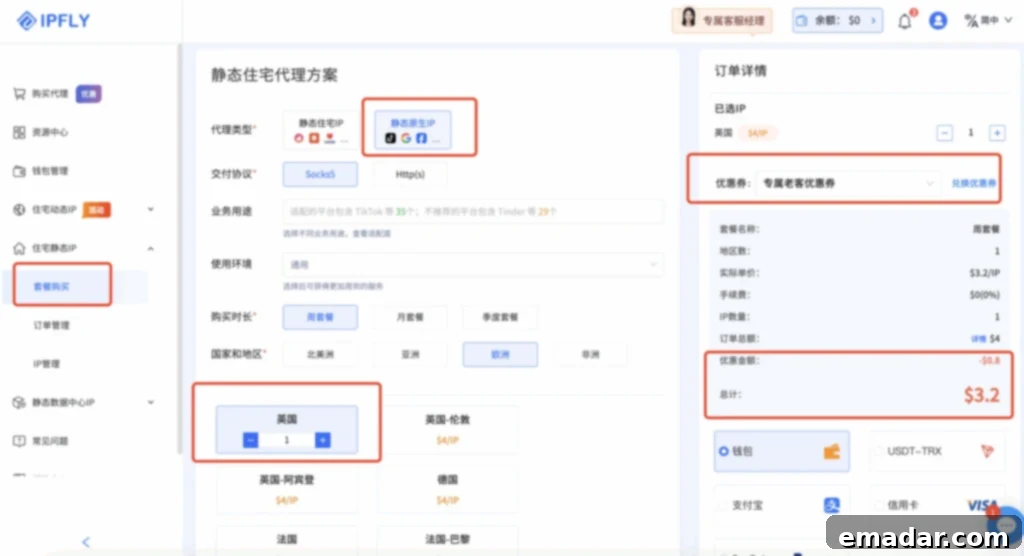
Once you’ve selected your desired country and package, proceed with the purchase. IPFLY’s secure payment gateway ensures a smooth transaction. Keep an eye out for any ongoing promotions or special offers that could provide additional value. For VMLogin users, there’s an exclusive discount available that you wouldn’t want to miss. Make sure to apply the provided discount code during checkout to take advantage of this special offer.
(Note: VMLogin users can currently enjoy an exclusive 20% discount on packages with discount code 【IP6688】)
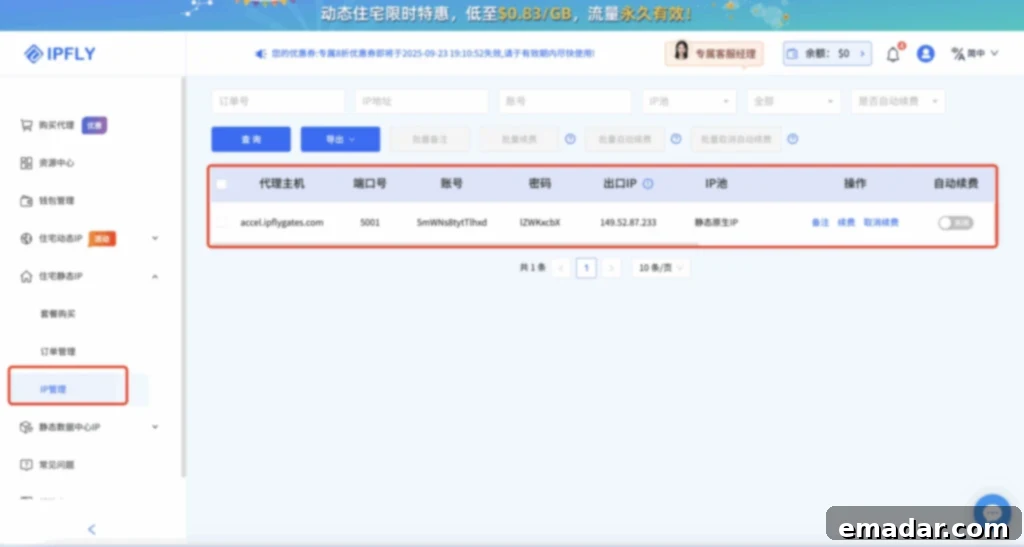
3、After your payment is successfully processed, the purchased IP address will be instantly available in your IPFLY account. You can find all the details under the Residential Static IP – IP Management section. This panel provides a comprehensive overview of your purchased IPs, including the IP address, port number, username, and password – all essential details you’ll need for configuring your VMLogin profiles. It’s recommended to copy these credentials carefully, as accuracy is key for a successful integration.
Step 2: Preparing Your VMLogin Anti-Detect Browser for Integration
With your IPFLY static native IP ready, the next step is to set up VMLogin. VMLogin is more than just a browser; it’s a powerful tool for managing multiple isolated browser profiles, each with a unique digital fingerprint. This capability is paramount for preventing online platforms from detecting and linking your various accounts, thereby significantly reducing the risk of bans or restrictions.
4、First, download and register for the VMLogin Fingerprint Browser. The installation process is straightforward and typically takes only a few minutes. Once installed, launch the client and register for a new account. VMLogin is known for its user-friendly interface, making it accessible even for those new to anti-detect browsers. New users are often provided with a free trial period, which is an excellent opportunity to explore its features and understand its capabilities before committing to a subscription.
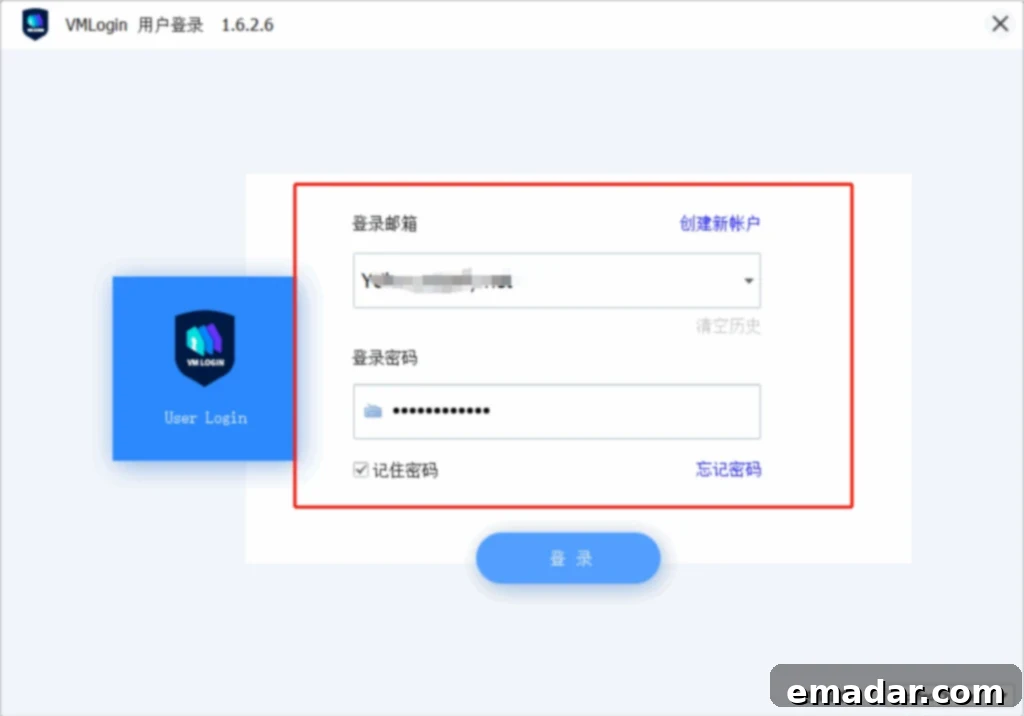
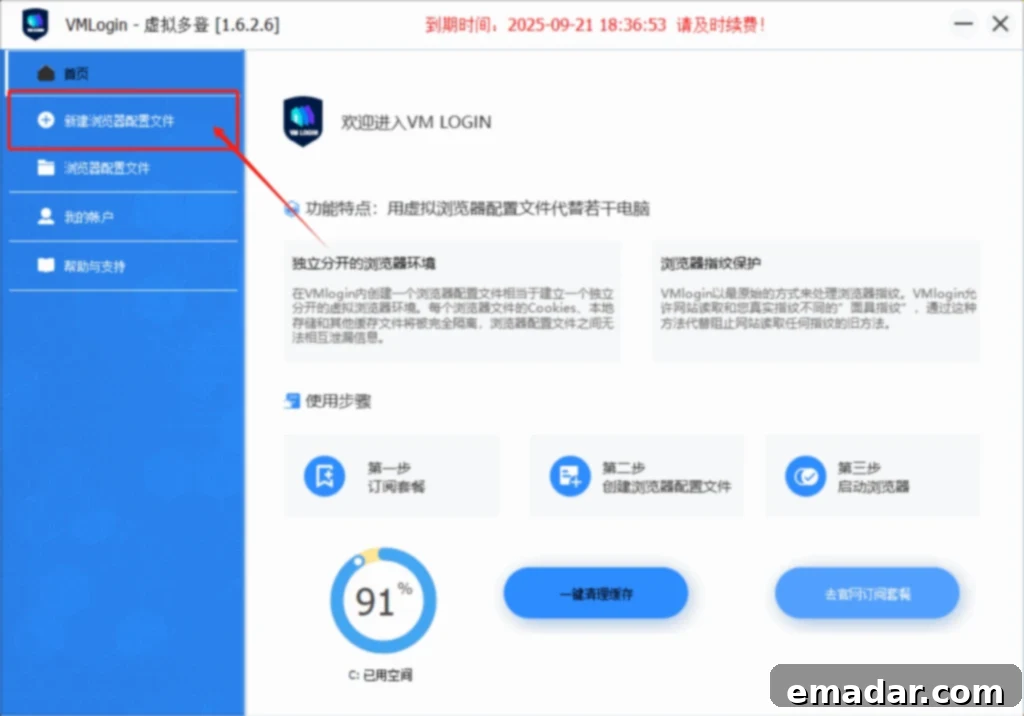
After successfully logging into the VMLogin client, you will be presented with the main dashboard. This is where you will manage all your browser profiles. Each profile acts as a separate, independent browser instance, complete with its own cookies, cache, and most importantly, its own unique digital fingerprint. To begin integrating your IPFLY proxy, you need to create a new, distinct browsing environment.
4、On the homepage, click Create New Browser Profile. This action initiates the setup process for a fresh browsing session. Creating a new profile is crucial because it ensures that each of your online activities is isolated, preventing any potential cross-contamination of data or digital fingerprints between different tasks or accounts.
Step 3: Configuring Your IPFLY Proxy within VMLogin
This is the core of the integration process, where you link your dedicated IPFLY static native IP to your new VMLogin profile. Proper proxy configuration ensures that all your internet traffic for this specific profile is routed through your chosen IPFLY IP, effectively masking your real IP address and adopting the geographical location of your proxy.
5、Fill in the basic information for your new profile according to your needs. This typically includes a profile name (e.g., “eBay Account 1,” “Facebook Marketing Profile”), the desired operating system, browser version, and other customizable settings that contribute to the uniqueness of the digital fingerprint. Once you’ve set these foundational details, proceed by clicking Set Proxy Server. This action opens the dedicated proxy configuration interface within VMLogin.
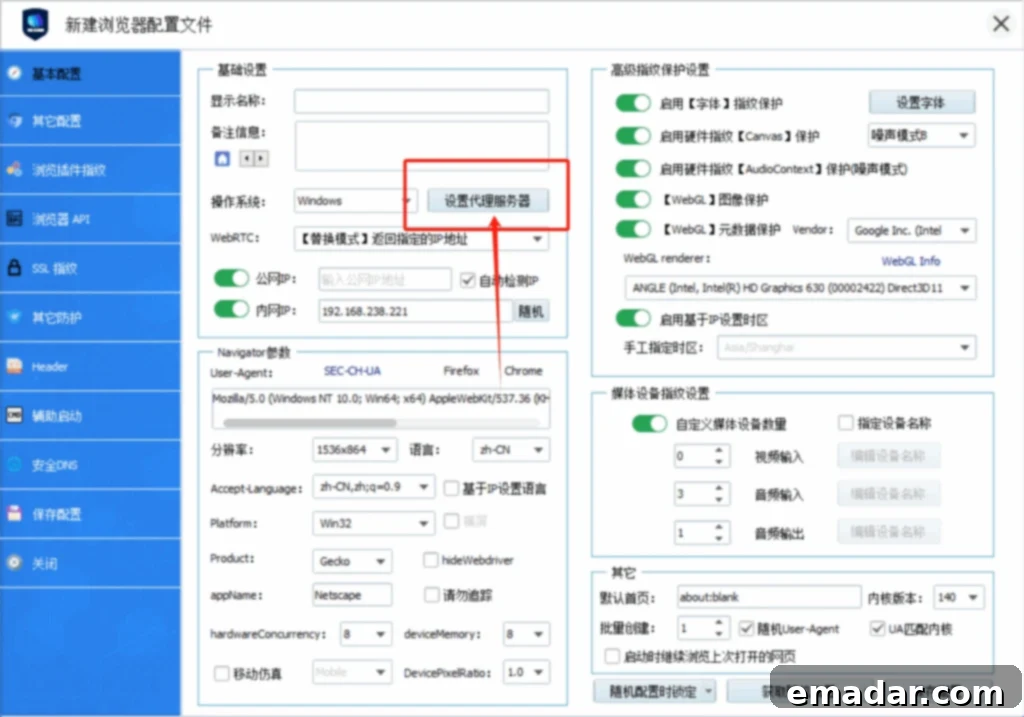
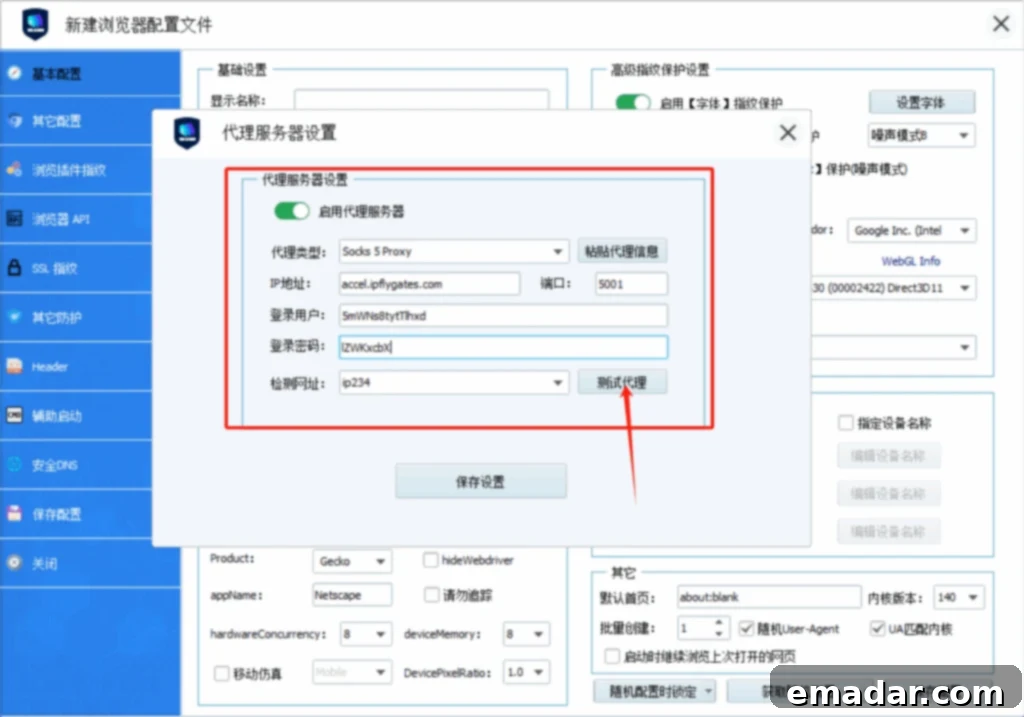
6、On the proxy settings page, first, click to Enable Proxy Server. This toggle activates the proxy functionality for the current profile. Next, you will need to input the specific details of your IPFLY static native IP that you retrieved from the IPFLY IP Management panel. VMLogin supports various proxy protocols, including SOCKS5 and HTTP/HTTPS. SOCKS5 is often recommended for residential proxies due to its enhanced security and ability to handle various types of internet traffic more efficiently.
Select the appropriate proxy type (e.g., SOCKS5). Then, carefully enter your IPFLY credentials in the format: IP:Port:Account:Password. Ensure there are no typos, as even a single incorrect character can prevent the proxy from connecting. For example, if your IP is 192.168.1.1, port 8000, username “user123,” and password “pass456,” you would enter “192.168.1.1:8000:user123:pass456”.
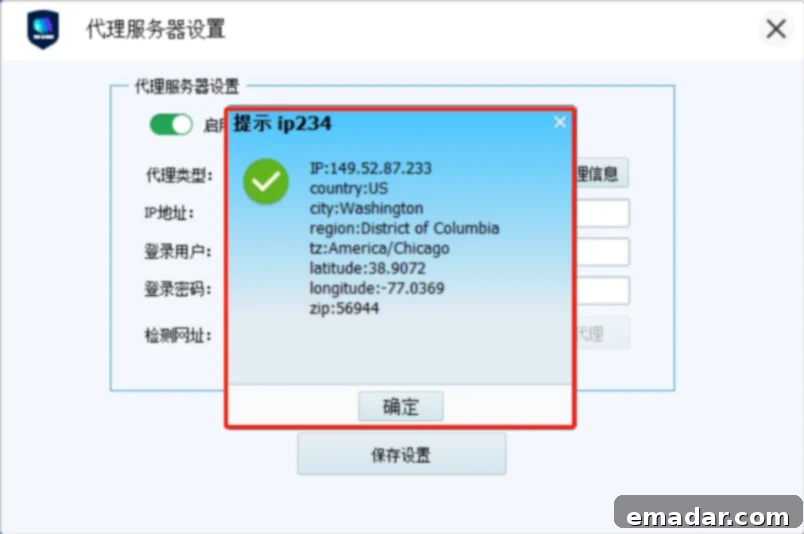
Once the details are entered, it is absolutely crucial to click Test Proxy. This feature is invaluable as it verifies the connection to your IPFLY IP and confirms that it is active and correctly configured. A successful test will display information about the connected IP, including its geographical location, allowing you to double-check that you’re connected to the desired country. If the test fails, carefully review your input for any errors in the IP address, port, username, or password. After a successful test, click OK to confirm and apply these settings.
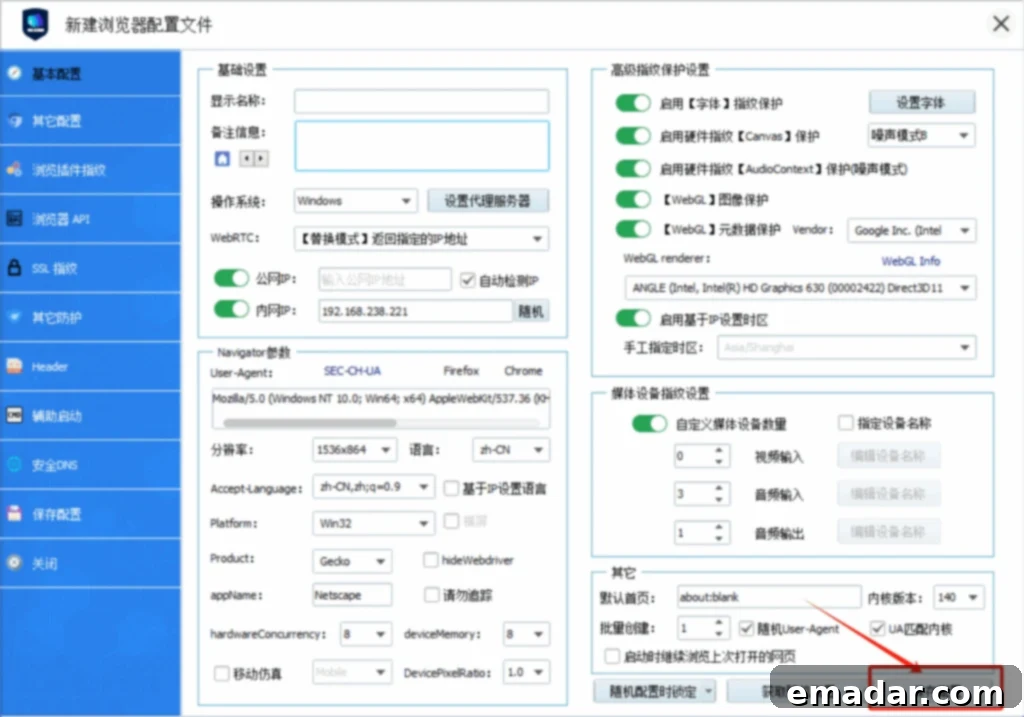
7、Finally, to ensure all your configurations are permanently saved for this browser profile, click Save Configuration. This action finalizes the integration, and your VMLogin profile is now ready to operate through your dedicated IPFLY static native IP, providing you with a secure, anonymous, and distinct online presence. You can now launch this profile and conduct your online activities with the assurance that your digital footprint is fully masked and your IP address is consistent with your chosen proxy location.
Important Considerations for Optimal Performance and Security
While the configuration process is complete, there are a few important notes and best practices to keep in mind for an optimal and secure experience:
- Operating in an Overseas Network Environment: The note “Above operations require users to be in an overseas network environment” suggests that accessing IPFLY or VMLogin, or certain functionalities, might be restricted in specific regions. If you encounter issues accessing the websites or client software, you may need to use a VPN to bypass such geographical restrictions for the initial setup. However, once the IPFLY proxy is configured in VMLogin, the browser profile itself will route traffic through the proxy, negating the need for a continuous VPN on your host system for that specific profile’s traffic.
- Proxy Type Selection: While SOCKS5 is generally recommended for its versatility, always ensure the proxy type you select in VMLogin matches what IPFLY provides. Most static native residential proxies will support SOCKS5 or HTTP/HTTPS.
- Regular Updates: Keep both your VMLogin browser and your operating system updated to ensure you have the latest security patches and features.
- Troubleshooting: If your proxy test fails, double-check the IP, port, username, and password. Also, ensure your internet connection is stable and that no local firewall settings are blocking VMLogin’s access to the internet or the proxy server.
- Privacy and Trust: The combination of IPFLY’s highly trusted static native IPs and VMLogin’s advanced fingerprint spoofing technology creates a powerful shield against detection, making it an indispensable tool for anyone serious about multi-account management and online privacy.
With these steps, the configuration of IPFLY global proxy within VMLogin is complete. You are now equipped with a powerful setup for managing multiple online identities, performing geo-restricted tasks, and maintaining a high level of anonymity in your digital operations. This synergy between a premium proxy service and an advanced anti-detect browser empowers you to navigate the complexities of the internet with confidence and efficiency.
Ready to Get Started?
Embark on your journey towards enhanced online anonymity and efficient multi-account management today. Use the direct registration and download links below to begin:
IPFLY: https://console.ipfly.net/register
VMLogin: https://www.vmlogin.com.cn/?ref=ipfly