

🚨 Can’t access Google? Struggling to browse X (formerly Twitter)? Constantly encountering “Access Denied” messages?
The culprit might be improperly configured browser proxy settings! But don’t worry, this comprehensive guide is packed with actionable insights.
We’ll walk you through, step-by-step, how to set up HTTP or Socks5 manual proxies in your Firefox browser, effortlessly opening a “global gateway” to unrestricted internet access and enhanced online privacy!
1. Essential Preparation: Gathering Your Proxy Information
Before you can configure any proxy, whether it’s HTTP or Socks5, you’ll need to secure a set of vital proxy credentials. This information is your key to unlocking the proxy server’s capabilities and is absolutely crucial for a successful setup. Without it, your browser won’t know where or how to connect.
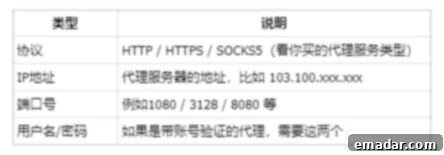
Here’s what you typically need to obtain from your proxy service provider:
- Proxy Server IP Address (or Hostname): This is the unique identifier for the proxy server. It could be a numerical IP address (e.g., 192.168.1.1) or a hostname (e.g., proxy.example.com).
- Port Number: A specific number that designates the communication endpoint on the server. Different services often use different ports (e.g., 8080, 3128 for HTTP, 1080 for Socks5).
- Proxy Type: You need to know if it’s an HTTP, HTTPS, SOCKS4, or SOCKS5 proxy. This dictates how your browser will communicate with the server.
- Authentication Credentials (Optional): Many premium and secure proxies require a username and password to ensure only authorized users can access the service. If your proxy requires authentication, have these ready.
Choosing a reliable proxy provider is just as important as having the correct information. High-quality proxies offer better stability, speed, and anonymity, which are essential for seamless browsing and robust online operations.
👉 We highly recommend using the high-quality static and dynamic residential proxies offered by IPFLY. Their proxies boast real user attributes, ensuring stability, robust security, and high anonymity. Crucially, they fully support both HTTP and Socks5 protocols, making them versatile for various needs.
2. Step-by-Step Tutorial: Manually Setting Up a Proxy in Firefox Browser
This section provides a detailed, easy-to-follow guide for configuring your Firefox browser with manual HTTP or Socks5 proxy settings. While the process is straightforward, ensuring you follow each step correctly is key to a successful setup and seamless browsing experience.
(Note: This tutorial is provided for informational purposes, and any network activities undertaken with proxies should comply with all applicable local and international laws and regulations.)
✅ Step 1: Open Firefox Browser “Settings”
- Launch Firefox: First, open your Firefox browser application. Ensure it’s updated to the latest version for the best experience and access to all features.
- Access the Menu: In the top-right corner of your browser window, locate and click the “Open Application Menu” icon. This icon typically looks like three horizontal lines (often called a “hamburger menu”).
- Select “Settings”: From the dropdown menu that appears, click on the “Settings” option. This action will open a new tab displaying Firefox’s extensive configuration options.
- Navigate to “General”: In the left-hand menu pane of the Settings page, click on “General”. This section contains fundamental browser configurations, including network-related options.
✅ Step 2: Enter Network Settings
Once you are on the “General” settings page, you’ll need to locate the network configuration area. Scroll down to the very bottom of this page. Here, you will find the “Network Proxy” section. This is where Firefox manages how it connects to the internet, including any proxy server configurations.
Within the “Network Proxy” section, click on the “Settings…” button located on the right side. Clicking this button will open a new “Connection Settings” dialog box, which is your gateway to configuring specific proxy details for your browser.
✅ Step 3: Select “Manual Proxy Configuration”
The “Connection Settings” dialog box provides various options for how Firefox connects to the internet. To set up a custom proxy, you’ll need to choose the manual configuration method.
- Check “Manual proxy configuration”: Select the radio button labeled “Manual proxy configuration”. This tells Firefox that you will be providing specific proxy server details yourself, rather than using system defaults or auto-detection.
- Input Proxy Details based on Type:
- For HTTP Proxies: If you are using an HTTP or HTTPS proxy, enter the proxy server’s IP address (or hostname) into the “HTTP Proxy” field. Then, enter the corresponding port number into the “Port” field next to it.
- For SOCKS Proxies: If your proxy is a SOCKS type, you will typically use the “SOCKS Host” field. Check the box next to “SOCKS Host”, then input the SOCKS proxy’s IP address and its port number. SOCKS proxies are often preferred for their versatility, as they can handle all types of network traffic, not just HTTP/HTTPS.
- SOCKS Version and Remote DNS (for SOCKS proxies):
- Select SOCKS v5: If you are using a SOCKS proxy, it is highly recommended to select “SOCKS v5” from the dropdown menu, as it offers improved performance, security, and features compared to SOCKS v4.
- Enable Remote DNS Resolution: For enhanced anonymity and to prevent potential DNS leaks, consider checking the option “Proxy DNS when using SOCKS v5” (or similarly named, like “Remote DNS”). This ensures that your DNS requests are also routed through the proxy server, preventing your actual ISP’s DNS from being used and potentially revealing your location or activities. If this option is not selected, your DNS queries might still go through your regular internet connection, which could compromise your anonymity.
- Exclusions (Optional): The “No Proxy For” field allows you to list specific websites, domains, or IP addresses that you wish to access directly, bypassing the proxy. This is useful for local network resources or trusted sites that don’t require proxy routing.
After entering all the necessary information, click “OK” to save your proxy settings and close the dialog box. Firefox will now attempt to route your internet traffic through the configured proxy server.
✅ Step 4: Authentication Information (If Required)
Many premium proxy services, particularly those offering static, dynamic, or residential IPs, implement authentication to restrict access to authorized users. This ensures the integrity and performance of their proxy network.
If your chosen proxy service requires a username and password, you won’t input them directly into the Firefox settings. Instead, the first time you attempt to access any webpage after successfully configuring the proxy settings, Firefox will automatically trigger an authentication pop-up window.
In this pop-up, you will be prompted to enter the username and password provided by your proxy service provider. Simply input these credentials into the respective fields and click “OK” or “Log In.” Firefox is designed to remember these authentication details for future sessions, so you typically won’t need to re-enter them every time you browse.
It’s crucial to enter the exact credentials. Incorrect or missing authentication details will result in connection errors, typically displaying messages like “Proxy Authentication Required” or “Connection Refused.” If you encounter such issues, double-check your username and password with your proxy provider.
3. How to Test if Your Proxy Setup Was Successful?
After meticulously configuring your proxy settings in Firefox, the next crucial step is to verify that they are functioning correctly. This ensures that your online traffic is indeed being routed through the proxy server, providing you with the intended anonymity, geo-unblocking, or secure access.
The simplest and most reliable way to confirm your proxy is active is by checking your publicly displayed IP address. If your proxy is working, the IP address shown online should be that of your proxy server, not your actual internet connection’s IP.
Here’s how to test it:
- Open Firefox: Ensure your Firefox browser is open, and if you made recent changes, it’s often a good idea to restart it to ensure all settings are fully applied.
- Visit an IP Checker Website: Navigate to a reputable IP address checker website. Popular and reliable options include:
- IPinfo.io
- whatismyipaddress.com
- whoer.net
- Verify Your IP Address: Once the website loads, carefully examine the displayed IP address. If this IP address matches the IP address of the proxy server you configured in Firefox, then your setup has been successful!
- Check Location (Optional but Recommended): Many IP checker websites also display the geographical location associated with the IP address. Confirm that this location corresponds to the region of your proxy server, rather than your actual physical location. This is an excellent indicator that your proxy is working effectively for geo-spoofing.
If the displayed IP address is still your actual public IP, or if you cannot access any websites, then your proxy setup has likely failed, and you’ll need to proceed to the troubleshooting section.

4. Proxy Setup Failed? Common Troubleshooting Steps:
It can be frustrating when your proxy setup doesn’t work as expected. However, most issues are common and can be resolved with a few simple checks. Here’s a comprehensive checklist to help you diagnose and fix common proxy problems:
- ✅ Is the IP address or port filled in correctly?
Even a single digit error in the IP address or port number can prevent a connection. Go back to your Firefox proxy settings (Steps 1-3) and meticulously compare the entered details with the information provided by your proxy service. Pay close attention to leading/trailing spaces or incorrect characters.
- ✅ Have you selected the correct protocol type (HTTP or SOCKS5)?
This is a frequent mistake. If your proxy service provides an HTTP proxy, but you selected SOCKS5 in Firefox (or vice-versa), your connection will fail. Ensure the type selected in Firefox matches the type of proxy you are using (e.g., if you entered details under “SOCKS Host”, ensure “SOCKS v5” is selected). HTTP proxies handle web traffic, while SOCKS5 proxies are more versatile for general network traffic.
- ✅ Are you using an authenticated proxy but haven’t entered the username and password?
Many premium proxies require authentication. If your proxy demands a username and password, ensure you have correctly entered them in the pop-up that appears when you first try to access a website (Step 4). If Firefox isn’t prompting you, try restarting the browser or clearing cached credentials. Always double-check these credentials with your proxy provider.
- ✅ Has the proxy expired, been blocked, or exceeded its traffic limits?
Proxies, especially free or trial ones, can have a limited lifespan, get blacklisted by websites, or come with data transfer caps. If your proxy was working previously but suddenly stopped, contact your proxy provider to check the status of your IP address. You might need to refresh your IP or purchase a new one.
- ✅ Is there a local firewall or antivirus interference?
Sometimes, your computer’s firewall or antivirus software might block outgoing connections to proxy servers, especially if they are unfamiliar. Temporarily disable your firewall/antivirus (with caution, and only briefly) to see if the proxy connection works. If it does, you’ll need to add an exception for Firefox or the proxy connection in your security software’s settings.
- ✅ Do you have a stable internet connection?
Before troubleshooting proxy-specific issues, ensure your underlying internet connection is stable and functional. Try accessing a common website (like google.com) without any proxy configured in Firefox. If you can’t access sites even without a proxy, the issue lies with your local network, not the proxy settings.
If you’re still experiencing persistent issues or dealing with unreliable proxies, we highly recommend trying the IPFLY proxy service. They provide stable, reliable, and diverse IP types with excellent customer support, including free trials, allowing you to experience their superior quality firsthand without commitment.
5. The Strategic Advantage of Reliable Proxies for Business Success
In today’s highly competitive and data-driven world, a stable, secure, and efficient proxy IP is no longer just a technical luxury; it’s a critical foundational element for businesses aiming for success across various online domains. Whether you’re navigating complex market landscapes or managing sensitive online operations, proxies offer a crucial strategic advantage.
If you’re involved in managing cross-border accounts, executing social media marketing campaigns, operating e-commerce platforms, or conducting content scraping, a dependable proxy serves as your “invisible identity.” It empowers you with enhanced stability, robust security, and unparalleled anonymity, making your operations more resilient and secure.
- Cross-border Accounts: Proxies enable businesses to operate and manage accounts from diverse geographical regions seamlessly, bypassing geo-restrictions and ensuring compliance with local market requirements. This allows for localized content delivery and targeted marketing efforts.
- Social Media Marketing: For marketers, proxies are invaluable. They facilitate the management of multiple social media accounts without triggering platform restrictions or IP bans, enable localized trend analysis, and allow for competitor monitoring from different vantage points.
- E-commerce Operations: In e-commerce, proxies are used for competitive pricing analysis, verifying localized ad placements, and securely managing multiple storefronts or dropshipping operations from various locations, giving you a competitive edge.
- Content Scraping & Data Collection: For businesses that rely on data, proxies are essential for efficient and ethical content scraping. They help avoid IP blocks from target websites, collect vast amounts of public data for market research, and ensure the integrity and anonymity of your data collection efforts.
IPFLY, as a leading IP proxy service provider, is at the forefront of this technological need. With its exceptional IP resources, proprietary self-developed technology, and an unwavering commitment to quality, IPFLY is empowering an increasing number of enterprises to excel and stand out in fiercely competitive markets. Their advanced infrastructure ensures high uptime, consistent performance, and a diverse pool of clean IPs that mimic real user behavior, offering superior success rates compared to conventional datacenter proxies.
Don’t let geographical barriers or privacy concerns hinder your online potential. Leverage the power of premium proxies.
New users can enjoy exclusive discounts! Experience accelerated performance without increasing your costs. Register now to claim your special offer!