
By 2026, the internet is protected by advanced security systems. Whether you are an everyday web user or a professional managing automated market research, an unexpected blocked page can halt your workflow instantly. One of the most frustrating messages you may encounter is: “This page was blocked by Chrome.”
That block often appears with technical codes like ERR_BLOCKED_BY_CLIENT or an explicit notice that an organizational policy prevents access. With 15 years of experience in network infrastructure, I’ve diagnosed thousands of incidents like this.
Most of the time, the problem is not the target site itself but your local browser settings, corrupted browser metadata, or the reputation of your network IP address triggering a security alert. This guide explains how to resolve the “This page was blocked by Chrome” error and how using advanced solutions such as the IPFLY residential proxy can provide the privacy and reliability needed to keep complex digital workflows running.
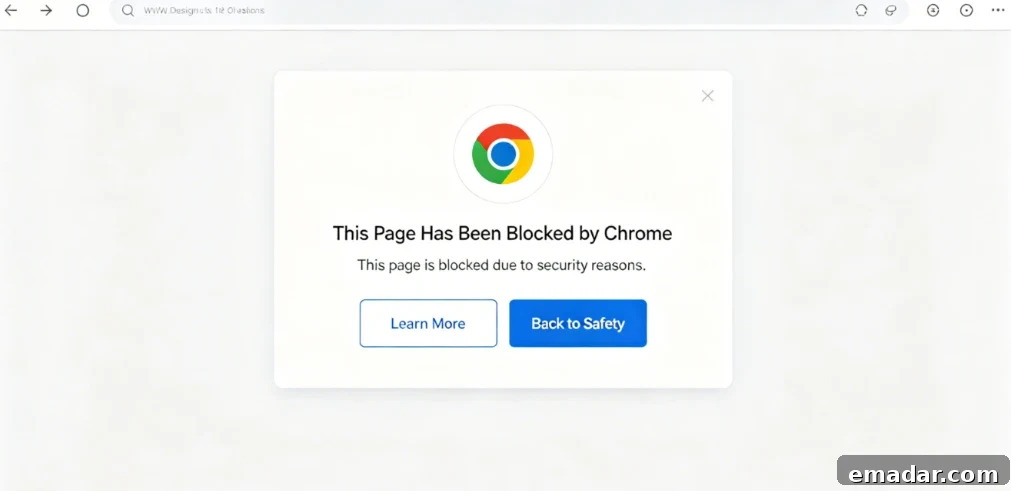
Why Chrome Shows “This Page Was Blocked by Chrome”
To fix this connection problem effectively, we must first understand the mechanisms that cause Chrome to block a request and display the error page.
How Chrome’s Blocking Mechanisms Work
Before rendering a page, Chrome performs multiple background checks. The “This page was blocked by Chrome” message is a deliberate client-side security action. Three main mechanisms can trigger it:
- Google’s Safe Browsing engine may flag the domain as a source of malware or phishing.
- Local browser extensions, such as ad or content blockers, can intercept scripts on the page and block requests.
- In managed environments, administrators can enforce policies (for example, via a
URLBlocklist) that restrict access to entire categories of sites.
How Network Reputation Affects Chrome Blocks
By 2026, browser security is tightly tied to network reputation systems. When Chrome negotiates a secure connection, it evaluates digital signals like your IP address and browser fingerprint metadata. If you route requests through low-quality shared data center IPs, security vendors and search engines may mark the IP block as suspicious. That low trust score can cause fingerprint conflicts: Chrome’s security stack might reject a site’s certificate or flag the connection as unsafe, producing the blocking page even when the target site is legitimate.
Recognizing Different Block Messages
Carefully read the specific message shown — different prompts point to different root causes. If you see ERR_BLOCKED_BY_CLIENT, an extension or local privacy protection likely blocked a script. If the message reads “Your organization has blocked this page,” it indicates a centrally managed policy. Certificate verification failures suggest an interception or routing issue that interfered with the TLS handshake.
Step-by-Step Troubleshooting: Resolve “This Page Was Blocked by Chrome”
Now that you understand the causes, follow these practical steps to restore browser access quickly.
1. Audit Extensions to Remove Client-Side Blocks
Extensions are a common cause of ERR_BLOCKED_BY_CLIENT, so start by checking installed extensions.
- Step 1: Open an Incognito window (Chrome menu → New Incognito Window) and try to load the blocked site. Incognito mode disables most extensions by default.
- Step 2: If the site loads in Incognito, open a normal window, go to Settings → Extensions, and inspect installed extensions.
- Step 3: Disable extensions one by one, refreshing the site after each change. When the page loads normally, you’ve identified the interfering extension. Either keep it disabled for that site or add the site to the extension’s allowlist.
2. Clear Corrupt Browser Data and Cache
Stale browser data can conflict with updated site certificates or HSTS settings and lead Chrome to block access. Corrupted HSTS entries are a frequent culprit: if a site changed its security configuration but your browser still uses cached data, Chrome may detect a mismatch and terminate the connection for safety.
Open the Clear Browsing Data dialog (Ctrl + Shift + Delete on Windows, Cmd + Shift + Delete on Mac), select “All time,” check “Cached images and files” and “Cookies and other site data,” then clear data. This often resolves certificate and routing mismatches.
3. Adjust Google Safe Browsing Level
Chrome includes protection levels that scan for threats. For trusted internal or known-safe sites, you can lower the protection temporarily to avoid overly strict blocking. Go to Settings → Privacy and security → Security and switch from “Enhanced protection” to “Standard protection” to reduce the sensitivity of background scans. Use this option carefully and only for sites you trust.
Enterprise Fixes: Handling “This Page Was Blocked by Chrome” in Teams
In corporate environments, blocked pages often stem from centralized policies rather than individual settings.
Diagnosing “Your Organization Has Blocked This Page”
When a managed policy is in effect, local changes won’t help because administrators lock the configuration. Open a new tab and visit chrome://policy to view policies applied to your browser. Look for the URLBlocklist entry — if the site matches a pattern there, contact IT with that policy name so they can adjust it for your workspace.
Adding Exceptions to URLBlocklist
Administrators can add exceptions to restore team access:
- Step 1: Sign in to the Google Admin console with administrator credentials.
- Step 2: Go to Devices → Chrome → Settings → Users & browsers.
- Step 3: Scroll to the URL Blocking section and find the whitelist or exception field.
- Step 4: Add the exact corporate URL to the whitelist and save. Policies will sync to managed devices and restore access within minutes.
Fixing Internal Firewall or DNS Interference
Corporate firewalls that inspect traffic by intercepting SSL may alter certificates and trigger Chrome’s defenses. If the firewall modifies the site certificate during inspection, Chrome treats it as a man-in-the-middle attack and blocks the page. Admins should either configure the firewall to bypass SSL inspection for the affected domain or clear local DNS caches (for example, run ipconfig /flushdns) to correct routing mismatches.
Improve Network Trust to Prevent Chrome Blocks
For long-term stability, raising the trustworthiness of your network identity is critical. Browser settings can solve immediate issues, but robust network reputation prevents recurring blocks.
Why Low-Trust IPs Trigger Browser Alerts
Security filters now evaluate IP types in real time. Requests from cheap data center IPs that are shared among automation bots often display high-volume non-human patterns. Security systems mark such IP ranges as suspicious. When these ranges interact with protected websites, the combined effect can prompt Chrome to block connections even if the target site is legitimate.
Residential Proxies (IPFLY) to Improve Acceptance
To avoid reputation-based bans, route traffic through IPs that look like real household users. Residential proxy networks like IPFLY route traffic through ISPs such as AT&T, Comcast, or BT, presenting as trusted home connections. Security systems perceive these residential nodes as legitimate, reducing false positives and allowing complex, protected sites to load smoothly. This approach helps maintain a clean network identity and prevents browser-level blocks.
Use Static ISP Proxies for Consistent Long-Term Access
For sensitive assets like international e-commerce stores or enterprise social media accounts, IP consistency matters. Rapid IP churn can resemble account takeover attempts and trigger strict locks. Static residential ISP proxies provide stable, high-trust identities that remain consistent over time, ensuring environment compliance and reducing the likelihood of sudden verification challenges or blocked pages.
Case Study: Resolving Chrome Blocks in an Automation Pipeline
A mid-sized market research firm ran automated crawlers through budget data center infrastructure to collect pricing information. Within 48 hours, their scripts began failing with repeated “This page was blocked by Chrome” errors: the data center IPs had been labeled as bot traffic and Chrome blocked the connections, halting the project and costing time and resources.
The technical director replaced the data center route with a residential proxy network. The team routed automation through static ISP residential nodes aligned with geographic targets. Requests began resembling genuine home-user behavior rather than data center bot traffic. The result: connection success increased dramatically, blocking incidents disappeared, and data collection performance and reliability improved substantially, delivering a clear return on investment.
Best Practices: Compliance, Security, and Ethics
Operate ethically and within legal boundaries. Use privacy-enhancing tools to reduce false positives, not to bypass authorized access or platform rules. Build a clean, trustworthy network identity and ensure data collection follows public-data guidelines and respects site robots.txt rules.
By 2026, regulations like GDPR and CCPA are enforced rigorously. When using proxies or transmitting data through intermediary infrastructure, choose providers that offer strong encryption and clear compliance practices to protect user data and meet corporate governance requirements.
Troubleshooting Quick Reference
ERR_BLOCKED_BY_CLIENT vs. Server-Side Blocks
ERR_BLOCKED_BY_CLIENT indicates a local browser extension or configuration blocked the request before it reached the internet. Server-side blocks (for example, 403 responses) mean the request reached the site but was refused by the server.
Can a Basic Network Reset Fix the Error?
Yes. Clearing DNS cache and resetting local network routing can resolve temporary certificate or routing mismatches. If a transient route conflict caused the block, a quick reset often restores access.
How to Configure a Residential Proxy in Chrome
System Proxy Settings
Add proxy details in your operating system’s network settings; Chrome reads those settings and routes traffic through the chosen node automatically.
Anti-Detection Browser Integration
For managing multiple accounts or isolated browser profiles, pair proxies with anti-detection browser configurations. Enter proxy credentials into each browser profile so the residential IP maps to a consistent fingerprint. This creates a compliant, high-trust environment that minimizes false positives and browser blocks.
Encountering “This page was blocked by Chrome” is a common technical obstacle but not an insurmountable one. By auditing extensions, clearing corrupted browser metadata, and understanding organizational policies, you can resolve most client-side blocks. For long-term stability, invest in a trustworthy network identity: combine well-configured browsers with residential proxy infrastructure to prevent future disruptions and maintain efficient, reliable operations.