
Fingerprint Browsers: The Ultimate Guide for Secure Multi-Account Management
In the realms of cross-border e-commerce, social media marketing, and digital marketing, multi-account management has become a fundamental requirement for practitioners. However, platforms’ risk control systems are becoming increasingly stringent, rendering traditional multi-opening methods inadequate for secure operation. This is where fingerprint browsers come into play, emerging as a crucial technological tool for resolving account association issues.
This comprehensive guide delves into the concept and operational principles of fingerprint browsers, providing a detailed environment setup tutorial to help you achieve secure and efficient multi-account operations.
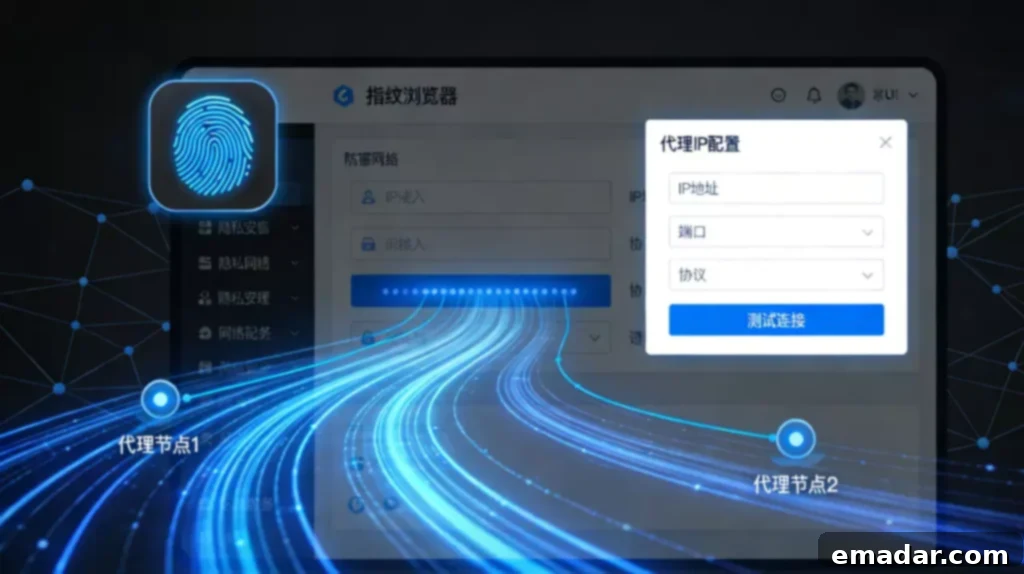
1. What is a Fingerprint Browser?
1.1 Understanding Browser Fingerprints
Before delving into fingerprint browsers, it’s essential to understand the concept of browser fingerprints.
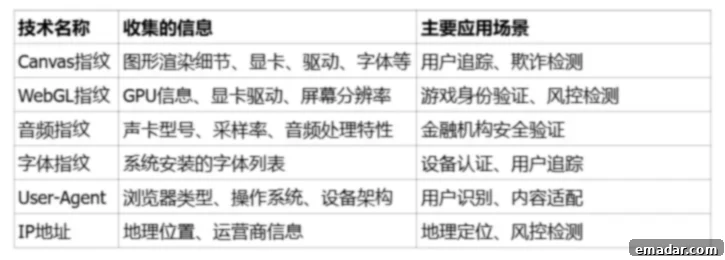
When you visit any website, your browser automatically sends a wealth of information to the server, including:
- Device Information: Operating system type and version, screen resolution, color depth
- Browser Information: Browser type, version number, installed plugins and extensions
- Network Information: IP address, time zone settings, language preferences
- Hardware Information: Graphics card model, sound card characteristics, font library list
- Rendering Characteristics: Canvas drawing rendering results, WebGL 3D graphics rendering characteristics
This combination of information is highly unique, much like a human fingerprint. Statistics indicate that over 90% of browser configurations are unique, meaning websites can accurately identify and track users through these characteristics, even if you clear cookies or switch accounts. This inherent vulnerability necessitates the use of tools that can effectively mask or alter these digital fingerprints.
1.2 Defining Fingerprint Browsers
A fingerprint browser is a specialized tool designed to modify and disguise browser fingerprint information. It creates multiple independent virtual browser environments, allowing each account to operate on a “brand new device,” thereby preventing platforms from identifying them as originating from the same user.
In simpler terms, a fingerprint browser acts as a “digital disguise master” – it dresses each account in different “outfits,” tricking platforms into believing that these accounts come from different computers, different regions, and different users. This capability is paramount for anyone managing multiple online identities.
1.3 Core Technologies of Fingerprint Browsers
The efficacy of a fingerprint browser hinges on its ability to manipulate and randomize the various data points that constitute a browser fingerprint. This includes, but is not limited to:
- Canvas Fingerprinting: Masking the unique way a browser renders images using the Canvas API.
- WebGL Fingerprinting: Altering the rendering of 3D graphics to create a different profile.
- AudioContext Fingerprinting: Modifying the way audio is processed by the browser.
- User Agent Spoofing: Presenting a different browser and operating system to the website.
- IP Address Masking: Utilizing proxy servers to change the apparent location of the user.
- Cookie Management: Isolating cookies for each browser profile to prevent cross-account tracking.
2. Why Use a Fingerprint Browser for Multi-Account Management?
2.1 The Core Logic of Platform Risk Control
Major platforms (such as TikTok, Facebook, Amazon, Instagram, etc.) primarily rely on two major identification dimensions for their risk control systems:
Dimension 1: Device Fingerprint Characteristics
- Detecting whether multiple accounts originate from the same device
- Analyzing the consistency and rationality of browser configurations
- Identifying abnormal hardware parameter combinations
Dimension 2: Network IP Trajectory
- Monitoring the geographical location changes of login IPs
- Detecting multi-account activity under the same IP
- Analyzing the match between IP and device fingerprints
These platforms employ sophisticated algorithms to correlate accounts based on these factors. If inconsistencies or suspicious patterns are detected, accounts are flagged for review or even suspended. Therefore, circumventing these risk control mechanisms is crucial for successful multi-account management.
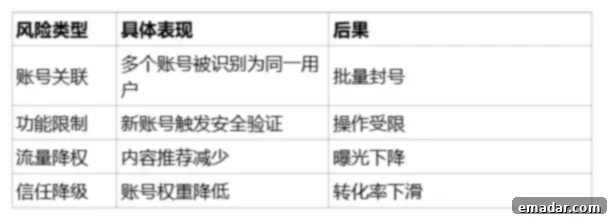
2.2 Risks of Not Using a Fingerprint Browser
Failing to use a fingerprint browser for multi-account management exposes you to significant risks, including:
- Account Suspension or Termination: Platforms may suspend or terminate accounts suspected of violating their terms of service.
- IP Blocking: Your IP address may be blocked, preventing access to the platform.
- Reduced Reach and Engagement: Algorithms may penalize accounts associated with suspicious activity, reducing their visibility and engagement.
- Wasted Resources: Time and effort spent building and managing accounts can be wasted if they are quickly flagged and suspended.
2.3 Core Value of Fingerprint Browsers
Using a professional fingerprint browser provides several core benefits:
- ✅ Environment Isolation: Each account has independent cookies, cache, and local storage. This prevents cross-account tracking and ensures that each profile appears as a unique user to the platform.
- ✅ Deep Fingerprint Disguise: Simulates realistic device parameters and browser characteristics. This makes each browser instance appear as a legitimate, distinct user, making detection by platform algorithms significantly more difficult.
- ✅ Efficient Batch Management: One-click switching between multiple accounts, improving operational efficiency. Many fingerprint browsers offer tools for automating tasks and streamlining workflows.
- ✅ Team Collaboration Support: Multiple people can share environment configurations, ensuring consistent operations. This is particularly valuable for larger teams managing numerous accounts across different platforms.
- ✅ Reduced Risk of Risk Control: Significantly reduces the risk of account bans due to environment association. By effectively masking and randomizing browser fingerprints, fingerprint browsers minimize the chances of accounts being linked and flagged for suspicious activity.
3. Fingerprint Browser Environment Setup: A Complete Guide
3.1 Preparations
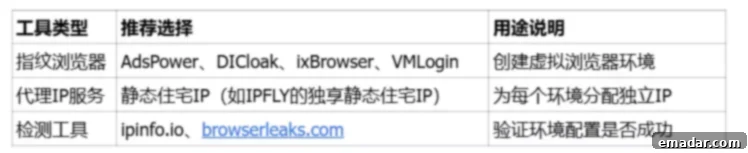
Before starting the setup, you need to prepare the following tools:
- A Fingerprint Browser: Popular options include AdsPower, DICloak, Multilogin, GoLogin, and Incogniton. Consider factors such as pricing, features, and ease of use when choosing a fingerprint browser.
- High-Quality Proxy IP: Essential for masking your real IP address and ensuring each account has a unique IP. Residential proxies are generally preferred over datacenter proxies as they are less likely to be detected.
Important Note: Fingerprint browsers address the “device identity” issue, but without independent network exit IPs, platforms can still identify account associations through IP addresses. Therefore, fingerprint browsers must be used with high-quality proxy IPs.
3.2 Detailed Configuration Steps (Using a Mainstream Fingerprint Browser as an Example)
This section outlines the general steps for setting up a fingerprint browser environment. Specific instructions may vary depending on the chosen fingerprint browser.
Step 1: Register and Install the Fingerprint Browser
- Visit the fingerprint browser’s official website (e.g., AdsPower, DICloak).
- Register an account using your email and complete the verification.
- Download and install the client corresponding to your operating system.
- Log in to the backend and familiarize yourself with the interface and features.
Step 2: Obtain Proxy IP Information
Using IPFLY Proxy IP as an example, you need to obtain the following information from the official website:
- IP Address: The host address of the proxy server
- Port Number: The port for connecting to the proxy
- Protocol Type: HTTP, HTTPS, or Socks5
- Authentication Information: Username and password (if required)
Step 3: Create a Browser Environment
- Open the fingerprint browser client.
- Click “New Browser” or “Create Environment.”
- Fill in the environment name (recommended format: Platform + Account Identifier, such as “TikTok-US 01”).
- Select the operating system (Windows/macOS/Android/iOS).
- Select the browser kernel (Chrome or Firefox).
- Set a group label (for easy classification and management).
Step 4: Configure Proxy Parameters
This is the core step in environment setup:
- In the proxy settings, select “Custom Proxy.”
- Select the proxy protocol type.
- Fill in the IP address and port number.
- Enter authentication information (username/password).
- Click “Detect Proxy” to verify the connection.
- Confirm that a green/success message is displayed and save.
Configuration Example:
Proxy Type: Socks5
IP Address: xxx.xxx.xxx.xxx
Port: xxxx
Username: your_username
Password: your_password
Step 5: Optimize Fingerprint Parameters (Optional)
For advanced users, further customization is possible:
- Time Zone Settings: Keep consistent with the IP location.
- Language Settings: Match the target market language.
- Resolution: Choose a common screen resolution.
- WebRTC: It is recommended to turn it off or set it to proxy IP mode to prevent real IP leakage.
- Font List: Keep the system default or choose a common font combination.
Step 6: Start and Verify the Environment
- Find the configuration you just created in the environment list.
- Click the “Open” or “Start” button.
- The browser will open automatically and display the proxy network page.
- Visit ipinfo.io to verify:
- Whether the IP address is consistent with the configuration.
- Whether the geographic location is correct.
- Whether the operator information is reasonable.
- Visit browserleaks.com to check fingerprint uniqueness.
3.4 Batch Environment Setup Techniques
For users who need to manage a large number of accounts:
Method 1: Template Batch Import
- Create a standard environment template.
- Export to CSV/Excel format.
- Batch modify IP and account information.
- Import to generate multiple environments.
Method 2: API Automated Configuration
- Use the API interface provided by the fingerprint browser.
- Write a script to automatically create environments.
- Connect to the API of the proxy IP to realize automatic allocation.
- Suitable for large-scale deployment by technical teams.
4. Multi-Account Operation Practical Guide
4.1 Golden Rule: One Account, One IP, One Environment
Each account must have an independent IP address and an independent browser environment. Both are indispensable.
4.2 Operational Strategies for Different Platforms
Cross-Border E-Commerce (Amazon, eBay, Shopify)
- IP Selection: Target market local static residential IP. Static residential IPs are preferred as they offer the highest level of anonymity and are less likely to be flagged by platforms.
- Environment Configuration: Simulate local mainstream device parameters. Mimic the hardware, software, and network settings of typical users in the target market.
- Operation Rhythm: Avoid large amounts of operations in a short time. Gradually build up account activity to mimic natural user behavior.
- Account Incubation Period: It is recommended that new accounts have a 7-15 day cold start period. This allows the account to age and build trust with the platform before engaging in significant activity.
Social Media Matrix (TikTok, Instagram, Facebook)
- IP Selection: Residential IP consistent with the account registration location. This is crucial for maintaining consistency and avoiding suspicion.
- Environment Configuration: Mobile terminal parameters are more popular with platforms. Social media platforms often prioritize mobile device traffic, so emulating a mobile environment can be advantageous.
- Content Strategy: Keep content differentiated between accounts. Avoid posting the exact same content across multiple accounts, as this can be a sign of coordinated inauthentic behavior.
- Interaction Behavior: Simulate browsing habits of real users. Engage with content, follow other users, and participate in discussions to mimic natural social media activity.
Advertising (Google Ads, Facebook Ads)
- IP Selection: Stable IP in the region where the advertising account is located. Consistency is key for advertising accounts, as changes in IP address can trigger security alerts.
- Environment Configuration: Match the account registration information. Ensure that the browser fingerprint and other environment parameters align with the information provided during account registration.
- Payment Security: Ensure that the payment card is consistent with the IP region. Using payment methods that are inconsistent with the IP location can raise red flags and lead to account suspension.
- Budget Control: Diversify the placement to reduce the risk of a single account. Spreading ad spend across multiple accounts can mitigate the impact of account suspensions or other issues.
4.3 Common Problems and Solutions
Problem 1: Proxy Connection Failed
- Check whether the IP, port, and authentication information are correct.
- Confirm whether the local network supports the proxy protocol.
- Contact the proxy service provider to confirm the IP status.
Problem 2: Environment Recognized by Platform
- Check whether the fingerprint parameters are reasonable (avoid over-disguising).
- Confirm IP purity (whether it is blacklisted).
- Verify whether the time zone and language match the IP region.
Problem 3: Account Frequently Triggers Verification
- Reduce the frequency of operations and simulate real human behavior.
- Check whether the IP is shared by multiple people.
- Ensure that cookies and cache are correctly isolated.
5. Optimized Combination of Fingerprint Browser + Proxy IP
5.1 Why is the Choice of Proxy IP Critical?
Fingerprint browsers can solve the “device identity” disguise, but if the proxy IP quality is poor, all efforts will be in vain. A good proxy IP should have:
- ✅ High Purity: The IP is not blacklisted by the platform. A clean IP history is essential for avoiding detection.
- ✅ Strong Stability: The connection is not interrupted, and the IP does not change frequently. Frequent IP changes can be a sign of suspicious activity.
- ✅ Real Residential Properties: Simulate a real home network environment. Residential proxies are less likely to be detected than datacenter proxies.
- ✅ Exclusive Use: Avoid sharing with others to cause association. Sharing IPs with other users can increase the risk of account association.
- ✅ Global Coverage: Support multi-regional account operation needs. Having access to IPs in various locations is important for managing accounts in different markets.
5.2 Recommendation
Among many proxy IP service providers, IPFLY has become the preferred partner of many fingerprint browser users with its excellent service quality and technical advantages.
IPFLY’s core advantages:
- 🌍 Global Coverage: 90 million+ high-quality IP resources, covering 190+ countries and regions.
- 🏠 Residential Proxy: Static/dynamic residential IP allocated by real ISP, simulating real user environment.
- ⚡ Multi-Protocol Support: Supports HTTP/HTTPS/Socks5 protocols and is compatible with all mainstream fingerprint browsers.
- 🔒 High Anonymity: No log records to protect user privacy and security.
- 🚀 Second-Level Connection: Self-built server network to ensure stable low latency.
- 🔧 API Docking: Support batch configuration and automated management.
5.3 Configuration Example
Take TikTok multi-account operation as an example to show the complete configuration process:
Step 1: Obtain IPFLY Proxy
- Visit the IPFLY official website to register an account.
- Select a static residential IP package based on business needs.
- Obtain connection information in the “IP Management” in the background.
Step 2: Configure Fingerprint Browser
- Create a new browser environment.
- Select the Socks5 protocol in the proxy settings.
- Fill in the IP address and port provided by IPFLY.
- Enter authentication information to complete the configuration.
- Detect proxy connection status.
Step 3: Start Operation
- Open the configured environment.
- Visit the TikTok official website or open the App.
- Log in to the target account to start operation.
- Repeat the above steps for each account to ensure an independent environment.
6. Conclusion
In the tide of globalized digital marketing, the combination of fingerprint browser + proxy IP has become a standard tool for cross-border practitioners.
Choosing the right tool combination and establishing standardized operating procedures will make your multi-account operation smoother. Whether it’s a TikTok matrix, Facebook advertising, or a cross-border e-commerce store, a stable environment is the cornerstone of success.
“Use IPFLY to Achieve One Store, One IP”
Equip each store with the IPFLY anti-association exclusive IP that cross-border e-commerce users are using.
Click 👉 Unlock the Multi-Store IP Matrix, receive exclusive discounts, and easily control overseas operations!