
Where is the Browser Proxy Setting? A Comprehensive Guide and Troubleshooting Tips
Navigating the world of browser proxy settings can be tricky. Users often face difficulties not only in locating the settings but also in resolving issues like ineffective proxies, network slowdowns, and lost configurations. This comprehensive guide aims to simplify the process, providing precise locations for proxy settings in major browsers and offering effective solutions to common problems. Addressing these challenges promptly is crucial for ensuring a smooth and efficient proxy experience.
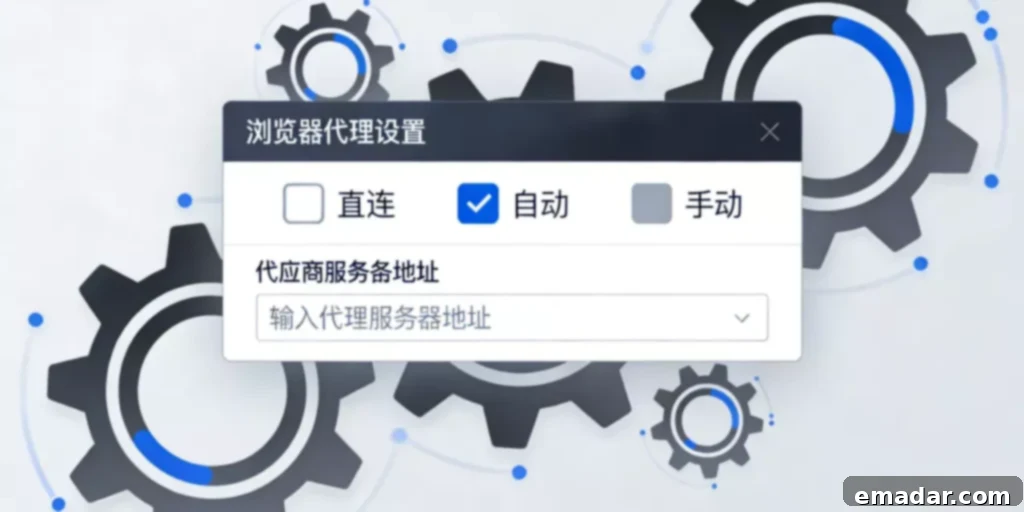
Accurate Locations of Proxy Settings in Mainstream Browsers
Finding the proxy settings in your browser shouldn’t be a headache. This section offers a browser-specific guide to help you quickly locate the necessary configurations.
Quick Search by Browser Type
- Chrome/Edge: Both browsers redirect to the system proxy settings. The primary entry point is located in the “Settings – System” section of the browser. Edge also allows direct access via a dedicated address.
- Firefox: Firefox offers an independent configuration entry point in “Settings – General – Network Settings.” No system redirection is required.
- Safari: The entry point is in “Settings – Advanced – Change Settings,” which ultimately redirects to the macOS system network proxy settings.
Mastering these browser-specific entry points will significantly expedite the process of finding your proxy settings.
Quick Solutions for Missing Setting Entry Points
If you’re unable to find the proxy settings entry point using the standard steps, consider these solutions:
- Use the Browser’s Search Function: In the settings page, use the search bar at the top and type “proxy.” The system will automatically filter and display related setting options. Simply click on the relevant result to access the proxy settings.
- Update Your Browser: Older browser versions may have different interface layouts, which can affect the location of the proxy entry point. Updating to the latest version will restore the standard entry point location, making it easier to find.
Common Problems and Solutions for Browser Proxy Settings
Once you’ve located your proxy settings, you might encounter other issues. This section addresses some of the most common problems and provides detailed solutions.
Problem 1: Finding the Setting Entry Point but Unable to Configure Parameters
Some users find the proxy settings entry point but discover that the parameter input fields are grayed out, preventing configuration. Here’s how to resolve this issue:
- Run the Browser as Administrator: Ensure the browser is running with administrator privileges. If not, close the browser, right-click on the browser icon, and select “Run as administrator.” Then, re-enter the settings page.
- Check for Group Policy Restrictions: Verify if the system has enabled group policy restrictions. If so, disable the relevant restrictions or contact your system administrator for assistance.
- Check Permissions on Enterprise Browsers: If you’re using an enterprise version of the browser, there may be permission restrictions. Obtain the necessary permissions before attempting to configure the settings.
Problem 2: Proxy Settings Not Taking Effect After Completion
This is one of the most common issues. Here’s a step-by-step approach to fixing it:
- Check Proxy Parameters: Verify that the proxy parameters, including the server address, port, and protocol type, are accurate. Ensure they match the parameters provided by your proxy network service exactly. Incorrect input can lead to ineffective settings.
- Restart the Browser: Some browsers require a restart for the proxy settings to take effect, especially Chrome and Edge, which redirect to the system settings.
- Check the Proxy Network: Test the proxy service’s availability using other devices. If the proxy service is malfunctioning, reconnect or switch to a different proxy node. If you are using a service like IPFLY’s proxy network, try switching to another stable node and reconfiguring the settings.
Additionally, if the browser has enabled “Automatic Proxy Detection” or “Use Automatic Configuration Script,” these features may override manually set proxy parameters, rendering the settings ineffective. Disable these functions and reconfigure the settings.
Problem 3: Network Slowdowns and Slow Access After Setting Up
The primary cause of network slowdowns is the low compatibility of the proxy node with the current network environment or an unstable proxy link. Try these solutions:
- Switch Proxy Nodes: Select a node that is closer to your current location and has a lower latency. For cross-border access, choose a node near the target region.
- Optimize Browser Settings: Disable background synchronization functions, ad-blocking plugins, and other features that consume network resources.
- Choose a Stable Proxy Network Service: Services like IPFLY’s proxy network offer optimized transmission links that effectively reduce network latency, alleviate slowdowns, and improve access speed.
Problem 4: Proxy Settings Lost After Restarting the Browser
Lost settings are often related to browser configuration synchronization or system restore functions. Follow these steps to prevent this issue:
- Disable Browser Configuration Synchronization: Avoid syncing settings to prevent local proxy settings from being overwritten after logging in.
- Check System Restore Settings: Verify if the system has enabled restore points. If so, disable the system restore function or delete the relevant restore points.
- Save Proxy Settings: Add the proxy settings page to your browser’s bookmarks and record the proxy parameters. This allows you to quickly reconfigure the settings if they are lost.
Efficient Operating Tips for Proxy Settings
Here are some advanced techniques to streamline your proxy setup and management.
Use Browser Configuration Files to Save Proxy Settings
For users who frequently switch proxy settings, create multiple browser configuration files, each with its own set of proxy parameters. Simply switch between configuration files as needed, eliminating the need for repeated settings. In Chrome, create a new profile by going to “Top-right corner three dots – Settings – Add.” In Firefox, use “Top-right corner three horizontal lines – New Private Window – New Profile.”
Record Proxy Parameters for Quick Configuration
Keep a record of your frequently used proxy parameters (server address, port, protocol, etc.) in a notepad file on your desktop or in a commonly used folder. Copy and paste the parameters when configuring to avoid manual input errors and improve efficiency. Update the recorded parameters regularly to ensure they match the latest parameters from your proxy network service.
Solving the problem of “Where are the browser proxy settings?” is just the first step. Mastering troubleshooting methods is crucial for achieving efficient proxy setup and usage. While the location of proxy settings may vary across browsers, following the core logic of “Menu – Settings – Network/System” can quickly guide you. Most issues after setup are related to parameter errors, permission restrictions, or proxy instability, which can be addressed with targeted solutions.
Combining these techniques with a high-quality proxy network service like IPFLY can reduce the occurrence of problems and enhance the proxy experience. By mastering the location methods and troubleshooting tips in this article, you can easily handle various browser proxy setting issues.
IPFLY boasts over 90 million high-quality IP resources worldwide, supporting:
- ✅ High-stability static residential IPs (customizable by country/city)
- ✅ Massive dynamic residential IPs with automatic rotation support
- ✅ High purity and strong anti-risk control capabilities
- ✅ Dedicated customer service for IP environment configuration guidance
Register with IPFLY to make your account ‘invisible’ overseas and truly achieve secure operations!