
Troubleshooting Microsoft Store Not Opening in Windows: A Comprehensive Guide
Encountering issues with the Microsoft Store not opening in Windows is a frustrating experience for many users. This problem not only hinders the ability to download new applications but can also impede system updates and the use of cross-platform tools. This comprehensive guide delves into the common causes behind this issue, provides detailed network troubleshooting steps, and offers effective solutions to quickly restore access to the Microsoft Store. We’ll explore everything from basic network checks to advanced system setting adjustments, ensuring you have the knowledge and tools to resolve this problem efficiently.
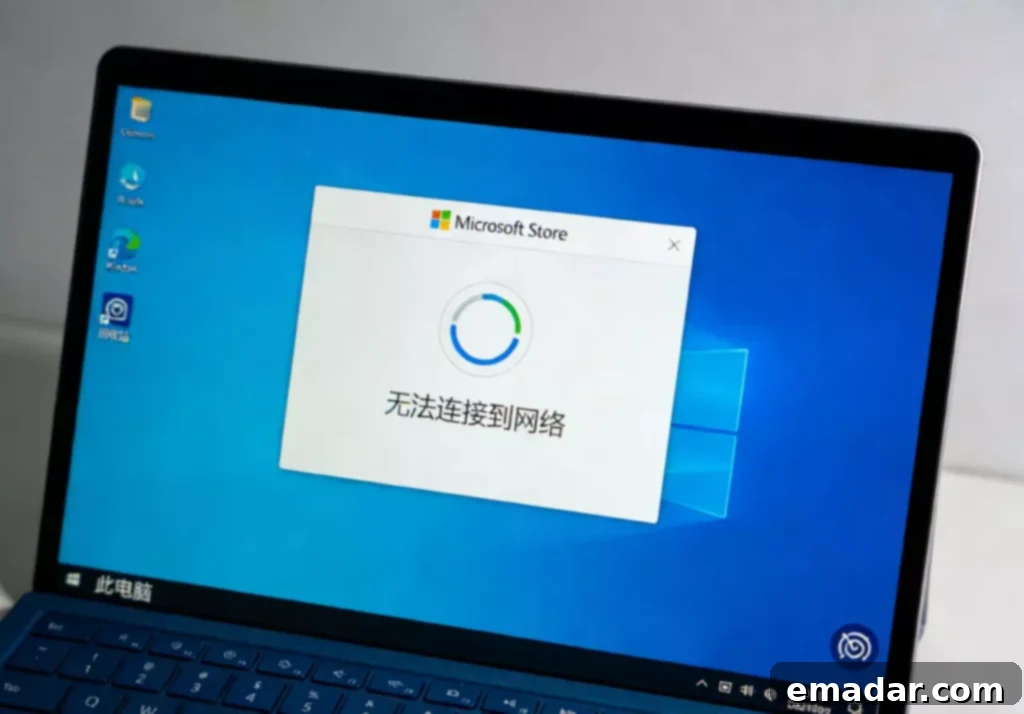
Common Reasons Why the Microsoft Store Won’t Open
Understanding the root causes of the problem is crucial for effective troubleshooting. Several factors can prevent the Microsoft Store from opening correctly. Let’s examine the most frequent culprits:
- Unstable Network Connection: Fluctuations in your Wi-Fi or wired network can disrupt the Store’s ability to load pages or verify your account. A consistent and reliable internet connection is paramount for the Microsoft Store to function correctly.
- DNS or IP Configuration Issues: Incorrect or unstable DNS or IP settings can block the Store’s communication with its servers, leading to access failures. These settings are essential for directing your computer to the correct online resources.
- Firewall or System Policy Restrictions: Windows Firewall or network policies within a local area network (LAN) may inadvertently block Microsoft Store requests. These security measures, while important, can sometimes interfere with legitimate applications.
- Network Environment Anomalies: Certain network environments might trigger access restrictions, causing the Microsoft Store to either fail to open or load very slowly. This is more common in corporate or public networks with strict security protocols.
Basic Network Checks for Microsoft Store Issues
When you encounter problems with the Microsoft Store not opening, initiating with basic network checks is a logical first step. These checks help identify whether the issue stems from your internet connection. Here’s how to proceed:
- Verify Network Availability: Attempt to access other websites to confirm that your local network is functioning correctly. If you can’t access other sites, the problem likely lies with your internet connection itself.
- Restart Your Router or Network Devices: A simple power cycle can often resolve temporary network congestion or glitches. Unplug your router and modem, wait for about 30 seconds, and then plug them back in.
- Check System Proxy or Network Settings: Ensure that there are no unusual proxy settings or temporary configurations affecting your network path. Incorrect proxy settings can redirect your traffic and prevent access to the Microsoft Store.
Quick Fixes for DNS and IP Problems Affecting the Microsoft Store
Anomalies in your network environment are often significant contributors to the Microsoft Store failing to open. Try the following methods to address DNS and IP-related issues:
- Flush the DNS Cache: Open Command Prompt as an administrator. Type
ipconfig /flushdnsand press Enter. This command clears the DNS resolver cache, forcing your computer to retrieve fresh DNS information when you next attempt to access a website or service. After flushing the DNS, try accessing the Microsoft Store again. - Switch DNS Servers: Consider using public DNS servers like Google Public DNS (8.8.8.8 and 8.8.4.4) or Cloudflare DNS (1.1.1.1 and 1.0.0.1). To change your DNS servers, go to Network and Sharing Center, click on your active network connection, select Properties, then choose Internet Protocol Version 4 (TCP/IPv4), and finally, specify the preferred and alternate DNS server addresses. Observe whether this change restores access to the Microsoft Store.
- Utilize a Stable Network Exit Point: For users accessing the Microsoft Store from different geographical regions, unstable network connections can be a common problem. In such cases, using a reliable proxy service can help. A proxy service provides a stable IP address that facilitates smooth loading of Microsoft Store pages, thereby improving the success rate of opening the Store. Services like IPFLY (Disclaimer: This is just from the source document and should not be taken as an endorsement.) can be helpful.
System Settings and Microsoft Store Repair Options
If your network is functioning correctly but the Microsoft Store still refuses to open, explore the following system-related solutions:
- Reset the Microsoft Store: Navigate to Settings > Apps > Apps & Features. Locate the Microsoft Store in the list, select it, and choose “Advanced options.” Then, click on “Reset.” This action clears the Store’s cache and data, effectively returning it to its default state. Note that you may need to sign in again after resetting the app.
- Check System Time and Region Settings: Incorrect date, time, or regional information can prevent the Store from verifying network requests. Ensure that your system’s time and region settings are accurate. You can find these settings in the Control Panel under “Date and Time” and “Region.”
- Update Windows System: Ensure that your operating system has the latest updates and patches installed. Outdated system components can lead to compatibility issues that affect the Microsoft Store. To check for updates, go to Settings > Update & Security > Windows Update and click “Check for updates.” Install any available updates and restart your computer.
Tips to Enhance Microsoft Store Opening Stability
To minimize the occurrence of Microsoft Store not opening issues, consider the following preventative measures:
- Maintain a stable network environment with minimal fluctuations. A consistent internet connection is crucial for reliable Store operation.
- Avoid running applications that consume significant bandwidth simultaneously, as this can strain your network and interfere with the Store’s functionality.
- For cross-regional operations, opt for services that support multiple regional IP addresses. This can help overcome geographical restrictions or connectivity issues.
- In cross-border business scenarios, leverage network services provided by overseas proxy IP providers to ensure a stable access environment and increase the success rate of opening the Store.
Conclusion: Restoring Your Microsoft Store Access
Issues with the Microsoft Store not opening are often linked to network environment problems, DNS/IP configuration errors, or system setting inconsistencies. By systematically addressing these potential causes, most users can quickly restore normal access to the Microsoft Store.
Maintaining a stable network environment and ensuring proper system configuration are key to guaranteeing the smooth operation of the Microsoft Store, application downloads, and overall system services. By following the troubleshooting steps and preventative measures outlined in this guide, you can significantly reduce the likelihood of encountering future problems with the Microsoft Store.
Remember to regularly check your network settings, keep your system updated, and consider using a reliable proxy service if you frequently experience issues with accessing the Microsoft Store from different locations.
Disclaimer: This article mentions a third-party service (IPFLY) as an example based on the provided source material. This should not be considered an endorsement or recommendation of the service. Always research and choose services that best fit your specific needs and security requirements.