
How to Find Your Router IP Address: A Comprehensive Guide (Updated 2026)
Determining your router’s IP address, often referred to as the default gateway, is a fundamental networking task. It is essential for accessing administrative settings, troubleshooting connection problems, or configuring advanced features like port forwarding. As of December 2026, most home routers use private IP addresses within the ranges of 192.168.0.1, 192.168.1.1, or 10.0.0.1. This guide provides detailed, platform-specific instructions to effectively locate this address, ensuring compatibility with contemporary operating systems, while also emphasizing secure practices for subsequent management panel access.

Common Default Router IP Addresses
Many manufacturers assign standard IP addresses to their devices. Prominent examples include:
- 192.168.1.1: Commonly used by TP-Link, D-Link, and some NETGEAR models.
- 192.168.0.1: Frequently used by Linksys, Belkin, and certain ASUS routers.
- 10.0.0.1: Used by some Comcast/Xfinity gateways.
- 192.168.100.1: Occasionally used for modem-router combinations.
If automated methods fail, directly trying these addresses in a web browser might produce a login page. However, verification through device-specific commands remains the most reliable approach. Knowing the default IP can save time, but confirming it is crucial.
Methods to Check Your Router IP Address by Platform
The process of finding your router’s IP address varies depending on the operating system you are using. Below are detailed instructions for different platforms, ensuring you can quickly access your router’s settings regardless of your device.
On Windows
The Command Prompt offers a straightforward method:
- Press
Windows Key + R, typecmd, and press Enter. This opens the Command Prompt. - Type
ipconfigand press Enter. This command displays network configuration information. - Under your active network adapter (e.g., Ethernet or Wi-Fi), locate “Default Gateway.” This is your router’s IP address.
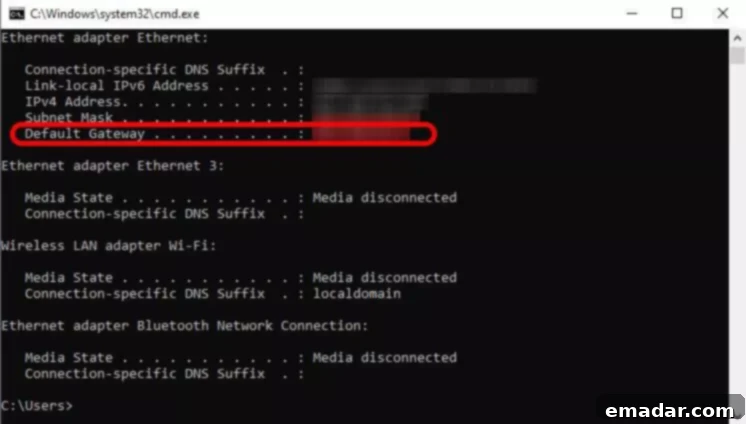
Alternatively, navigate to Settings > Network & Internet > Status > View hardware and connection properties, where the default gateway is listed. This provides a graphical interface to find the same information.
On macOS
Access via System Settings:
- Click
Apple menu > System Settings > Network. - Select the connected interface (Wi-Fi or Ethernet).
- Click “Details” or “Advanced” > TCP/IP tab.
- The router IP appears next to “Router.”
This method provides a clear path to finding the IP address within the macOS environment.
On Linux
Utilize the Terminal:
- General Command:
ip route | grep default(displays the gateway). - Alternatives:
ip addrornmcli device showfor NetworkManager users.
These methods yield consistent results across distributions like Ubuntu or Fedora. The command line is a powerful tool for network information in Linux.
On Android
Steps vary based on manufacturer and Android version (e.g., 15 or 16 in 2026):
- Open
Settings > Network & Internet > Wi-Fi. - Tap the network you’re connected to > Advanced or “View More.”
- The gateway appears under “Gateway” or in static IP settings.
Third-party apps like WiFi Analyzer can also reliably display this information. These apps offer a user-friendly alternative.
On iOS/iPadOS
- Open
Settings > Wi-Fi. - Tap the “i” icon next to your network.
- Scroll to “Router” to find the IP address.
This remains consistent across recent iOS versions. The process is straightforward and easily accessible.
How to Access Router Settings
Once you have obtained the IP address, enter it into a web browser (e.g., http://192.168.1.1). Default credentials are often “admin” for both username and password, or found on a label on the device. This will take you to your router’s configuration panel.
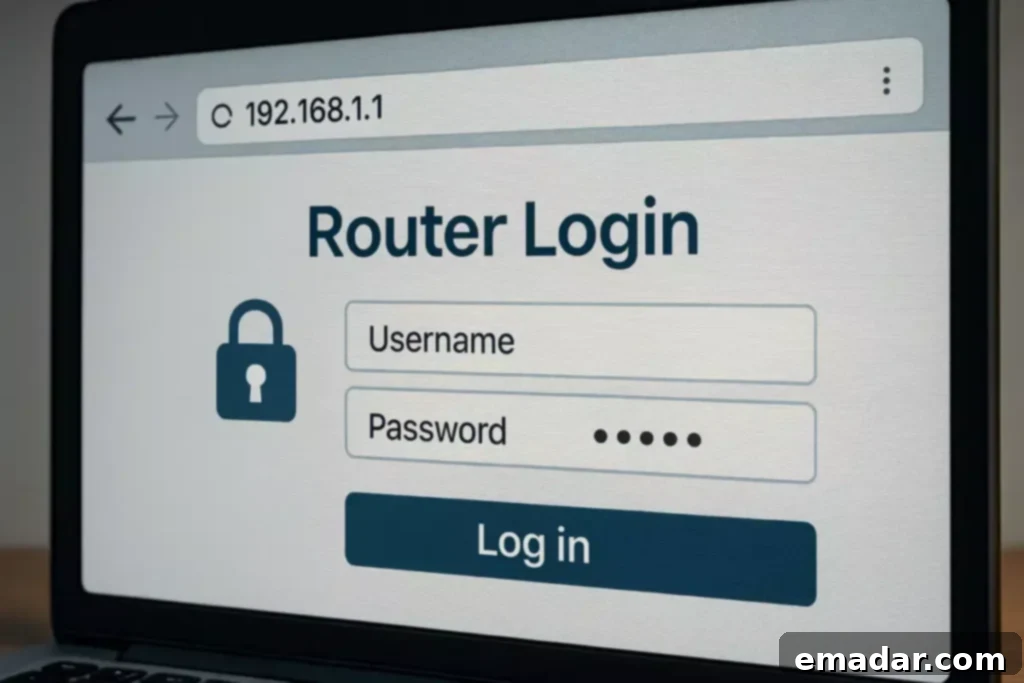
How to Access and Change Your WiFi Router Settings (2026 Edition)
Accessing your router settings allows you to configure various aspects of your network, from security settings to parental controls. Here’s how to ensure you do it safely:
- Immediately change the default administrator password to a strong, unique password. This is the most crucial step in securing your router.
- Whenever possible, use a wired connection for configuration changes. This reduces the risk of interception.
- Avoid using public networks when accessing your router settings. Ensure your device is connected to your local network.
- Regularly update the firmware to mitigate vulnerabilities. Firmware updates often include important security patches.
Integrating Proxies for Remote or Restricted Network Access
In scenarios involving remote administration or ISP restrictions, proxies can facilitate secure access to router settings or related diagnostics. Configuring through a SOCKS5 or HTTP proxy in your browser ensures privacy and can bypass restrictions. This method adds an extra layer of security when accessing sensitive settings remotely.
Advanced Proxy Network Services: Emphasizing High Availability
For advanced networking tasks requiring stable, anonymous connections, such as remote router diagnostics, reputable providers are recommended. IPFLY offers SOCKS5-compatible proxies with a pool exceeding 90 million IPs across 190+ countries, including static residential for persistent access, dynamic residential for rotation, and datacenter for high speed. Features include 99.9% uptime, unlimited concurrency, millisecond responses, and 24/7 support, making it suitable for professional-grade operations. High-quality proxies are essential for reliable remote access.
Comparative Analysis of Proxy Providers
IPFLY’s genuine ISP-assigned residential IPs provide exclusive, stable connections with minimal disruptions, superior to shared free proxies prone to bans and instability. Unlimited traffic supports intensive sessions, contrasting with limited public options. Robust encryption prevents leaks, while low latency and global coverage enhance performance—lower-tier services lacking comprehensive support cannot consistently match these advantages. Choosing the right proxy provider can significantly impact your remote access capabilities.
Troubleshooting Common Issues
If the IP address is inaccessible:
- Verify your network connection. Ensure you are connected to the network.
- Temporarily disable any VPNs. VPNs can interfere with accessing local network devices.
- Reboot your router. This can resolve temporary connectivity issues.
- Check for custom configurations through your ISP’s app. Some ISPs require specific configurations.
These steps can help resolve common issues when trying to access your router’s settings.
Whether you’re doing cross-border e-commerce testing, overseas social media operations, or anti-blocking data scraping – first choose the right proxy service on IPFLY.net, then join the IPFLY Telegram Community! Industry professionals share real strategies to solve “inefficient proxy” problems!

Mastering Router IP Address Checks
Accurately identifying your router’s IP address enables effective network management and security enhancements. By following these platform-specific steps and adopting secure access practices, users can maintain optimal control over their home networks in December 2026. For complex setups involving proxies, services like IPFLY ensure reliability and security. Taking the time to understand your network is a worthwhile investment.