
Ever found yourself in a situation where you’ve set up a proxy server, but your computer just won’t connect to the internet? This is a surprisingly common and frustrating issue that many users encounter, especially those leveraging proxies for critical online activities.
In today’s digital landscape, proxy servers are indispensable tools for a multitude of applications. Whether you’re a cross-border e-commerce entrepreneur managing multiple stores, a data analyst conducting extensive web scraping, or a digital marketer orchestrating a TikTok matrix operation, proxies are essential for masking your true IP address, switching to overseas nodes, and maintaining operational anonymity and efficiency. However, the convenience and power of proxy servers often come with a perplexing challenge: after enabling the proxy, many users discover their web pages simply won’t load.
So, is the problem with your chosen proxy server, or could it be a misconfiguration in your local settings? This comprehensive guide aims to demystify the common reasons behind this connectivity issue and provide you with detailed, step-by-step solutions to get your internet back on track. We’ll explore everything from basic troubleshooting to advanced optimization techniques, ensuring you can harness the full potential of your proxy server without unexpected interruptions.
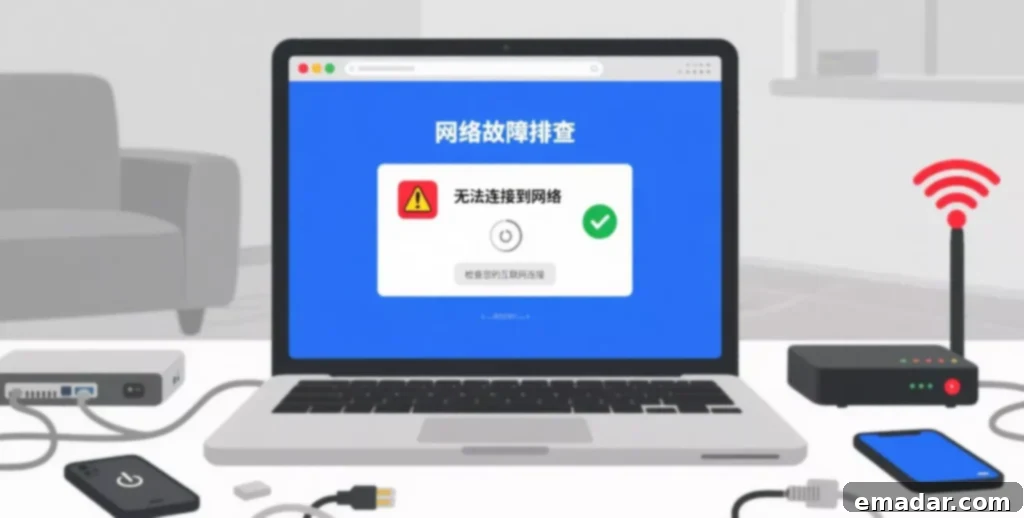
Why Are Web Pages Not Opening After Enabling Your Proxy Server?
When your internet connection goes awry after activating a proxy, it can be due to several underlying factors. Understanding these causes is the first step towards effective troubleshooting. Here are the primary reasons why your proxy might be failing to connect:
- Invalid or Expired Proxy IP: One of the most frequent culprits, especially when using free or unstable proxy servers, is an invalid or expired IP address. Free proxies are often overloaded, frequently go offline, or are quickly blacklisted due to misuse, leading to network request timeouts and an inability to access any web pages. Premium proxy services, in contrast, offer more reliable and consistently maintained IP pools.
- Incorrect Proxy Configuration: Human error during setup is another common cause. If the IP address or port number you’ve entered is incorrect, or if there’s a mismatch in the protocol (e.g., using an HTTP proxy with a SOCKS5 setting), your browser or operating system will be unable to establish a proper connection with the proxy server. This can also include authentication failures if a username and password are required but incorrectly provided.
- Firewall or Security Software Interference: Modern antivirus programs, firewalls, and other internet security suites are designed to protect your system from suspicious network activity. Sometimes, they can mistakenly identify proxy connections as a potential threat or unauthorized traffic, leading to the blocking of legitimate proxy usage. This often happens without explicit notification, making it harder to diagnose.
- Slow or Overloaded Proxy Server: Even if your proxy is configured correctly, its performance can hinder your internet access. If the proxy node itself has poor network quality, limited bandwidth, or is severely overloaded with too many users, web pages will load extremely slowly, time out, or simply fail to respond, creating the impression that you have no internet connection at all.
- Target Website Banning Proxy IPs: Many websites and online platforms, particularly social media sites, e-commerce platforms, and streaming services, actively detect and block known proxy IP addresses. This is done to prevent bot activity, enforce geo-restrictions, or maintain fair usage policies. If your proxy IP is on such a blacklist, you’ll be unable to access those specific sites, even if other sites work.
- DNS Resolution Issues: While less common, proxy servers can sometimes interfere with Domain Name System (DNS) resolution. Your computer uses DNS to translate human-readable website addresses (like example.com) into numerical IP addresses. If the proxy isn’t correctly forwarding or handling DNS requests, your browser won’t be able to find the website’s server, resulting in a “page not found” or “connection failed” error.
- Protocol Mismatch or Incompatibility: Proxies come in different types, such as HTTP, HTTPS, and SOCKS (SOCKS4/SOCKS5). Using an HTTP proxy for SOCKS5 traffic or vice versa, or attempting to tunnel encrypted HTTPS traffic through a basic HTTP proxy without proper configuration, can lead to connection failures. Ensuring the proxy type aligns with your intended use and client settings is crucial.
Quick Troubleshooting Steps to Diagnose Proxy Connectivity Issues
When confronted with the frustrating “proxy enabled, but no internet” problem, a systematic approach to troubleshooting can save you a lot of time and effort. Follow these steps in order to quickly identify the root cause:
1. Verify Proxy Server Availability and Reachability:
- Ping the Proxy IP: Open your command prompt (Windows) or Terminal (Mac/Linux) and type
ping [Proxy IP Address]. A successful ping indicates that the proxy server is online and reachable from your network. If you receive “Request timed out” or “Destination host unreachable,” the proxy server itself might be down or inaccessible. - Test with Direct Connection: Temporarily disable your proxy settings and try accessing a commonly known website (e.g., Google, CNN). If you can connect directly without the proxy, this confirms your local internet connection is functional, narrowing the problem down to the proxy or its settings.
- Use an Online Proxy Checker: There are many free online tools that allow you to check the status, speed, and anonymity level of your proxy IP. Enter your proxy details into one of these checkers to confirm its operational status independent of your local setup.
2. Meticulously Check Proxy Settings:
- Windows: Navigate to “Settings” > “Network & Internet” > “Proxy.” Carefully review the “Manual proxy setup” section. Ensure the IP address and port number are exactly correct, with no typos or extra spaces. Verify that the “Use a proxy server” toggle is correctly enabled or disabled as needed.
- Mac: Go to “System Settings” (or “System Preferences” on older macOS versions) > “Network” > Select your active network connection (e.g., Wi-Fi, Ethernet) > Click “Details” (or “Advanced”) > “Proxies” tab. Check which proxy protocols are enabled and verify the IP address and port for each. Ensure you haven’t mistakenly checked an incorrect proxy type or left an old, invalid entry.
- Browser-Specific Settings: If you’re using a browser extension for proxy management or have configured proxy settings directly within your browser (e.g., Chrome, Firefox), check those specific settings as they might override system-wide configurations.
3. Temporarily Disable Firewall/Security Software:
- Before proceeding, understand that this is a temporary diagnostic step and should be done with caution. Disable your antivirus program, firewall, or any other internet security software for a few minutes.
- Attempt to access a website through your proxy. If connectivity is restored, your security software is likely interfering. Re-enable your security software immediately afterward and then configure it to allow your proxy connection as an exception or trusted application. Consult your software’s documentation for specific instructions.
4. Switch to a Different Proxy Server:
- If the previous steps prove inconclusive, the issue might lie with the specific proxy node you are using. If you have access to a proxy pool or multiple proxy IPs from your provider, try switching to a different one.
- A new proxy IP can quickly rule out problems like a blacklisted, overloaded, or simply offline proxy server, providing a fresh connection path. This is especially easy with dynamic residential proxies from reputable providers like IPFLY.
5. Clear Browser Cache and DNS:
- Sometimes, outdated cached data or DNS records can interfere with new network configurations. Clear your browser’s cache and cookies.
- Additionally, flush your operating system’s DNS cache. For Windows, open Command Prompt as administrator and type
ipconfig /flushdns. For Mac, usesudo dscacheutil -flushcache; sudo killall -HUP mDNSResponderin Terminal.
Effective Solutions for Proxy-Related Internet Connectivity Issues
Once you’ve diagnosed the problem, implementing the correct solution is straightforward. Here are the most effective ways to resolve proxy-related internet access issues and ensure stable connectivity:
1. Temporarily Disable Proxy to Restore Direct Connection:
If you urgently need internet access and troubleshooting is taking time, the quickest solution is to temporarily disable your proxy settings and revert to a direct local network connection. This will bypass the proxy entirely, allowing you to access the internet immediately. Remember to re-enable and troubleshoot your proxy later when you have more time.
2. Invest in High-Quality Proxy IPs:
The adage “you get what you pay for” holds true for proxy services. Avoid free or unknown proxy sources, as they are inherently unstable, often slow, and prone to being blacklisted. Instead, prioritize reputable providers offering premium residential proxies or high-anonymity datacenter proxies. Residential proxies, in particular, offer superior stability, speed, and a lower risk of detection because they originate from real user devices, mimicking genuine internet traffic. Services like IPFLY provide residential proxy servers across 190+ countries, allowing stable node switching and significantly reducing the probability of web pages failing to open.
3. Implement Application-Specific Proxy Settings (Browser Extensions/Frameworks):
Rather than applying a global proxy setting across your entire operating system, which can sometimes lead to conflicts or affect unintended applications, consider using application-specific proxy configurations. Many modern browsers offer extensions for easy proxy management, allowing you to route only browser traffic through the proxy. Similarly, web scraping frameworks (e.g., Scrapy for Python) and multi-login browsers often have built-in proxy settings, providing granular control and minimizing impact on your system’s overall network connectivity.
4. Configure Automatic Proxy Switching Mechanisms (Proxy Pools):
For large-scale operations such as web scraping, automated testing, or managing numerous social media accounts, manual proxy switching is impractical. Implement an automated proxy pool mechanism. This involves maintaining a list of multiple proxy IPs and configuring your application to automatically rotate through them or switch to a new IP whenever a current one fails or encounters a block. This “failover” system ensures continuous operation, minimizes downtime, and reduces the need for constant manual intervention, significantly improving efficiency and reliability.
Advanced Optimization Techniques for Consistent Proxy Performance
For users who frequently rely on proxy servers for business-critical tasks, optimizing your proxy setup goes beyond basic troubleshooting. These advanced techniques can significantly enhance performance, reliability, and security:
- Thoroughly Test Proxy Speed and Latency: Before committing to a proxy, rigorously test its performance. Use command-line tools like
curl(e.g.,curl -x http://proxy_ip:port -m 10 -s -o /dev/null -w %{time_total}\n https://www.google.com) or dedicated third-party proxy speed testing tools. Prioritize nodes with low latency (response time) and high bandwidth, as these factors directly impact page load times and the overall user experience. Geographically closer proxy servers often yield better latency. - Implement Scenario-Specific Proxy Usage: Not all proxies are created equal, and the best choice depends on your specific use case.
- Cross-border E-commerce: For managing online stores, purchasing, or marketing across different regions, static residential IPs are often the most stable choice. They offer a consistent digital footprint, mimic real user behavior, and are less likely to be flagged by e-commerce platforms.
- Multi-Account Management (e.g., TikTok, Social Media): When operating multiple social media accounts to prevent account association and subsequent bans, dynamic or rotating residential IPs are crucial. These proxies automatically change your IP address at regular intervals or with each request, providing a fresh identity and making it difficult for platforms to link accounts.
- Large-Scale Data Collection (Web Scraping): For intensive data scraping operations that require high concurrency and frequent requests, high-concurrency dynamic proxies are most suitable. These proxies often come with large pools of IPs and sophisticated rotation mechanisms to handle numerous parallel requests, bypass rate limits, and avoid IP blocks, ensuring efficient and uninterrupted data acquisition.
- Select Service Providers with API Integration: For automated workflows and large-scale deployments, choosing a proxy provider that offers a robust API (Application Programming Interface) is a game-changer. Services like IPFLY provide API interfaces that allow you to programmatically fetch dynamic or static proxy IPs, seamlessly integrating them with your custom Python scripts, web scraping frameworks, or multi-browser setups. API access significantly boosts efficiency, streamlines proxy management, and eliminates the need for manual configuration.
- Leverage Proxy Authentication Methods: Most premium proxies offer authentication via username/password or IP whitelisting. For enhanced security and ease of use, especially in automated environments, IP whitelisting is often preferred. By whitelisting your server’s IP address, you eliminate the need to embed credentials in every request, simplifying your scripts and reducing the risk of unauthorized access to your proxy resources.
Conclusion: Reclaiming Your Internet with Smart Proxy Management
Experiencing internet connectivity issues after activating a proxy server can be incredibly frustrating, but it’s important to understand that it rarely signifies a hardware failure on your computer. More often than not, the problem stems from proxy configuration errors, the quality of the proxy node itself, or interference from local security software. By systematically addressing these areas, you can quickly restore your online access and ensure stable proxy performance.
The core troubleshooting and resolution strategy can be summarized as follows:
- Verify Proxy Health & Configuration: Always start by checking if your proxy server is online and that its IP address, port, and protocol settings are impeccably correct in your system or application.
- Isolate the Problem: Temporarily disable your proxy to test direct internet connectivity. If direct connection works, the issue is definitively proxy-related.
- Upgrade to Quality Proxies: Ditch unreliable free proxies. Invest in high-quality, reliable residential or high-anonymity datacenter proxies from reputable providers to ensure stability, speed, and reduced blocking risks.
- Automate with APIs: For professional use, leverage API-driven proxy services for automated IP rotation, management, and seamless integration into your workflows, maximizing efficiency and minimizing manual intervention.
For professionals in cross-border e-commerce, social media management, and web scraping, a proxy server is far more than just a tool to change an IP address. It is a critical asset for bypassing geo-restrictions, preventing account bans, maintaining anonymity, and significantly boosting operational efficiency. If you’re constantly struggling with proxy disconnections or web pages failing to load, consider integrating a robust solution like IPFLY’s high-anonymity residential proxies. This strategic move can provide a far more stable network environment, ensuring your accounts remain secure and your operations run smoothly.
Why Choose IPFLY for Your Proxy Solutions?
IPFLY stands out as a leading provider of premium proxy services, offering a suite of technical advantages specifically designed to help users efficiently configure and manage their proxy IP resources:
- Self-Built Global Server Network: IPFLY operates its own extensive network of servers, strategically located across major cities worldwide. This self-managed infrastructure ensures a high degree of IP purity, significantly reducing the likelihood of encountering “blacklisted” or compromised IP addresses that plague many third-party or free proxy services. Our direct control over the network translates to superior performance and reliability.
- Intelligent Dynamic IP Allocation Mechanism: With IPFLY, you benefit from an advanced system that automatically rotates IP addresses. This dynamic allocation mechanism is crucial for operations requiring high anonymity or frequent IP changes, such as managing multiple social media accounts or conducting intensive web scraping. Automatic IP rotation minimizes the risk of detection and blocks associated with prolonged use of a single IP address, providing a fresh digital footprint for every interaction.
- Multi-Level IP Filtering and Quality Assurance: Leveraging sophisticated big data algorithms and real-time analysis, IPFLY employs a multi-tiered IP filtering process. This rigorous screening system identifies and eliminates low-quality, slow, or potentially compromised IPs from our pool, ensuring that only the most reliable and high-performing proxy links are available to our users. The result is consistently high proxy success rates and unparalleled connection stability.
- Comprehensive Global Coverage: IPFLY offers residential proxies across more than 190 countries, giving you the flexibility to select specific geographical locations tailored to your operational needs. This vast coverage is ideal for geo-targeting, market research, and bypassing regional restrictions with ease.
- Dedicated 24/7 Customer Support: Our expert support team is available around the clock to assist you with any setup, troubleshooting, or optimization queries, ensuring your operations remain uninterrupted.
👉Choose IPFLY for peace of mind and superior connectivity. Claim your discount and access premium IPs today!