
Are you experiencing frustrating internet connectivity issues on your mobile phone? Perhaps you’re struggling with common problems like:
- Being unable to access certain websites or online services?
- Applications suddenly losing their network connection or failing to load?
- Internet speeds so excruciatingly slow that you’re tempted to throw your phone across the room?
If any of these scenarios sound familiar, there’s a strong possibility that your mobile device has “network proxy settings enabled.” Sometimes these settings are configured manually by the user, while other times connecting to a specific Wi-Fi network might automatically apply a proxy, leading to unexpected and often frustrating internet performance issues. It’s a common, yet often overlooked, cause for many mobile connectivity headaches.
But don’t worry, you’re not alone, and the solution is usually quite straightforward. This comprehensive guide is designed to empower you with the knowledge and step-by-step instructions needed to resolve these issues. We will hand-hold you through the process of: disabling proxy settings on your mobile phone, with clear instructions applicable to both Android and iPhone devices. This guide is crafted in simple, easy-to-understand language, ensuring that even a novice user can follow along and quickly restore their internet connection.
Understanding Proxy Settings: What They Are and When to Keep Them Enabled
In essence, a proxy server acts as an intermediary or a “gateway” between your mobile device and the wider internet. Instead of your device directly connecting to a website or an online service, your internet request first travels to the proxy server. The proxy server then forwards your request to the destination, and once the destination responds, the data travels back through the proxy server to your device. This process essentially creates an “external channel” for your online activities.
To visualize this, consider your typical internet connection without any proxy configuration:
Your Device → Internet Service Provider (ISP) → Website/Online Service
However, when a proxy server is configured and active, the data flow changes to:
Your Device → Proxy Server → Website/Online Service
While the majority of users do not require a proxy for their daily internet browsing and general app usage, there are specific and entirely legitimate situations where having a proxy enabled is not just beneficial, but often a critical component of your online strategy. If you have intentionally set up a proxy, or are curious about why one might be active on your device, consider the following key scenarios where you would purposefully need to retain your proxy settings:
- Accessing Geo-Restricted Content and Services: For individuals and businesses that require an overseas IP address to bypass geographical restrictions. This is particularly common in fields such as cross-border e-commerce, managing international social media accounts (e.g., TikTok, Amazon, Instagram, Facebook), or accessing content and services that are region-locked. Proxies effectively mask your true IP address, making it appear as if you are browsing from a different country, thus enabling access to otherwise unavailable resources.
- Ensuring Secure and Compliant Network Access: In certain professional or academic environments, especially for cross-border operations, remote work, or school networks, specific regional proxy IP configurations may be mandated. These are often required to securely access internal networks, protect sensitive data, and ensure compliance with local data privacy regulations. Proxies in this context add a crucial layer of security and controlled access.
- Advanced Account Management and Digital Asset Protection: Professionals who utilize specialized proxy IP services, like those offered by IPFLY, do so for critical tasks such as account environment isolation, secure account management (often termed “account warming” or “nurturing”), web scraping, or in-depth market research. These premium services provide high-quality, clean, and dedicated IP addresses that are vital for preventing accounts from being flagged, banned, or compromised due to suspicious IP activity, thereby ensuring operational continuity and enhancing digital security.
- Boosting Online Privacy and Anonymity: For users prioritizing their anonymity and privacy online, a proxy server can obscure their real IP address from the websites and services they interact with, adding a significant layer of protection against tracking and surveillance.
- Circumventing Internet Censorship: In regions with strict internet censorship policies, proxies serve as a vital tool to bypass government firewalls and access blocked websites and information, providing a means for freedom of information.
If your mobile device’s proxy settings are enabled for any of these valid and purposeful reasons, it is absolutely critical to ensure that your proxy source is reliable, secure, and reputable. Opting for trusted and high-quality proxy service providers, such as IPFLY, which delivers high-anonymity, pristine IP resources, and adheres to strict security and compliance standards, is paramount. Relying on unstable, free, or untrustworthy proxies can lead to severe issues, including compromised account security, painfully slow and erratic network connections, potential data breaches, or even the immediate flagging and permanent banning of your online accounts due to suspicious or blacklisted IP activity. Always prioritize a proven and dependable provider for all your proxy requirements to safeguard your digital integrity and avoid unnecessary complications.
Step-by-Step Guide: How to Disable Proxy Settings on iPhone (iOS Devices)
If you’re an iPhone user facing persistent network issues and suspect that an active proxy might be the underlying cause, follow these clear and precise steps to disable it. The process is designed to be user-friendly, even for those who are not familiar with advanced network configurations.
- Open the “Settings” App: Begin by locating and tapping the distinctive grey gear icon on your iPhone’s home screen. This icon is the central gateway to all your device’s configuration options and system settings.
- Navigate to “Wi-Fi”: Within the “Settings” menu, scroll down slightly until you find and tap on the “Wi-Fi” option. This section is dedicated to managing all your wireless network connections, including identifying connected networks and discovering available ones.
- Identify Your Currently Connected Wi-Fi Network: On the Wi-Fi screen, you will see a list of available networks, with the network you are currently connected to typically indicated by a blue checkmark next to its name. Tap the blue “i” icon (information icon) positioned on the right-hand side of your connected Wi-Fi network’s name. This action will open a detailed configuration page specifically for that particular Wi-Fi connection.
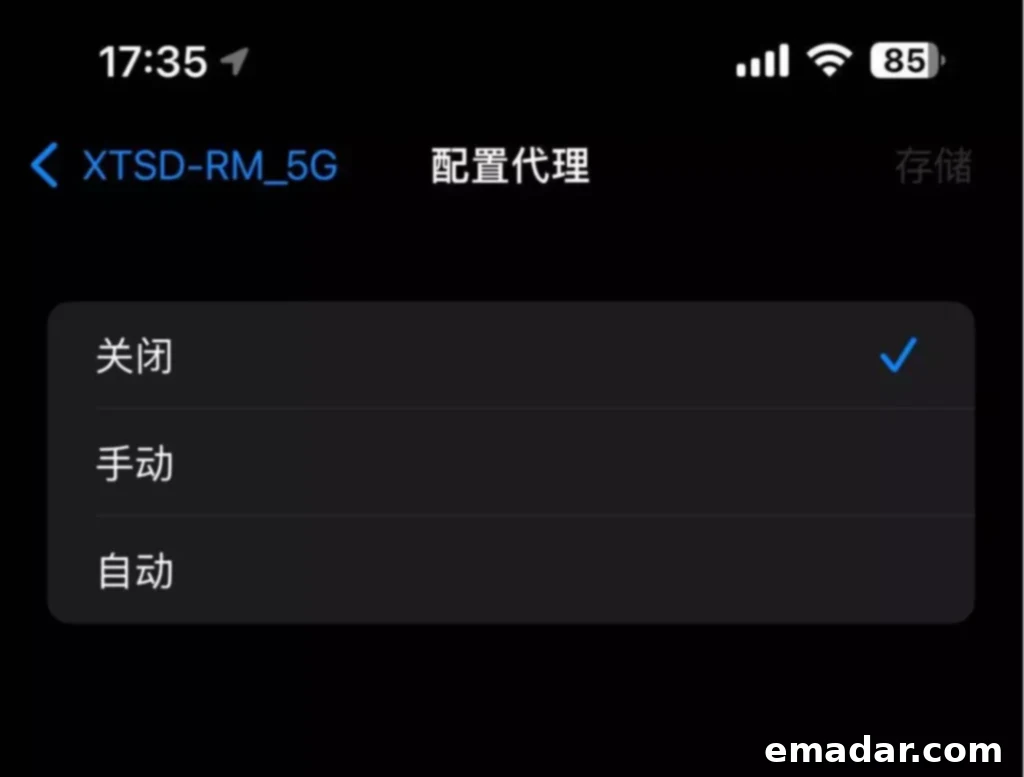
- Locate “Configure Proxy”: On the detailed Wi-Fi network settings page, scroll down through the various options. You will find a distinct section labeled either “HTTP Proxy” or “Configure Proxy.” This is the precise location where your iPhone manages its proxy settings for the selected Wi-Fi network.
- Change Proxy Configuration to “Off”: If you observe that “Manual” or “Automatic” is currently selected under the “Configure Proxy” option, it signifies that a proxy server is presently active for this network. To disable it, simply tap on this option, and then select “Off” from the presented choices. Confirm your selection if prompted. This action will immediately remove any existing proxy server configurations associated with that specific Wi-Fi network.
Once you have successfully switched the proxy setting to “Off,” you can safely exit the Settings app. Now, try accessing the internet again or relaunching any applications that were previously experiencing connectivity problems. You should notice an immediate and significant improvement in network speed, responsiveness, and overall accessibility. If your internet connection was indeed being hindered by an unwanted or misconfigured proxy, this straightforward adjustment should resolve the issue instantly, allowing you to get back online seamlessly and without further hassle. Enjoy your restored internet freedom!
Step-by-Step Guide: How to Disable Proxy Settings on Android Phones (e.g., Samsung, Xiaomi, Google Pixel)
Disabling proxy settings on an Android smartphone is a process that mirrors the steps for iOS, although the exact terminology, menu structures, and icon placements may exhibit slight variations across different Android versions and various manufacturers (such as Samsung, Xiaomi, Huawei, Google Pixel, OnePlus, etc.). For clarity, we will outline a common pathway, often found on devices like Xiaomi, as a general reference. Please adapt these instructions as necessary to match your specific Android model and its customized interface.
- Open the “Settings” App: Begin by locating the “Settings” icon, which is typically represented by a gear symbol. You can find this icon either on your home screen, within your app drawer, or by pulling down the notification shade and tapping the gear icon. Tap it to open your device’s main settings menu.
- Access Network & Internet Settings: Within the Settings menu, look for a section or option named “WLAN,” “Wi-Fi,” “Network & internet,” “Connections,” or something similar. Tap on this option to proceed to the management screen for your wireless connections.
- Select Your Currently Connected Wi-Fi Network: On the Wi-Fi screen, identify the network to which your phone is presently connected. Tap on its name or, in some cases, tap on a gear icon or an arrow positioned next to it. This action will bring up the detailed settings and configuration options for that specific Wi-Fi connection. Depending on your Android version, you might sometimes need to long-press the network name to reveal these options.
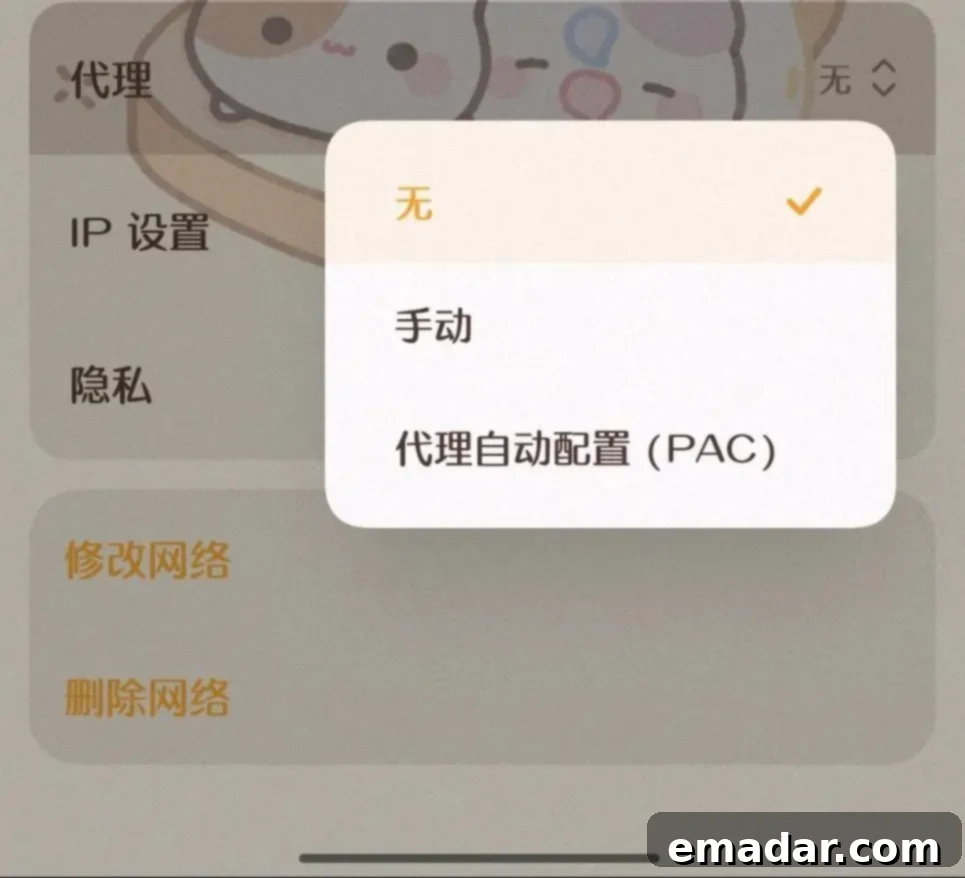
- Locate the “Proxy” Option: Within the detailed settings of your Wi-Fi network, you will need to find the “Proxy” option. This setting might be immediately visible on the screen, or it could be nested within an “Advanced Options,” “Advanced Settings,” or a similar submenu. Make sure to scroll down thoroughly to ensure you haven’t overlooked it.
- Change Proxy Configuration to “None” or “Off”: If the proxy setting is currently configured to “Manual,” “Proxy Auto-Config,” or “Automatic,” it indicates that a proxy server is actively routing your network traffic. To disable it, tap on this option and then select “None,” “No proxy,” or “Off” from the list of available choices. If prompted, confirm your selection and remember to save any changes you have made.
⚠️ Important Note for Android Users: It is crucial to be aware that certain Android devices, particularly older versions or those with heavily customized manufacturer interfaces, often hide “Advanced Settings” at the very bottom of the Wi-Fi details page. If you initially do not see the “Proxy” option, always scroll all the way down to reveal any potentially hidden network configurations. After making these changes, it’s considered best practice to briefly turn your Wi-Fi off and then back on, or even perform a full restart of your device. This ensures that the new proxy settings are fully applied and that your device’s network stack is refreshed.
Once you have successfully completed these steps, your Android device should no longer be routing its Wi-Fi network traffic through a proxy server. To confirm, test your internet connection by opening a web browser, launching an app that previously experienced connectivity issues, or streaming some online content. You should immediately experience restored speeds and full access to online resources. This simple yet effective adjustment frequently resolves a wide array of network-related frustrations and allows you to enjoy a seamless online experience.
What About Proxy Settings on Cellular Data (Mobile Data) Mode?
While proxy settings are most commonly associated with Wi-Fi connections, where users frequently connect to various public or private networks, it’s a valid question to wonder if these settings can also impact your cellular data (mobile data) connection. Generally speaking, mobile carriers do not typically require or pre-configure proxy settings for standard cellular data usage. When you’re using mobile data, your phone usually connects directly to your carrier’s network for internet access.
However, there are notable exceptions. If you have installed certain third-party applications designed for “scientific internet access,” VPN services, specific proxy client apps, or if your device is managed by enterprise-level Mobile Device Management (MDM) software, these tools might configure a system-wide proxy or a Virtual Private Network (VPN) connection. Such configurations can indeed affect all your internet traffic, including that which goes through your cellular data. These types of applications are often utilized to bypass geographical restrictions, enhance digital privacy and security, or to securely access internal corporate resources.
If you suspect that a proxy is impacting your cellular data connection, even after you’ve successfully disabled any Wi-Fi-specific proxies, here are a few comprehensive troubleshooting steps you can undertake:
- Close or Temporarily Disable Related Apps: Start by identifying and closing any running VPN applications, proxy client apps, or “scientific internet” tools that you might have installed. If possible, disable them temporarily through their own in-app settings, or even consider uninstalling them to see if the network issue resolves. Many reputable VPN and proxy apps include a “Kill Switch” or a “Disable Proxy” option within their settings to manage their impact on your connection.
- Reset Network Settings: Both Android and iOS operating systems offer a crucial option to reset all network-related settings on your device. This powerful action will revert your Wi-Fi, cellular data, and Bluetooth settings to their original factory defaults. While it will erase saved Wi-Fi passwords and Bluetooth pairings, it is a highly effective method for resolving stubborn or corrupted network configuration issues without affecting any of your personal data, apps, or files.
- On iPhone: Navigate to Settings > General > Transfer or Reset iPhone > Reset > and then select “Reset Network Settings.”
- On Android: The path can vary by device, but generally go to Settings > System > Reset options > and then look for “Reset Wi-Fi, mobile & Bluetooth” or a similar option.
- Restart Your Phone: A fundamental and often surprisingly effective troubleshooting step is a simple restart. Powering down your phone completely and then turning it back on can often clear temporary software glitches, refresh the network stack, and ensure that any new network settings (especially after a network reset) are fully applied and functioning correctly. It’s highly recommended to restart your device after performing a network settings reset.
If you regularly rely on cellular data proxies for legitimate purposes, such as accessing geo-restricted content while on the move or securing your mobile connection against potential threats, it is imperative to ensure that you are utilizing a reliable, reputable, and trusted VPN or proxy application. Always prioritize downloading such applications exclusively from official app stores (Google Play Store for Android, Apple App Store for iOS) to minimize security risks and ensure the authenticity of the software.
General Troubleshooting and Verifying Your Internet Connection
After you have successfully disabled your proxy settings on your mobile device, it is absolutely essential to verify that your internet connection is now functioning correctly and efficiently. If, despite disabling the proxy, you are still encountering persistent connectivity issues, here are some general troubleshooting tips that can help diagnose and resolve the problem:
- Restart Your Router/Modem: If the problem primarily persists when you’re connected to Wi-Fi, the issue might not be with your phone but rather with your home or office network equipment. A classic IT solution is to unplug your Wi-Fi router and your internet modem from their power sources for at least 30 seconds, then plug them back in. Allow them a few minutes to fully boot up and re-establish their connection. This often resolves many common connectivity glitches.
- Test on a Different Network: To help isolate the problem, try connecting your phone to a different Wi-Fi network if one is available (e.g., a neighbor’s Wi-Fi, a public hotspot, or a different network at home). Alternatively, if the problem was specifically on Wi-Fi, switch to your cellular data (mobile data) to see if the internet works correctly. If it works on another network, the issue is likely with your primary Wi-Fi network, not your phone.
- Clear Browser Cache and Data: Sometimes, specific issues with a web browser can mimic broader network problems. If you’re primarily experiencing issues with web pages loading, try clearing your browser’s cache, cookies, and website data. This can often resolve loading errors that are not directly related to your internet connection.
- Check for Software Updates: Ensure that your phone’s operating system (whether iOS or Android) is fully up to date. Software bugs can occasionally affect network functionality, and installing the latest updates often includes crucial bug fixes and performance enhancements that can resolve connectivity issues.
- Contact Your ISP or IT Support: If you’ve diligently followed all the troubleshooting steps outlined in this guide and the problem stubbornly persists, and you’ve effectively ruled out any device-specific issues, it might be time to escalate. Reach out to your Internet Service Provider (ISP) or your organization’s IT support team for further, more specialized assistance. They may be able to diagnose network-level problems beyond your control.
Developing a good understanding of your mobile phone’s network settings, particularly how to manage and troubleshoot proxy configurations, is a fundamental skill towards maintaining a consistently smooth, secure, and reliable online experience. By diligently following the comprehensive steps and tips provided within this guide, you should be exceptionally well-equipped to efficiently resolve the vast majority of proxy-related connectivity issues on your mobile device, allowing you to browse, stream, and connect with confidence.
Enhancing Your Online Experience with Reliable Proxy Services for Specific Needs
For individuals and businesses whose operations genuinely require the use of proxies—whether for secure international browsing, the sophisticated management of multiple online accounts, or the imperative to access geo-restricted content—the selection of a high-quality, dependable, and robust proxy service is not merely a preference; it is an absolute necessity. The consequences of relying on unreliable, slow, or untrusted proxy services can be severe, including painfully slow speeds, frequent and frustrating disconnections, significant compromises to your digital security, and even the dire prospect of IP blacklisting, all of which can severely impede and disrupt your critical online activities.
This is precisely where professional and reputable providers like IPFLY become indispensable. If your interests extend to mastering advanced proxy IP setup techniques, gaining comprehensive knowledge on how to safely and effectively utilize overseas proxy IPs, or understanding the intricate details of configuring residential IP proxies specifically on an Apple phone for sustained, secure, and optimal online operations, consistently engaging with IPFLY’s resources and updates can provide you with invaluable insights and expertise. IPFLY is dedicated to continuously updating its guides, services, and technological offerings to meet the dynamic and evolving demands of online professionals, digital marketers, e-commerce businesses, and other specialized users.
Key Advantages and Core Strengths of IPFLY Proxy Services:
- Expansive Global Network Reach: IPFLY provides unparalleled access to a vast and diverse network of IP nodes spanning over 190 countries worldwide. This extensive geographical coverage offers an exceptionally wide selection of both static and dynamic residential IPs, meticulously curated to suit a multitude of diverse and specific operational needs. This ensures that you can always pinpoint an IP location that perfectly aligns with your project requirements.
- Unmatched Superior Purity and Anonymity: IPFLY prides itself on specializing in the provision of highly pure, uncompromised, and anonymous IPs. This is a critical factor for successful long-term account nurturing across various demanding platforms, including major social media networks, e-commerce marketplaces, and other sensitive online environments. This elevated level of anonymity is crucial for preventing detection, mitigating risks, and ultimately ensuring the longevity, stability, and security of your valuable digital assets.
- Lightning-Fast and Unwaveringly Stable Connections: Users of IPFLY experience near-instantaneous connection speeds coupled with unwavering stability, effectively eliminating frustrating disconnections and significantly reducing latency issues. This superior performance is absolutely vital for time-sensitive operations, data-intensive tasks, and for maintaining an uninterrupted and smooth workflow, ensuring your projects proceed without hindrance.
- Comprehensive Protocol Support: IPFLY offers full and robust compatibility with all major protocols, including HTTP, HTTPS, and SOCKS5. This comprehensive protocol support provides maximum flexibility and seamless integration with an extremely wide array of applications, software tools, and custom scripts, making it a versatile choice for any professional setup.
- Universal Platform Compatibility: IPFLY ensures seamless integration and broad compatibility across a diverse range of platforms. This includes popular anti-detect browsers (often referred to as fingerprint browsers), native operating system-level settings, and various automated tools. This broad compatibility makes IPFLY’s services exceptionally versatile and adaptable for virtually any professional, technical, or specialized online setup.
👉 Click here to claim your exclusive discount and access premium IP services today!