
Static vs. Dynamic IP: Debunking Myths and Making the Right Choice for Your Network
Many users hear that “static IP addresses are fixed and more stable than dynamic IPs” and are tempted to switch their home or office dynamic IP to a static one. However, this often leads to complications like “complex setup,” “IP conflicts,” or “inability to use core features.” The truth is, a static IP isn’t necessarily an “upgrade” from a dynamic IP; rather, it’s a “tailored choice for specific scenarios.” You only truly need a static IP for specialized applications such as hosting a server, remote surveillance, or certain advanced business requirements. For the majority of daily internet activities—like streaming videos, online shopping, or general office work—a dynamic IP remains the most convenient and hassle-free option.
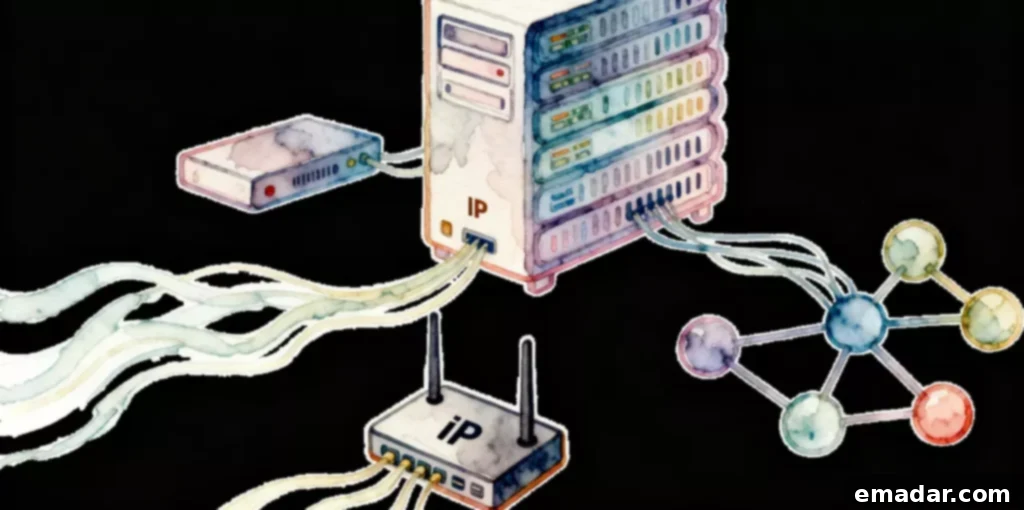
Three Common Misconceptions About Static IP: It’s Not “Superior,” But “Situationally Adapted”
The widespread misunderstanding of static IP addresses often stems from equating a “fixed address” with “greater stability” and “universal applicability.” These misconceptions frequently lead users to make ill-informed switches, inadvertently increasing their operational overhead and network management complexity. By clarifying these common pitfalls, we can easily pinpoint the correct choice without delving into intricate technical details. Understanding these nuances is crucial for optimizing your network setup and avoiding unnecessary frustration.
1. Misconception 1: Static IP Equals More Stability, Applicable to All Scenarios
Many believe that because a static IP address doesn’t change, it automatically offers a more stable internet connection than a dynamic IP. However, this overlooks the primary factors that truly influence internet stability. Everyday issues like slow speeds, buffering during streaming, or sudden disconnections are predominantly caused by insufficient bandwidth, outdated router hardware, or problems on the internet service provider’s (ISP) end—none of which are directly related to whether your IP is static or dynamic. The “stability” of a static IP solely refers to its address remaining constant, which is beneficial for specific applications like hosting servers that require a consistent address for external access. For routine tasks such as streaming videos, browsing social media, or transferring regular files, a dynamic IP is generally more stable in terms of connection quality and less prone to user-induced errors. Manually configuring a static IP, by contrast, introduces the risk of inputting incorrect parameters, which can lead to connection failures and increased troubleshooting time. Therefore, only consider a static IP when a “long-term fixed address” is a genuine requirement, such as for remotely accessing devices or setting up a small personal server. For typical daily internet use, prioritizing a dynamic IP means less manual configuration and a more seamless experience.
2. Misconception 2: Static IP Setup is Simple, Even for Beginners
Some users mistakenly assume that setting up a static IP is as straightforward as plugging in a device and getting online, much like a dynamic IP. This assumption fails to account for the essential manual configuration required for a static IP, where users must meticulously input parameters such as the “IP address, subnet mask, gateway, and DNS servers.” Any single error in these fields, such as an incorrect gateway address, can prevent the device from connecting to the internet entirely. Furthermore, a critical step involves ensuring that the chosen static IP address does not conflict with any other device on your local network. If two devices attempt to use the same static IP, it can result in one device connecting successfully while the other experiences a complete network outage or intermittent connectivity issues. For novice users, this level of manual configuration and conflict avoidance represents a significantly higher degree of complexity compared to the plug-and-play simplicity of a dynamic IP setup. Before attempting to set a static IP, it is crucial to first identify the range of IP addresses assigned by your router (typically found in its administration panel) to select an address that is outside the dynamic host configuration protocol (DHCP) pool and thus guaranteed not to conflict with dynamically assigned addresses. All parameters must precisely match your specific network environment. If you are unfamiliar with network configurations, a more user-friendly alternative is to utilize your router’s “IP binding” or “DHCP reservation” feature. This allows you to associate a device’s unique MAC address with a specific dynamic IP address, effectively making that IP address constant for that device without requiring any complex manual input on the device itself. This “pseudo-static” IP solution is ideal for beginners seeking the benefits of a fixed address without the associated setup headaches.
3. Misconception 3: Static IP Can Bypass Geo-Restrictions, More Flexible Than Dynamic IP
A common belief among some users is that a static IP address, being fixed, can grant access to a wider range of geo-restricted platforms or provide greater flexibility. This misconception often arises from confusing the concept of an “address being fixed” with its “geographic attribute.” The geographical location associated with a static IP address is determined by your internet service provider (ISP) and the physical location where the service is provisioned. If your local static IP’s geographic origin does not align with the target platform’s regional requirements, access will still be restricted, regardless of whether the IP itself is static or dynamic. For instance, a static IP from New York will not grant access to content exclusively available to users in London. Moreover, because a static IP address remains constant, it is inherently easier for platforms to identify, track, and potentially flag. In certain scenarios, this can paradoxically make a static IP less flexible than a dynamic one, as platforms might use its unchanging nature to enforce stricter access controls or monitor user activity more consistently. The core principle for bypassing geo-restrictions is “geographic attribute matching,” not merely whether the IP is static. If your objective is to access platforms in different regions, leveraging a static IP proxy service is a far more effective solution. Services like IPFLY’s static IP proxies offer a vast network of nodes covering multiple geographic regions. These proxies can provide you with a native static IP address from your desired target region, thereby retaining the advantage of a fixed address while simultaneously overcoming geographical limitations. This approach offers significantly more flexibility and capability than simply changing your local IP to a static one, as it genuinely alters your apparent location to match the platform’s requirements without requiring any complex local network changes.
Three Applicable Scenarios for Static IP: Not a “Universal Choice,” But “Tailored for Specific Needs”
The primary value proposition of a static IP address lies in its consistent and long-term fixed nature. This attribute is only truly advantageous and necessary in a select few scenarios. For the vast majority of everyday internet activities, employing a static IP offers no discernible benefit and, as discussed, can often introduce unnecessary complications. Blindly switching to a static IP without a specific, justified need will likely result in increased setup difficulty and potential network issues. When used in conjunction with proxy services, a static IP’s inherent advantages in these specific scenarios can be further amplified, offering even greater utility and flexibility for specialized tasks and professional applications.
1. Scenario 1: Setting Up Small Servers (e.g., File Servers, Home NAS)
If you intend to set up a file server or a Home NAS (Network-Attached Storage) within your home or a small office environment for long-term access by multiple devices, a static IP address becomes an essential component. In such setups, a dynamic IP address, which periodically updates and changes, would require frequent adjustments to the server’s access address every time it changes. This constantly shifting address makes it incredibly difficult for other devices on the network, or indeed devices accessing it remotely, to reliably locate and connect to the server without manual intervention. Conversely, a static IP address remains fixed indefinitely. This means that once your devices are configured with the server’s static IP, they can maintain stable, uninterrupted access over extended periods without the need for repetitive modifications to connection parameters. This consistency is paramount for reliable data access and management, ensuring smooth operation of your server. To optimize this, if you’re concerned about the complexity of manually setting up a static IP, you can configure your router’s administration interface to bind the server device’s MAC address to a specific dynamic IP. This “IP binding” essentially makes a dynamic IP act like a static one for that device, as the router will always assign the same IP to it, simplifying the setup significantly compared to manual static IP configuration. Furthermore, for situations where you need to access your server remotely from outside your local network, leveraging IPFLY’s static IP proxy services can be highly beneficial. By selecting a target region node, you can overcome any geographical limitations imposed by your local static IP, ensuring stable and secure remote access for devices located anywhere in the world.
2. Scenario 2: Remote Monitoring and Device Management (e.g., Remote Control of Office PCs, Surveillance Equipment)
When it comes to remotely controlling office computers, managing geographically dispersed surveillance systems, or accessing any device from a distant location, having a fixed target device address is absolutely critical. Imagine trying to connect to your home or office PC from abroad if its IP address keeps changing; your remote access software would constantly fail due to an “address mismatch” and would require you to discover the new IP each time. With a dynamic IP, any update to the address would immediately break the connection, making continuous remote management practically impossible. A static IP address, by contrast, ensures that the device’s address remains constant. This means that once your remote access tools are configured with the fixed IP, they can establish a connection at any time without needing to repeatedly query for a new IP address. This reliable and consistent connectivity is indispensable for scenarios requiring long-term remote administration, such as managing a network of security cameras, remotely troubleshooting a client’s computer, or accessing a critical workstation from home. When setting a static IP, it’s vital to ensure the chosen address falls within your router’s designated IP segment (e.g., if your router’s IP range is 192.168.1.1–192.168.1.255, a static IP could be set to 192.168.1.100) to prevent conflicts with other devices. Additionally, if you encounter geographical restrictions during remote access—for example, if an office network is configured to only allow access from specific regional IP addresses—utilizing a static IP proxy can provide a compliant IP address from the required location, ensuring smooth and uninterrupted remote connections. This geo-compliant access is particularly important for corporate environments with strict security and access policies.
3. Scenario 3: Specific Office Systems (e.g., Industrial Control, Specialized Software)
Certain highly specialized environments, such as industrial control systems (ICS) or dedicated office software applications like advanced financial systems or manufacturing management suites, critically depend on devices using fixed IP addresses for proper and continuous operation. In these mission-critical setups, a dynamic IP address, which updates periodically, can lead to immediate and severe disruptions. A change in the IP address would cause the software to lose its connection to its associated server or industrial equipment, potentially halting production lines, causing data loss, or compromising operational integrity. The consistent and unchanging nature of a static IP address guarantees that these vital software applications and industrial devices maintain a stable, long-term connection to their respective servers or control units. This stability is paramount for ensuring uninterrupted production, accurate data processing, and avoiding costly system malfunctions that could arise from an address change. Before implementing a static IP in such a sensitive environment, it is highly advisable to consult with the software or system service provider to confirm the precise static IP parameters required, including the acceptable IP range, subnet mask, and gateway settings, to prevent any configuration mismatches. Furthermore, if your business operations necessitate cross-regional access to these specialized systems, leveraging IPFLY’s static IP proxy service can be invaluable. By selecting a regional node that is compatible with your system’s requirements, you can ensure that the static IP attributes align perfectly with the system’s demands without needing to alter your local network configuration, thereby facilitating seamless and secure access from any global location.
Static IP Setup Tips: Even Beginners Can Master It, Avoiding Operational Errors
The fundamental principles behind successful static IP configuration revolve around two critical aspects: “avoiding parameter errors” and “preventing IP conflicts.” This process doesn’t demand complex technical expertise; it can be effectively completed in two straightforward steps: “router preparation” and “device settings,” complemented by a simple verification check. For those who find manual configuration daunting, the “IP binding” feature on most routers offers a convenient way to achieve a “pseudo-static” IP, significantly reducing the complexity and minimizing the chances of error. By following these guidelines, even novice users can confidently set up a reliable fixed IP address for their specific network needs, ensuring a smooth and error-free network experience.
1. Step One: Confirm Router Parameters to Avoid Conflicts
Before you even begin configuring a static IP address on your device, it’s absolutely essential to retrieve critical network parameters from your router. These include the “IP address range,” “default gateway,” and “DNS servers.” These parameters form the foundation of your static IP configuration, and even a single incorrect entry will prevent your device from connecting to the internet. Here’s how to find them:
- On a Windows PC: Open the “Command Prompt” (you can search for “cmd” in the Start menu). Type
ipconfigand press Enter. Look for “Default Gateway” (e.g., 192.168.1.1), “Subnet Mask” (e.g., 255.255.255.0), and “DNS Servers” (e.g., 114.114.114.114 or your ISP’s DNS). - On a macOS PC: Open “Terminal” (found in Applications/Utilities). Type
ifconfigand press Enter (oripconfig getpacket en0for more specific details on a Wi-Fi connection). Look for similar parameters.
Once you have these crucial details, you can proceed to determine your static IP address. It’s vital to select an address within your router’s IP range that is “not currently in use” and, ideally, outside of the DHCP pool that your router dynamically assigns. For instance, if your gateway is 192.168.1.1, you might choose an address between 192.168.1.100 and 192.168.1.200, assuming your router’s DHCP pool is, for example, 192.168.1.2 to 192.168.1.99. This careful selection prevents any IP conflicts that could disrupt network connectivity for other devices or your newly configured static IP device. Always double-check your router’s DHCP settings to understand its dynamic IP range.
2. Step Two: Set Static IP on Device, Simple Steps
While the exact entry points for static IP settings may vary across different operating systems and devices, the underlying operational logic remains consistent. The primary focus here is the “accurate input of parameters.” Let’s look at setting it up on a Windows computer and the alternative “IP binding” method via your router for a pseudo-static IP:
- On a Windows PC:
- Navigate to “Settings” -> “Network & Internet.”
- Select “Ethernet” (for wired connections) or “Wi-Fi” (for wireless connections).
- Click on the name of your currently connected network (e.g., your Wi-Fi SSID).
- Scroll down and click “Properties.”
- Under “IP settings,” click “Edit.”
- Change the setting from “Automatic (DHCP)” to “Manual.”
- Toggle “IPv4” to “On.”
- You will now see fields for “IP address,” “Subnet mask,” “Gateway,” and “Preferred DNS” / “Alternate DNS.”
- Carefully enter the confirmed parameters you obtained from Step One.
- Click “Save” to apply the changes.
- Router “IP Binding” (Pseudo-Static IP): This method is highly recommended for beginners as it avoids manual device-side configuration and potential errors.
- Log in to your router’s administration interface (typically by entering your router’s default gateway IP into a web browser, e.g., 192.168.1.1).
- Locate the “DHCP Reservation,” “IP & MAC Binding,” or “Static Lease” section (the name varies by router brand). This is usually found under DHCP settings or advanced network settings.
- Select “Add New” or “Static Binding.”
- Enter your device’s MAC address (which you can find in your device’s network details, often by running
ipconfig /allon Windows or looking in system settings). - Enter the specific IP address you want to consistently assign to this device (e.g., 192.168.1.100). This IP should be within the router’s DHCP range but ideally a high number to avoid conflicts with other dynamic IPs.
- Save the settings.
After this, your device will consistently receive the specified IP address from the router, effectively making it “pseudo-static” without requiring any manual parameter input on the device itself. This method is much more suitable for less technically inclined users.
3. Step Three: Check Configuration Success, Avoid Wasted Effort
After applying your static IP settings, it’s crucial to confirm that the configuration was successful and that there are no IP conflicts. Skipping this step can lead to frustration and wasted effort:
- On a Windows PC:
- Open the “Command Prompt” again.
- Type
ipconfigand press Enter. - Look for “IPv4 Address.” It should display the static IP address you just configured.
- If you see “Media disconnected,” “No valid IP address,” or an “APIPA” address (starting with 169.254.x.x), it indicates a problem. Double-check all the parameters you entered in Step Two for any typos or missing digits, especially the gateway and subnet mask.
- Conflict Check:
- Log back into your router’s administration panel.
- Navigate to the “Connected Devices,” “DHCP Client List,” or “Device List” section.
- Carefully review the list of connected devices. Ensure that the static IP address you assigned is not also being used by another device.
- If the router indicates an “IP conflict” or you notice another device using the same IP, you must change your static IP to another unused address within the allowed range. Repeat the setup process from Step Two with the new IP. Resolving conflicts immediately is vital to prevent network instability for all devices.
Proxy Synergy with Static IP: Solving “Static IP Alone Can’t Handle It” Problems
While static IP addresses offer inherent advantages in specific scenarios, they do have limitations, particularly concerning “geographical restrictions,” “supplementary stability,” and “scenario expansion.” This is where proxy networks provide targeted solutions, effectively bridging the gaps that a standalone static IP might leave. Static IP proxy nodes are often optimized for various use cases, making them accessible even for novice users without deep technical knowledge. By integrating proxy services, the utility and flexibility of static IP addresses can be significantly enhanced, transforming them into even more powerful tools for diverse networking demands.
1. Bypass Geo-Restrictions: Obtain Target Region Static IP
If your local static IP address does not match the required geographical region for a specific platform (e.g., accessing a specialized cross-border office system or a region-locked service), direct access will likely be denied. This is a common limitation where a simple local static IP cannot overcome geo-blocks. This is where the strategic use of a proxy comes into play:
Operation: By activating a static IP proxy, you can select a “native node” from your desired target region. For instance, if you need to access a specific system located in London, you would choose a London-based native static IP proxy node. Your device will then appear to originate from that selected region, acquiring a static IP address that possesses the authentic geographical attributes of a local user. This effectively bypasses the platform’s geo-restriction mechanisms, as it will no longer reject access due to a geographical mismatch. Crucially, because these are static IP proxies, the assigned address remains fixed, perfectly fulfilling the “fixed address” requirement for remote work, specialized software, and secure access needs without necessitating any changes to your local static IP setup. This allows for seamless, geographically compliant access to critical resources regardless of your physical location.
2. Enhance Stability: Reduce Static IP Interruption Risk
Even a locally configured static IP can sometimes experience interruptions due to unforeseen circumstances, such as ISP network adjustments, equipment failures, or localized network outages. Such disruptions can severely impact mission-critical services like server hosting or remote access, leading to downtime and potential data loss. Proxy services can effectively act as a stability buffer for your static IP connections:
Operation: When you utilize a static IP proxy, these specialized nodes are engineered with robust infrastructure designed to constantly monitor the status of their IP addresses. Should the primary static IP address experience any instability, fluctuation, or outage, the proxy service is designed to automatically and seamlessly switch your connection to a reliable backup static IP node. This intelligent failover mechanism ensures that your server access, remote control sessions, or any other critical application remains uninterrupted, maintaining continuous uptime. Proxy clients often provide real-time metrics, such as node online rates (e.g., guaranteeing 99.5% uptime or higher), offering peace of mind that your static IP will be consistently available. This eliminates the need for you to frequently monitor your local network connection or intervene manually, thereby providing a significant boost in operational reliability and reducing management overhead.
3. Expand Scenarios: Make Static IP Adapt to More Needs
If your current static IP setup is limited to local scenarios, but you wish to extend its capabilities to encompass cross-regional access, facilitate multi-device sharing, or support complex distributed operations, a proxy network can provide the necessary infrastructure and flexibility:
Operation: Engaging “multi-device adaptable” static IP proxies allows for multiple devices to connect simultaneously through the proxy network. A key feature of these advanced proxy nodes is their ability to assign a unique, independent static IP address to each connected device. This intelligent allocation prevents IP conflicts, which are a common challenge when multiple devices try to share a single network gateway or IP. This capability is exceptionally beneficial in professional settings, such as an office environment where multiple workstations or users need to access the same specialized system or database. Instead of requiring individual static IP configurations for each device—a process that can be both time-consuming and prone to errors—the proxy handles the IP assignment and management centrally. This significantly streamlines operational setup, reduces administrative hassle, and ensures that all devices can consistently and reliably access critical resources, effectively expanding the utility and reach of static IP addresses beyond their traditional local scope. It provides a scalable and efficient solution for complex networking demands.
The Core of Static IP is “Needs-Based Selection”
The prevalent, often misguided, pursuit of static IP addresses by many users typically stems from a fundamental misunderstanding of their true value and purpose. It’s crucial to recognize that a static IP is not a default “replacement” or an inherent “upgrade” for a dynamic IP. Instead, it serves as a highly specialized “adaptable tool for specific scenarios.” Its primary utility becomes evident only when there is an absolute requirement for a “long-term fixed address,” such as for dedicated servers, remote access to critical infrastructure, or very particular business applications. For the vast majority of everyday internet activities—be it casual browsing, streaming entertainment, or standard office tasks—a dynamic IP remains the most practical, convenient, and cost-effective choice, largely because it requires no complex manual configuration and effortlessly handles address management. However, when those specific needs for a fixed IP arise, strategically combining a static IP with advanced static IP proxy services can dramatically enhance its capabilities. This synergy allows users to overcome common limitations like geographical restrictions and bolster network stability, thereby making the static IP truly flexible and powerful for advanced applications. The key takeaway is always to approach IP address selection with a clear understanding of your specific requirements, ensuring your network setup is optimized for efficiency and performance rather than falling prey to common misconceptions.
Want to learn more? Register on the IPFLY official website to explore our product details and ensure your network experience completely leaves behind “slow speeds, blocks, and restrictions.”