
In today’s interconnected digital landscape, safeguarding your online privacy and enhancing security has never been more critical. A fundamental step towards achieving greater control over your browsing experience is to set up a proxy in Chrome. Acting as an intermediary between your device and the websites you visit, a proxy server effectively masks your true identity, helps bypass geographical or network restrictions, and significantly bolsters your overall online safety posture.
This comprehensive guide will meticulously walk you through the process of configuring a proxy for Chrome, whether you’re using a desktop computer (Windows or macOS) or a mobile device (Android or iOS). We’ll delve into advanced setup options, address common troubleshooting issues you might encounter, and share expert best practices to ensure you maximize the potential of your Chrome proxy configuration.
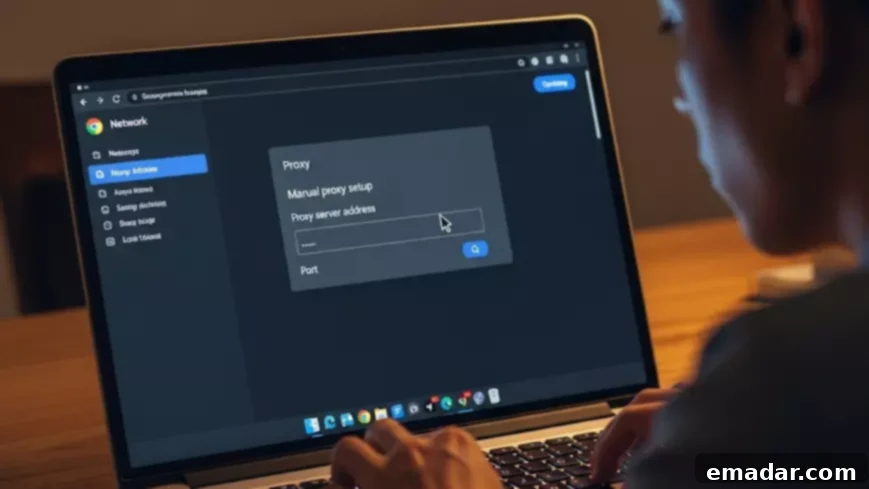
Why Configure a Proxy in Chrome? Unlocking Online Freedom and Security
When you opt to set up a proxy in Chrome, your internet requests no longer travel directly from your device to the target website. Instead, they are first rerouted through an external proxy server. This seemingly simple redirection mechanism unlocks a multitude of profound benefits, empowering users with greater anonymity, enhanced access, and robust privacy:
- Enhanced Anonymity and IP Masking: Perhaps the most compelling reason to use a proxy, your real IP address is concealed from the websites you visit. The website only sees the proxy server’s IP address, making it considerably more challenging for third parties to track your geographical location or build a profile of your online activities. This is crucial for maintaining digital privacy.
- Bypassing Geo-Restrictions and Censorship: Many online services, streaming platforms, and websites restrict access based on the user’s geographical location. By routing your Chrome traffic through a proxy server located in a different country, you can effectively bypass these geo-blocks and access content or services that would otherwise be unavailable in your region. This also applies to overcoming network-level censorship in certain environments.
- Improved Online Privacy on Public Networks: When connecting to public Wi-Fi networks (e.g., in cafes, airports, hotels), your data can be vulnerable to interception. A proxy acts as an additional layer of security, encrypting your traffic (especially with SOCKS5 or HTTPS proxies) and shielding your browsing from potential snoopers on an unsecured network.
- Better Control and Filtering Capabilities: For businesses and educational institutions, proxies are invaluable tools for monitoring, filtering, and managing web traffic. They can be used to enforce acceptable usage policies, block access to malicious or unproductive websites, and cache web content to improve loading times for frequently visited sites.
- Optimized Performance and Load Balancing: In some scenarios, particularly for large organizations, proxies can improve network performance by distributing traffic load across multiple servers or by caching frequently accessed web pages, reducing bandwidth usage and accelerating content delivery.
At IPFLY, we’ve witnessed firsthand how deploying the right type of proxy—be it residential, ISP, or datacenter—can fundamentally transform the browsing experience, making it not only more secure but also significantly more efficient and versatile for a variety of online tasks.
Understanding Different Proxy Types for Chrome Users
Before diving into the setup, it’s beneficial to understand the different types of proxies available, as your choice can impact performance, anonymity, and the success of your online endeavors:
- Residential Proxies: These proxies use IP addresses assigned by Internet Service Providers (ISPs) to real residential homes. They are highly anonymous and less likely to be detected as proxies because they appear as regular users. Ideal for sensitive tasks like market research, social media management, and accessing geo-restricted streaming content.
- Datacenter Proxies: These proxies use IP addresses hosted in data centers. They are generally faster and more cost-effective than residential proxies but are also more easily detected by sophisticated anti-proxy systems. Best suited for high-speed, large-scale data scraping, ad verification, and general browsing where ultimate anonymity isn’t the primary concern.
- ISP Proxies (Static Residential): A hybrid option, ISP proxies are datacenter-hosted but use IP addresses categorized as residential by ISPs. They offer a good balance of speed and anonymity, making them excellent for tasks requiring stable, fast connections that still mimic real user behavior.
- SOCKS Proxies (SOCKS4/SOCKS5): Unlike HTTP proxies which only handle web traffic, SOCKS proxies can handle any type of network traffic, including email, torrents, and games. SOCKS5, in particular, offers better security through authentication and support for UDP protocols, making it a versatile choice for a wide range of applications beyond just web browsing in Chrome.
How to Set Up Proxy in Chrome on Desktop (Windows & macOS)
It’s important to note that Google Chrome, unlike some other browsers, does not feature its own integrated proxy settings panel. Instead, Chrome leverages your computer’s system-wide proxy configurations. This means any proxy you set up at the operating system level will automatically apply to Chrome and often to other applications that respect system proxy settings.
Step 1: Accessing Your Computer’s Proxy Settings via Chrome
The easiest way to reach the relevant settings is directly through Chrome:
- Open your Chrome browser.
- Click the three vertical dots menu icon, typically located in the upper-right corner of the browser window.
- From the dropdown menu, select Settings.
- In the Settings tab, navigate to the System section (you might need to scroll down or use the search bar).
- Click on Open your computer’s proxy settings. This action will launch the appropriate network configuration window for your operating system.
Step 2: Configuring Proxy Settings on Windows
Once you’ve clicked “Open your computer’s proxy settings” on a Windows machine, a new window will appear, typically under Network & Internet → Proxy. Follow these steps:
- Locate the Manual proxy setup section.
- Toggle the switch labeled Use a proxy server to the “On” position.
- In the provided fields, enter the IP address (or hostname) and the corresponding Port number that you obtained from your proxy service provider.
- If your proxy requires authentication, check the box for “Don’t use the proxy server for local (intranet) addresses” and click Save. In some versions, you might be prompted for a username and password upon first connection. For others, there will be dedicated fields for credentials.
- Click the Save button to apply your new proxy settings.
From this point onward, all internet traffic originating from Chrome, as well as other applications configured to respect system proxy settings, will be routed through your newly configured proxy server.
Step 3: Configuring Proxy Settings on macOS
If you’re using a macOS device, clicking “Open your computer’s proxy settings” will take you to the Network preferences pane. Proceed as follows:
- In the Network panel, select your currently active network connection from the left sidebar (e.g., “Wi-Fi” or “Ethernet”).
- Click the Advanced… button located in the lower-right corner.
- Navigate to the Proxies tab.
- On the left side, check the box next to the protocol you intend to use (e.g., “Web Proxy (HTTP),” “Secure Web Proxy (HTTPS),” or “SOCKS Proxy”). For most standard uses, HTTP and HTTPS proxies are common.
- In the corresponding fields on the right, enter the Proxy Server Address and the Port Number provided by your proxy service.
- If your proxy requires a username and password, enable the “Proxy Server Requires Password” option and enter your credentials.
- Click OK to close the Advanced settings window, then click Apply in the main Network preferences window to save your changes.
With these steps completed, Chrome on your macOS device will now utilize your chosen proxy whenever it connects to the internet.
How to Set Up Proxy in Chrome on Mobile (Android & iOS)
Given the increasing reliance on mobile devices for internet access, configuring a proxy for Chrome on your smartphone or tablet is equally important. While Chrome itself doesn’t have in-app proxy settings, mobile operating systems allow you to set Wi-Fi specific proxies. This means the proxy will only apply when connected to that particular Wi-Fi network.
Configuring Proxy on Android Devices
The process for Android involves modifying your connected Wi-Fi network’s settings:
- Open your device’s Settings app.
- Navigate to Network & internet, then tap Wi-Fi.
- Find the Wi-Fi network you are currently connected to. Tap and hold its name, then choose Modify network or Manage network settings (phrasing may vary slightly between Android versions).
- In the network details, look for and expand Advanced options.
- Locate the Proxy setting, which is usually set to “None” by default. Tap it and change it to Manual.
- New fields will appear: Proxy hostname (or IP address) and Proxy port. Enter the details provided by your proxy service.
- If your proxy requires authentication, you might find fields for a username and password here, or you’ll be prompted upon the first connection attempt.
- Finally, tap Save or Apply to confirm your settings.
Now, Chrome and any other applications on your Android device that use this specific Wi-Fi connection will route their traffic through the configured proxy.
Configuring Proxy on iOS Devices (iPhone/iPad)
For Apple devices, the proxy settings are also managed through the Wi-Fi network preferences:
- Open the Settings app on your iPhone or iPad.
- Tap on Wi-Fi.
- Locate the Wi-Fi network you are currently connected to. Tap the “i” icon (information icon) next to its name.
- Scroll down to the HTTP Proxy section.
- Tap on Configure Proxy and select Manual.
- Enter the Server (proxy IP address or hostname) and Port number.
- If your proxy requires authentication, toggle Authentication to “On” and enter your Username and Password in the respective fields.
- Tap Save in the upper-right corner to apply your changes.
Important Mobile Note: It is crucial to remember that on both Android and iOS, these proxy settings are network-specific. If you switch to a different Wi-Fi network or use your device’s mobile data connection, the proxy will not be active, and you will need to reconfigure it for each new Wi-Fi network you wish to use with the proxy.
Troubleshooting Common Chrome Proxy Issues and Solutions
Even with careful configuration, issues can sometimes arise when setting up a proxy in Chrome. Here are some of the most common problems and practical steps to resolve them:
Error: “Unable to connect to proxy server” or “ERR_PROXY_CONNECTION_FAILED”
- Verify Proxy Server Status: First, check if your proxy server is online and operational. If it’s a paid service, refer to their status page or contact support. If it’s a free proxy, it might be down or overloaded.
- Double-Check Credentials: Meticulously review the entered IP address, port number, username, and password. Even a single typo can prevent a connection. Pay attention to case sensitivity for usernames and passwords.
- Firewall/Antivirus Interference: Your computer’s firewall or antivirus software might be blocking the connection to the proxy server. Temporarily disable them (with caution) to see if it resolves the issue. If it does, you’ll need to create an exception for your proxy in their settings.
- Network Connectivity: Ensure your basic internet connection is working without the proxy. If you can’t access websites without the proxy, the issue is with your local network, not the proxy.
- Reset LAN Settings (Windows): On Windows, go to the “Internet Properties” (search for it in the Start menu), navigate to the “Connections” tab, and click “LAN settings.” Ensure “Automatically detect settings” is unchecked, and there are no incorrect scripts or settings enabled from previous proxy attempts. You might try resetting these to default.
Proxy Keeps Disconnecting or is Unstable
Frequent disconnections often plague free or unreliable proxy services due to high user loads, limited bandwidth, or server instability. Investing in a reputable and reliable proxy provider like IPFLY, which offers dedicated and stable connections, is crucial to avoid such frustrating downtime and ensure consistent performance.
Proxy Significantly Slows Down Browsing Speed in Chrome
A proxy can introduce latency, especially if it’s located far from your physical location or if the server itself is overloaded. To mitigate this:
- Choose Closer Servers: Select a proxy server geographically closer to your actual location or to the target website you are trying to access for optimal speed.
- Check Proxy Load: High-quality proxy providers often indicate the load on their servers. Avoid heavily loaded servers if possible.
- Consider Proxy Type: Datacenter proxies generally offer faster speeds than residential proxies, though at a potential cost to anonymity.
- Internet Speed: Ensure your underlying internet connection is fast enough. A slow ISP connection will bottleneck any proxy.
Proxy Applied System-Wide Unintentionally
Since Chrome relies on your operating system’s proxy settings, configuring a proxy will typically affect all applications that use these system settings. If your goal is to have the proxy only impact Chrome while other applications connect directly, consider these solutions:
- Chrome Proxy Extensions: Utilize a Chrome browser extension like FoxyProxy or Proxy SwitchyOmega. These extensions allow you to manage proxy settings exclusively within Chrome, defining rules for when and where the proxy should be used, without affecting other system applications.
- Command-Line Flags: For advanced users, launching Chrome with specific command-line flags can force only that particular instance of Chrome to use a proxy, leaving other applications unaffected.
Authentication Prompts Continuously Appear
If you’re repeatedly asked for your proxy username and password:
- Save Credentials: Ensure you’ve checked the “remember password” option if available in your OS proxy settings or browser extension.
- Browser Cache/Cookies: Sometimes clearing Chrome’s cache and cookies can resolve persistent authentication prompts.
- Incorrect Credentials: Re-enter your credentials carefully to rule out input errors.
Advanced Chrome Proxy Configurations for Enhanced Control
For users requiring more granular control over their proxy usage in Chrome, beyond simple system-wide settings, advanced methods offer significant flexibility:
Chrome Command-Line Flags
Command-line flags allow you to launch Chrome with specific settings directly from your operating system’s command prompt or terminal. This method is particularly useful for creating dedicated Chrome shortcuts that always use a specific proxy, or for testing purposes, ensuring only that specific browser instance is affected.
To launch Chrome with a proxy via the command line, you would typically use a command similar to this:
"C:\Program Files\Google\Chrome\Application\chrome.exe" --proxy-server="http=proxyaddress:port"
You can also specify different protocols:
- For an HTTP proxy:
--proxy-server="http=your_http_proxy_ip:port" - For an HTTPS proxy:
--proxy-server="https=your_https_proxy_ip:port" - For a SOCKS5 proxy:
--proxy-server="socks5://your_socks5_proxy_ip:port"
This method ensures that only the Chrome instance launched with this command uses the specified proxy, leaving other applications and even other Chrome instances unaffected. It’s a powerful tool for developers, testers, and those who need isolated browsing environments.
Chrome Proxy Extensions: Precision and Convenience
Proxy management extensions are perhaps the most user-friendly and feature-rich way to control proxies within Chrome. Tools like Proxy SwitchyOmega and FoxyProxy Standard empower users with a multitude of options:
- Multiple Proxy Profiles: Easily add and save details for numerous proxy servers. Switch between them with a single click from the extension icon in your toolbar.
- Rule-Based Switching: Configure intelligent rules to automatically switch proxies based on the website you’re visiting. For instance, you can set a rule to use a specific country’s proxy only when accessing a particular streaming service, while using a different proxy or no proxy for all other sites.
- Whitelists and Blacklists: Define lists of URLs for which the proxy should always be used (whitelist) or never be used (blacklist).
- Quick On/Off Toggling: Instantly enable or disable proxy usage for Chrome without digging into system settings.
- SOCKS5 and HTTP/S Support: Most advanced extensions support various proxy protocols, providing flexibility for different use cases.
These powerful extensions are indispensable for professionals such as digital marketers, cybersecurity researchers, web scrapers, or anyone managing multiple online profiles or requiring dynamic proxy control within their Chrome browser.
Real-World Use Cases: Leveraging Chrome Proxies for Success
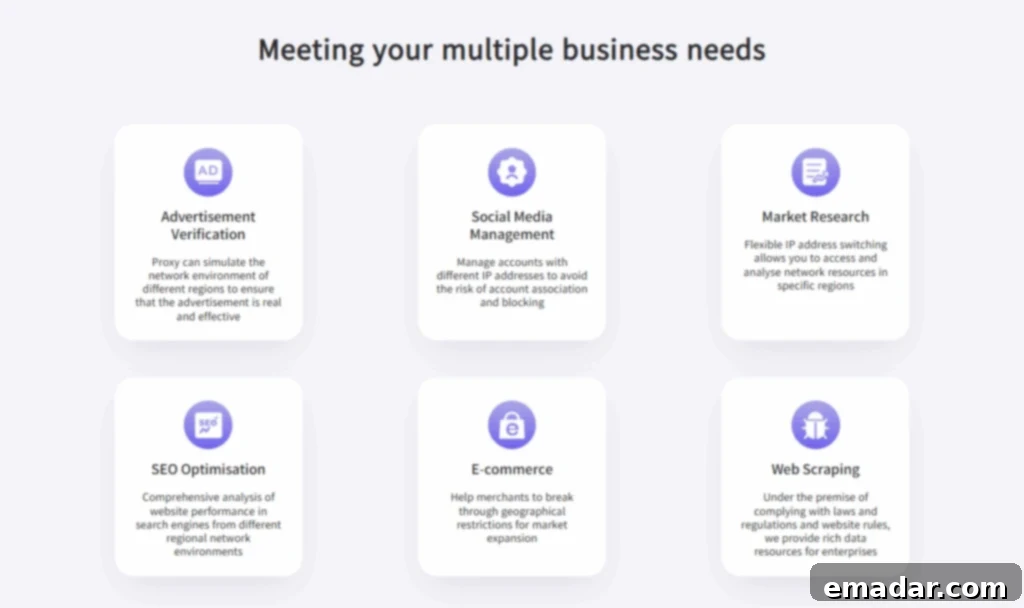
Setting up a proxy in Chrome extends far beyond basic privacy; it unlocks a diverse range of practical applications for individuals and businesses alike:
- Market Research and Competitive Intelligence: Researchers can gather public data, analyze competitor websites, monitor pricing strategies, and track market trends from different geographic locations without triggering IP bans or rate limits. This provides an unbiased view of the global marketplace.
- Ad Verification and Brand Protection: Advertisers use proxies to verify that their ads are appearing correctly on target websites in various regions and to ensure they are not being served alongside inappropriate content. This is crucial for maintaining brand reputation and optimizing ad spend.
- Social Media Management: Businesses and agencies manage multiple social media accounts for different clients or brands. Proxies allow them to operate these accounts safely from distinct IP addresses, reducing the risk of account flagging, suspensions, or detection by social media platforms.
- E-commerce and Price Comparison: Online shoppers and e-commerce businesses can use proxies to compare product prices, track stock availability, and discover region-specific deals across different online stores worldwide, gaining a competitive edge.
- Streaming Access and Geo-Unblocking: Enjoy content libraries from other countries on platforms like Netflix, Hulu, or BBC iPlayer. Proxies mask your location, allowing you to access geographically restricted shows, movies, and live sports broadcasts.
- Web Scraping and Data Collection: For advanced data analysis, proxies are indispensable for web scraping. They enable automated tools to collect vast amounts of public data from websites without being blocked, by rotating IP addresses and mimicking natural user behavior.
- SEO Monitoring and Local Search Results: SEO professionals use proxies to check how websites rank in search results from various locations, ensuring their optimization strategies are effective for different target audiences globally.
- Cybersecurity and Penetration Testing: Security researchers utilize proxies to simulate attacks from different geographical origins, test network vulnerabilities, and analyze traffic without exposing their real IP address, enhancing their ability to identify and mitigate threats.
At IPFLY, our robust residential, ISP, and datacenter proxies are widely deployed across these scenarios, thanks to their extensive global coverage, unparalleled stability, and high performance, offering reliable solutions for even the most demanding tasks.
Best Practices for Effective and Secure Proxy Use in Chrome
To truly maximize the benefits of your Chrome proxy setup and ensure a secure, efficient, and consistent experience, adhere to these expert best practices:
- Select the Right Proxy Type for Your Needs: Carefully consider your objectives. Residential proxies offer the highest level of anonymity and mimic real users, making them ideal for sensitive tasks like account management and geo-unblocking. Datacenter proxies, while faster and often more affordable, are better suited for high-volume, less sensitive tasks like general web scraping. ISP proxies provide a strong balance.
- Prioritize Security with HTTPS or SOCKS5 Proxies: Whenever possible, opt for HTTPS (Secure Web Proxy) or SOCKS5 proxies over plain HTTP proxies. HTTPS proxies encrypt your web traffic, protecting your data from interception. SOCKS5 proxies offer even broader support for different types of network traffic and include authentication features, providing superior security and versatility.
- Choose a Reputable Proxy Provider: Avoid free or untrusted proxy services, as they are often unreliable, slow, or may compromise your security by logging your activities or injecting unwanted content. Invest in a premium provider like IPFLY that offers dedicated support, high uptime, diverse IP pools, and clear privacy policies.
- Secure Your Proxy Credentials: Treat your proxy username and password with the same care as your other sensitive login details. Never share them casually and ensure they are stored securely.
- Regularly Test Your Proxy Connection: After setting up your proxy, always verify its functionality. Use an IP checker website (e.g., whatismyipaddress.com, ipinfo.io) to confirm that your perceived IP address matches that of your proxy server and that your real IP is successfully masked.
- Monitor Proxy Performance: Keep an eye on your browsing speed and connection stability. If you experience significant slowdowns or frequent disconnections, it might be time to switch to a different server location, rotate your IP, or consult your proxy provider.
- Keep Chrome and Your Proxy List Updated: Ensure your Chrome browser is always running the latest version for security patches and performance improvements. Similarly, if you’re using a proxy list, make sure it’s current and that the proxies are active and reliable.
- Understand System-Wide vs. Browser-Specific Impact: Remember that system-level proxy settings affect all applications. If you only want Chrome to use a proxy, leverage browser extensions or command-line flags to prevent unintended system-wide application.
- Clear Browser Cache and Cookies Periodically: Websites often use cookies and cached data to identify returning users. To maintain consistent anonymity, especially when rotating IPs, regularly clear Chrome’s cache and cookies.
- Maintain Backup Proxy Options: For critical tasks, having multiple proxy servers or alternative proxy configurations ready can prevent downtime if your primary proxy encounters issues.
Final Thoughts on Empowering Your Chrome Browsing with Proxies

Mastering how to set up a proxy in Chrome is a pivotal step towards claiming greater autonomy, bolstering your privacy, and enjoying unparalleled flexibility in your online endeavors. Whether you’re navigating the web on a Windows desktop, a macOS laptop, or a mobile device running Android or iOS, configuring a proxy is a straightforward process that takes mere minutes but yields significant long-term benefits.
By leveraging advanced methods such as Chrome’s command-line flags or robust proxy management extensions, you gain the power to precisely fine-tune how your Chrome browser connects to the vast expanse of the internet. This level of control is invaluable for a myriad of use cases, from safeguarding personal data to optimizing professional workflows.
When these meticulous configurations are combined with the unwavering reliability and high-performance offerings from trusted proxy providers like IPFLY, you not only ensure a secure and private browsing experience but also unlock a wealth of opportunities across critical domains such as in-depth market research, innovative business intelligence, seamless social media management, and unrestricted access to global content libraries.
Are you seeking further assistance with your proxy setup, or perhaps looking for expert tips on applying advanced proxy use cases to your specific needs? Don’t hesitate to visit ipfly.net, your premier resource for top-tier proxy solutions. Alternatively, join IPFLY’s Telegram channel to connect directly with our vibrant community. Here, you can receive personalized guidance, technical support, and stay abreast of the latest updates in the dynamic world of proxy technology. Empower your browsing today and unlock your full online potential.