

Unlocking the Digital World: Why You Need a Proxy IP
In today’s interconnected yet often restricted digital landscape, accessing global content and services can be a significant challenge. Many users and businesses encounter geographical limitations, network policies, or content censorship that prevent them from reaching specific websites or online resources. Whether you’re aiming to stream international movies and TV shows, delve into foreign academic databases for research, conduct crucial market analysis, manage cross-border e-commerce operations, or simply enhance your online privacy and security, a proxy IP (Internet Protocol) address becomes an indispensable tool. It acts as an intermediary server, routing your internet traffic through a different location, thereby masking your real IP address and allowing you to bypass these digital barriers seamlessly. By changing your apparent location, a proxy IP grants you the freedom to explore a truly global internet, fostering opportunities for entertainment, education, business expansion, and secure browsing.
The need for proxy IPs extends beyond simple content access. For businesses, proxies are vital for competitive intelligence, ad verification, SEO monitoring, and safeguarding brand reputation. Researchers utilize them to gather public data without being blocked, while individuals appreciate the added layer of anonymity and protection against cyber threats. In an era where data security and online freedom are paramount, understanding the fundamental role of proxy IPs is the first step towards leveraging their full potential in navigating the complexities of the modern web and ensuring uninterrupted digital access.
Selecting the Optimal Proxy IP Service Provider
The effectiveness of your proxy IP experience hinges significantly on the quality of your chosen service provider. With numerous options available in the market, making an informed decision requires careful evaluation of several critical factors. A reliable provider ensures not only seamless access to geo-restricted content but also robust security, consistent performance, and excellent customer support.
- Provider Reputation and Reliability: Prioritize providers with a proven track record and strong industry reputation. A long operational history often indicates stability and trustworthiness. Investigate user reviews and testimonials on independent forums, professional review sites, and social media platforms. Look for feedback regarding common issues such as frequent disconnections, IP blacklisting, slow speeds, or poor customer support. A provider known for transparency, ethical practices, and positive user experiences is generally a safer bet, as it suggests a commitment to service quality and customer satisfaction. Avoid free proxy services, which often lack reliability, security, and a dedicated support structure.
- Extensive IP Resource Pool: An excellent proxy service provider will boast a vast and diverse pool of IP addresses. This includes a wide range of geographical locations across different countries and cities, as well as various IP types such as dynamic (rotating) IPs, static (dedicated) IPs, residential IPs, and datacenter IPs. A rich IP inventory allows you to switch between locations as needed, which is crucial for tasks like accessing geo-restricted content from multiple regions, conducting global market research, or managing multiple social media accounts without triggering alarms. Different tasks demand different IP types; for instance, residential IPs are often preferred for web scraping and ad verification to mimic real user behavior and avoid detection, while static IPs might be ideal for maintaining consistent access to specific services that require a stable IP address. Ensure the provider can meet your specific and evolving needs.
- Uncompromised Speed and Stability: The performance of your proxy IP directly impacts your online experience. Sluggish connections, high latency, and frequent disconnections can negate the benefits of using a proxy. Before committing to a service, thoroughly test the speed and stability of the proxy IPs offered. Utilize specialized network testing tools to measure key metrics like latency (ping time), download speed, and upload speed at various times of the day. A high-quality proxy should offer fast speeds with minimal latency, ensuring a smooth and uninterrupted browsing, streaming, gaming, or data collection experience. Inquire about the provider’s infrastructure, bandwidth capabilities, and server load, as these are key determinants of overall performance. Stability is equally important; proxies that frequently drop connections can be highly disruptive, especially during critical business operations or extended research sessions.
- Fair and Transparent Pricing Models: Compare pricing structures across different service providers, ensuring you find a plan that offers excellent value for your money without compromising on quality or essential features. Scrutinize what each package includes: the number of IP addresses, permissible usage duration, data bandwidth limits, and any restrictions on concurrent connections. Be wary of hidden fees, sudden price increases, or overly restrictive terms of service. Some providers offer flexible pay-as-you-go options, while others have tiered subscription-based models. Understand the difference between shared and dedicated proxies in terms of cost and performance; a slightly higher price for a premium, dedicated, or residential proxy might be a worthwhile investment if your tasks require high reliability, anonymity, and lower detection rates. Always read the terms of service carefully to avoid unexpected charges.
- Robust Security Features: While proxies inherently offer a degree of anonymity, ensuring the provider prioritizes your security is paramount. Look for features like strong encryption (SSL/TLS support), secure authentication methods (e.g., username/password or IP whitelisting), and a clear, transparent privacy policy that outlines how your data is handled. A trustworthy provider will explicitly state that they do not log your activity, further enhancing your anonymity and protecting your sensitive information. Avoid free proxy services, as they often come with significant security risks, including malware infection, data theft, and exposure to malicious third parties.
- Responsive Customer Support: Even with the most reliable service, you might occasionally encounter issues, have technical questions, or require assistance with configuration. A provider with prompt, knowledgeable, and multi-channel customer support can be invaluable. Look for multiple contact options such as email, live chat, or phone support, as well as extended support hours and a comprehensive knowledge base or FAQ section. Timely assistance can help resolve problems quickly, minimizing downtime, frustration, and potential disruptions to your online activities.

Configuring Proxy IP Across Various Devices
Setting up a proxy IP can vary slightly depending on your operating system and device. Below are detailed, step-by-step instructions for popular platforms, designed to make the configuration process straightforward and accessible for all users.
Setting Up Proxy IP on Windows Systems
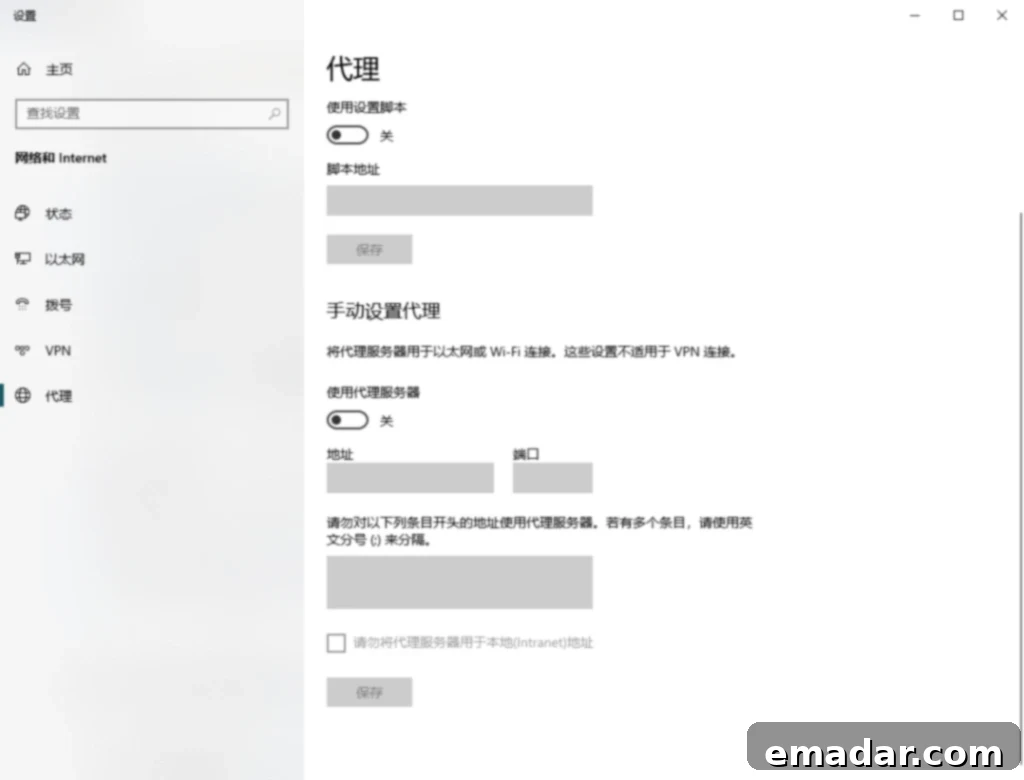
For Windows users, configuring a proxy involves adjusting network settings through the Control Panel or the modern Settings app. This method allows your entire system’s internet traffic to be routed through the specified proxy server, affecting all applications and browsers.
- Begin by opening the “Control Panel” (for Windows 7/8/10) or navigating to “Settings” > “Network & Internet” (for Windows 10/11). From there, access the “Network and Sharing Center” (in Control Panel) or directly click on “Proxy” in the Network & Internet settings.
- If you’re in the Network and Sharing Center, click on “Change adapter settings” to view your active network connections (e.g., “Ethernet” for wired or “Wi-Fi” for wireless). Right-click on the connection you are currently using and select “Properties.”
- In the properties window, scroll down to “Internet Protocol Version 4 (TCP/IPv4),” select it, and then click the “Properties” button. This specific protocol is where you will configure the IP address and DNS settings for your proxy.
- In the new “Internet Protocol Version 4 (TCP/IPv4) Properties” window, choose the option “Use the following IP address” and “Use the following DNS server addresses.” You will need to carefully enter the proxy IP address, subnet mask, default gateway, preferred DNS server, and alternate DNS server details precisely as provided by your proxy service provider. These details are crucial for correct proxy operation and network routing.
- After accurately inputting all the necessary information, click “OK” to save the changes within the TCP/IPv4 properties. Then, click “OK” again on the network connection properties window to apply the settings. Your Windows system should now be routing its internet traffic through the configured proxy server, ensuring your online activities benefit from the proxy’s advantages.
Setting Up Proxy IP on Mac Systems
Mac users can easily configure proxy settings through the System Settings (or System Preferences on older macOS versions), allowing for centralized control over network connections and specific internet protocols.
- Click the Apple icon in the top-left corner of your screen and select “System Settings” (on macOS Ventura or newer) or “System Preferences” (on macOS Monterey or older).
- Within System Settings/Preferences, click on “Network.” In the left-hand sidebar, choose your currently active network connection, such as “Wi-Fi” or “Ethernet,” which is indicated by a green dot.
- Click the “Details” button (on newer macOS versions) or “Advanced” button (on older versions) located at the bottom-right of the network settings window. This will open a new dialog box with more advanced network configurations.
- Navigate to the “Proxies” tab. Here, you will see a list of various proxy protocols. Check the boxes next to the proxy types you intend to use, typically “Web Proxy (HTTP)” and “Secure Web Proxy (HTTPS).” For each selected proxy type, enter the proxy IP address in the “Server” field and the corresponding port number in the “Port” field, precisely as supplied by your proxy service provider.
- After entering the proxy details, click “OK” to close the network details window, then click “Apply” in the main Network settings window to save and activate the changes. Your Mac’s internet traffic will now be routed through the specified proxy server, enabling you to bypass restrictions and browse anonymously.
Setting Up Proxy IP on Mobile Devices (Android Example)
For mobile users, proxy settings are typically configured within the Wi-Fi network settings. While the following steps are demonstrated for Android, similar options exist on iOS devices and other mobile operating systems, often found in the advanced settings of a connected Wi-Fi network.
- Open your phone’s “Settings” application. Scroll down and locate the “Network & internet” or “WLAN” (Wi-Fi) option. Tap on it to view your list of available and connected Wi-Fi networks.
- Long-press (tap and hold) on the Wi-Fi network you are currently connected to and wish to use with the proxy. A context menu will appear; select “Modify network” or “Manage network settings” to edit its configuration.
- Within the network modification screen, you may need to tap on “Advanced options” or “Show advanced options” to reveal additional network settings, including the proxy configuration.
- Look for the “Proxy” setting. By default, it might be set to “None” or “Direct.” Tap on it and select “Manual” to enable manual proxy configuration, which will allow you to enter the proxy details.
- You will then see fields for “Proxy hostname” and “Proxy port.” Enter the proxy IP address (hostname) and the corresponding port number precisely as provided by your proxy service provider. Ensure there are no typos, as even a small error can prevent connection.
- Finally, tap “Save” or “Connect” (depending on your device’s interface and Android version) to apply the settings. Your Android device will now attempt to route its internet traffic through the configured proxy server when connected to this specific Wi-Fi network. Remember that these settings are typically applied per Wi-Fi network, so you may need to repeat the process for other networks if desired.
Troubleshooting Common Proxy IP Issues
While proxy IPs offer numerous benefits for online access and privacy, you might occasionally encounter issues during setup or use. Understanding common problems and their effective solutions can help you quickly resolve them and maintain uninterrupted access to the digital world.
- Inability to Connect to the Proxy Server: This is one of the most frequent issues. First, meticulously double-check the proxy IP address and port number you entered during configuration. Even a single incorrect digit or misplaced character can prevent a connection. Ensure that the proxy service itself is operational and not experiencing downtime; you can usually check the provider’s status page or contact their customer support for verification. Verify your device’s primary internet connection is stable and active. Sometimes, a simple restart of your device or router can resolve underlying network glitches. Also, check if your firewall, antivirus software, or VPN is blocking the proxy connection, and consider temporarily disabling them for testing purposes.
- Significant Slowdown in Network Speed: If your internet speed drops noticeably after configuring a proxy, several factors could be at play. The chosen proxy IP might inherently be slow due to its geographical location, heavy load from other users, or limited bandwidth from the provider. Overcrowded proxy servers, where too many users are sharing the same IP, can lead to congestion and significantly reduced speeds. Try switching to a different proxy IP from your provider’s available pool, ideally one that is less utilized or located closer to your physical location or the target server. Contact your service provider to inquire about less congested or premium IP resources, or consider upgrading to a dedicated or residential proxy for better and more consistent performance.
- Website Access Still Restricted or Persistent Captchas: Despite using a proxy, you might find some websites still detect your proxy and block access, or frequently present CAPTCHA challenges. This often occurs because advanced websites employ sophisticated proxy detection mechanisms. Some types of proxies, particularly datacenter proxies, are more easily identifiable. To counter this, try using different types of proxies, such as residential proxies or private proxies, which mimic real user IP addresses more effectively and are harder to detect. Rotating proxies, which automatically assign a new IP address after a certain interval or request, can also be highly effective for tasks like web scraping. Ensure your browser’s cache and cookies are cleared, as these can sometimes reveal your true location or past activity, overriding the proxy’s anonymity. If the issue persists, consult your proxy service provider for more advanced solutions or alternative proxy configurations.
- Authentication Errors: If your proxy requires authentication (a username and password), ensure you’ve entered these credentials correctly. Mismatched credentials will prevent your device from connecting to the proxy server, resulting in an authentication failure. Double-check for typos, pay close attention to case sensitivity, and confirm with your provider that your credentials are active.
- Browser-Specific Issues: Sometimes, a proxy might work system-wide but not in a specific browser, or vice-versa. Check your browser’s internal proxy settings, as some browsers (like Mozilla Firefox) have their own proxy configuration that might override system settings. Browser extensions designed for privacy, ad-blocking, or security could also interfere with proxy connections; try disabling them temporarily to isolate the issue.
By following these comprehensive steps and troubleshooting tips, you should be well-equipped to effectively utilize proxy IPs, overcome online restrictions, and enjoy a more open, private, and secure internet experience. Should you encounter persistent difficulties after meticulously following this guide, consider exploring reliable proxy services such as IPFLY to embark on your unrestricted online journey and find solutions tailored to your specific needs.