

In our increasingly digitized world, the concept of an IP address has become ubiquitous, serving as our unique digital identifier—a kind of virtual postal address that allows us to be precisely recognized and located within the vast expanse of the internet. Whether you’re troubleshooting network issues, configuring a device, ensuring your online security, or simply curious about your digital footprint, knowing how to find your IP address is a fundamental skill. But what exactly is an IP address, and why is it so important to understand its role? Essentially, an Internet Protocol (IP) address is a numerical label assigned to each device connected to a computer network that uses the Internet Protocol for communication. An IP address serves two main functions: host or network interface identification and location addressing.
There are primarily two types of IP addresses you’ll encounter: a local (or private) IP address and a public IP address. Your local IP address is unique within your private network (e.g., your home or office network), assigned by your router. Your public IP address, on the other hand, is the address assigned to your entire network by your Internet Service Provider (ISP) and is how you appear to the rest of the internet. When you browse a website, it sees your public IP address, not your local one. Understanding both is crucial for various tasks, from setting up devices to safeguarding your privacy.
In this comprehensive guide, we will explore three practical and straightforward methods to help you locate both your local and public IP addresses, ensuring you have the knowledge to navigate your digital environment effectively. We’ll cover steps for popular operating systems like Windows, macOS, Android, and iOS, along with utilizing simple online tools.

Method 1: Checking Your Local IP Address on Computers (Windows & macOS)
Your computer’s local IP address is vital for various network-related tasks, such as setting up file sharing, connecting to network printers, or accessing devices within your home network. The process for finding this internal identifier varies slightly depending on your operating system. We’ll cover both Windows and macOS users, providing clear, step-by-step instructions to ensure you can easily retrieve this information.
For Windows Users:
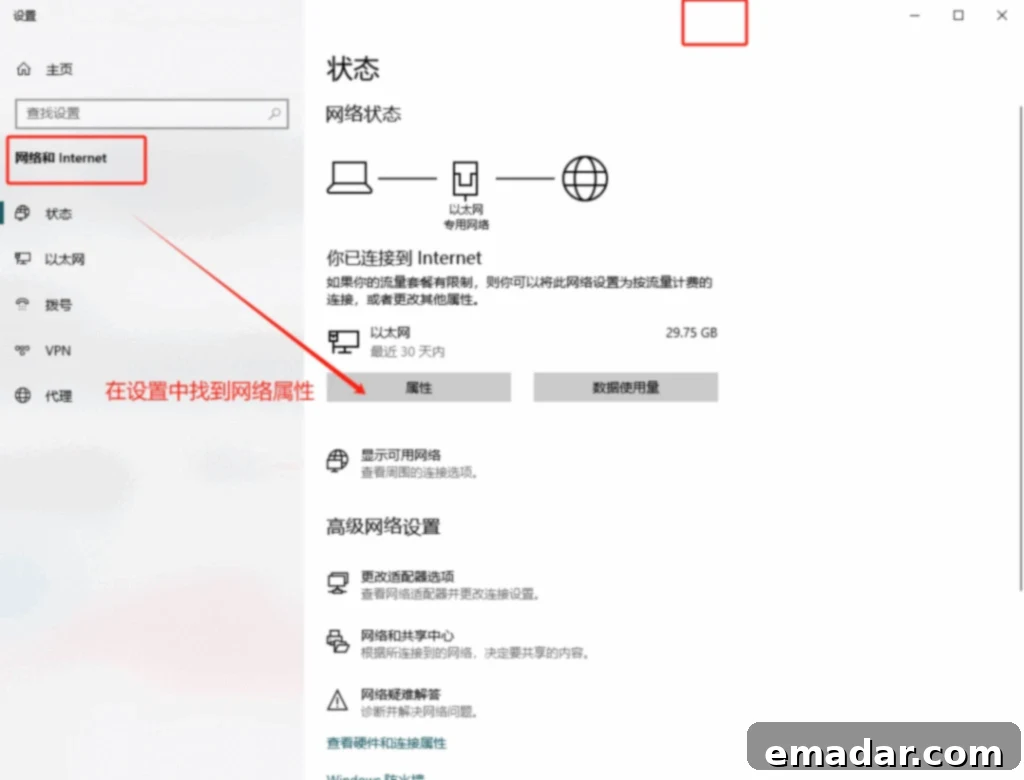
Accessing your local IP address on a Windows PC is a straightforward process that can be done through the Control Panel or Command Prompt. The Control Panel method is more visually guided, while the Command Prompt offers a quick textual output, often preferred by more tech-savvy users.
- Access Network Settings via Control Panel:
- First, open the Control Panel. You can do this by typing “Control Panel” into the Windows search bar (usually next to the Start button) and selecting the appropriate result.
- Within the Control Panel, locate and click on “Network and Internet.” This category houses all network-related settings and configurations.
- Next, click on “Network and Sharing Center.” This will open a window displaying your current network connection status and options.
- Identify Your Active Network Connection:
- In the “Network and Sharing Center” window, look for “Change adapter settings” on the left-hand side menu and click it. Alternatively, in the main “Network and Sharing Center” view, find the active connection listed next to “Connections:” (e.g., “Ethernet” or “Wi-Fi”). Click on the highlighted connection name.
- A status window for your network connection will pop up. Click the “Details…” button.
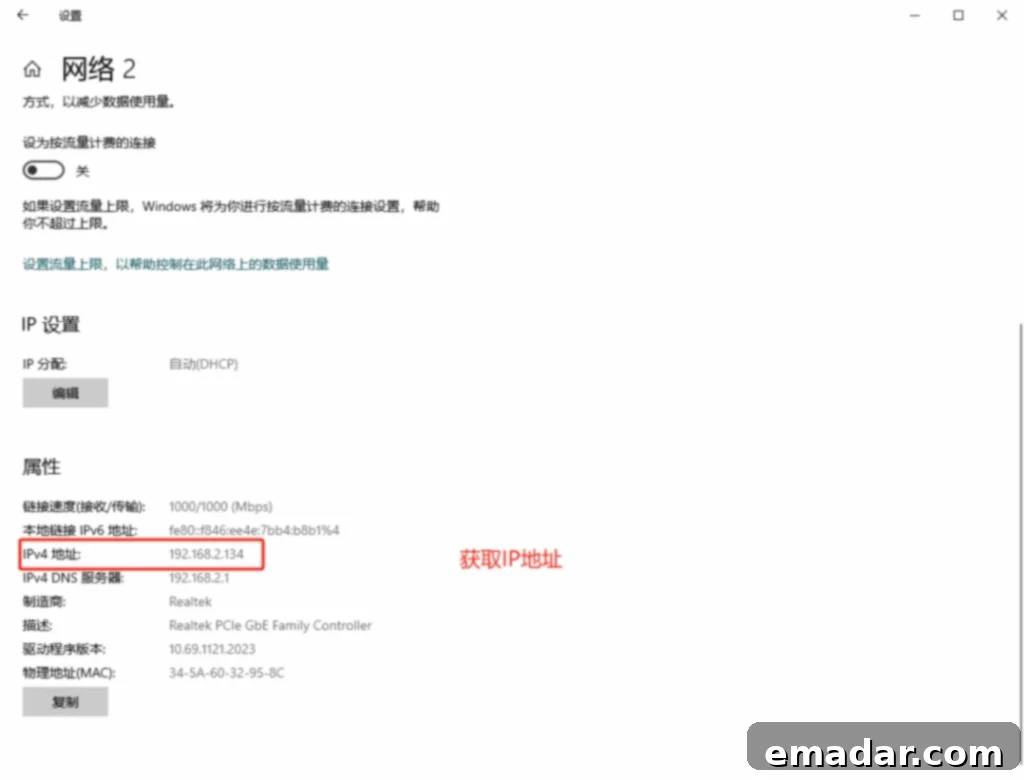
- Locate Your IP Address:
- In the Network Connection Details window, scroll down until you find “IPv4 Address.” The sequence of numbers next to this entry is your computer’s local IP address. You might also see an “IPv6 Address” if your network supports it.
Alternative for Windows (using Command Prompt):
For a quicker way, especially if you’re comfortable with command-line interfaces:
- Open the Command Prompt by typing “cmd” into the Windows search bar and pressing Enter.
- In the Command Prompt window, type
ipconfigand press Enter. - Look for your active network adapter (e.g., “Ethernet adapter Ethernet” or “Wireless LAN adapter Wi-Fi”). Underneath it, you’ll find “IPv4 Address,” which displays your local IP address.
For macOS Users:
Mac users can easily find their local IP address through the System Settings or System Preferences, depending on their macOS version. The steps are intuitive and designed for user-friendliness.
- Open System Settings/Preferences:
- Click the Apple menu in the top-left corner of your screen.
- Select “System Settings” (on macOS Ventura or later) or “System Preferences” (on older macOS versions).
- Navigate to Network Settings:
- In System Settings, click on “Network” in the sidebar.
- In System Preferences, click on the “Network” icon.
- Identify Your Active Connection and IP:
- In the Network window, you’ll see a list of network connections (e.g., Wi-Fi, Ethernet). Select the one marked as “Connected” (usually with a green dot).
- Your Mac’s local IP address will be displayed directly below the status, often labeled as “IP Address:” or similar, within the details of your selected network service. For Wi-Fi, it’s typically visible immediately after selecting the Wi-Fi option.
Method 2: Locating Your Local IP Address on Mobile Devices (Android & iOS)
Just like computers, your mobile phone also has a local IP address within your home or office network. This can be useful for tasks like screening content to a smart TV, controlling smart home devices, or troubleshooting connectivity issues. Fortunately, both Android and iOS devices offer straightforward paths to retrieve this information directly from their settings menus.
For Android Phone Users:
The exact steps for finding your IP address on an Android phone can vary slightly based on the device manufacturer and the Android version. However, the general navigation path remains consistent across most Android devices.
- Open Settings:
- From your phone’s home screen or app drawer, tap on the “Settings” icon. This is typically represented by a gear symbol.
- Navigate to Network & Internet:
- Within the Settings menu, look for an option like “Network & internet,” “Connections,” or “Wi-Fi & network.” Tap on it.
- Access Wi-Fi Settings:
- Tap on “Wi-Fi” to see a list of available and connected Wi-Fi networks.
- Ensure you are connected to a Wi-Fi network. Tap on the name of the Wi-Fi network you are currently connected to.
- View IP Address Details:
- On the network details page, you should see various network information. Scroll down, and you will find your phone’s “IP address” listed among other details like gateway, subnet mask, and DNS.
For iPhone (iOS) Users:
Finding your local IP address on an iPhone or iPad is equally simple, integrated smoothly within the iOS settings interface.
- Open Settings:
- From your iPhone’s home screen, tap the “Settings” application icon, which looks like a set of gears.
- Select Wi-Fi:
- In the Settings menu, tap on “Wi-Fi.”
- Identify Connected Network:
- You will see a list of Wi-Fi networks. Locate the network you are currently connected to (it will have a checkmark next to it).
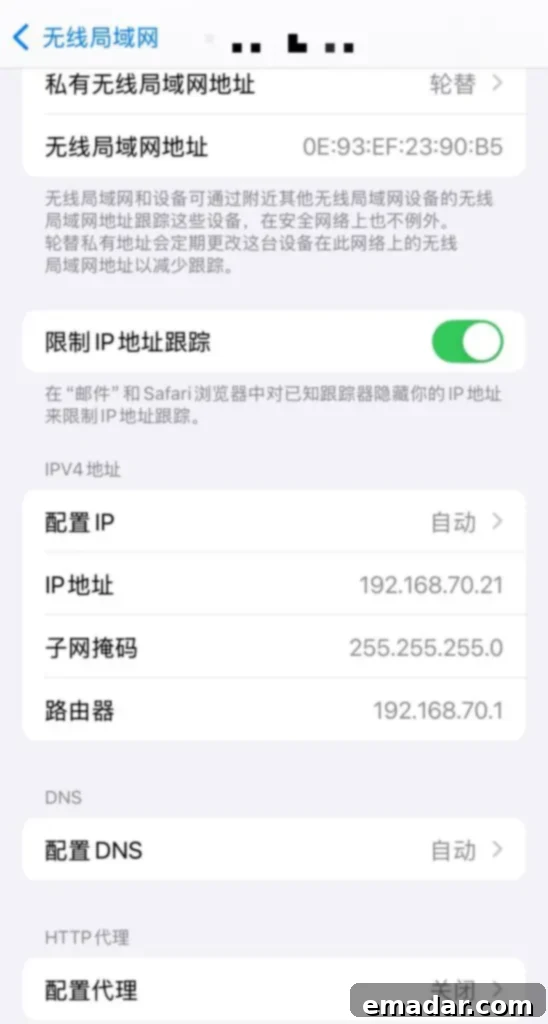
- Access Network Information:
- Tap the “i” (information) icon next to the connected Wi-Fi network name.
- On the network details screen, scroll down. Under the “IPv4 Address” section, you will find your iPhone’s “IP Address” along with other network configuration details.
Method 3: Utilizing Online Tools to Query Your Public IP Address
While the previous two methods focus on your local (private) IP address within your internal network, there are times when you need to know your public IP address. This is the IP address that the rest of the internet sees when your devices connect online. Your public IP address is assigned by your Internet Service Provider (ISP) to your router, which then uses Network Address Translation (NAT) to manage the local IP addresses of all devices within your home or office network. When you visit a website, it’s your public IP that identifies your network to the web server.
Fortunately, finding your public IP address is perhaps the simplest method of all, requiring only a web browser and an internet connection. Various online tools and search engines are designed specifically for this purpose.
- Open Your Web Browser:
- Launch any web browser you commonly use, such as Chrome, Firefox, Safari, or Edge.
- Perform a Simple Search:
- In the search bar of your browser, type a simple query like “What is my IP?“, “My IP address“, or “Check my IP.”
- Press Enter to initiate the search.
- View Your Public IP Address:
- Most major search engines (like Google, Bing, DuckDuckGo) will display your public IP address directly at the top of the search results page, often highlighted for easy visibility.
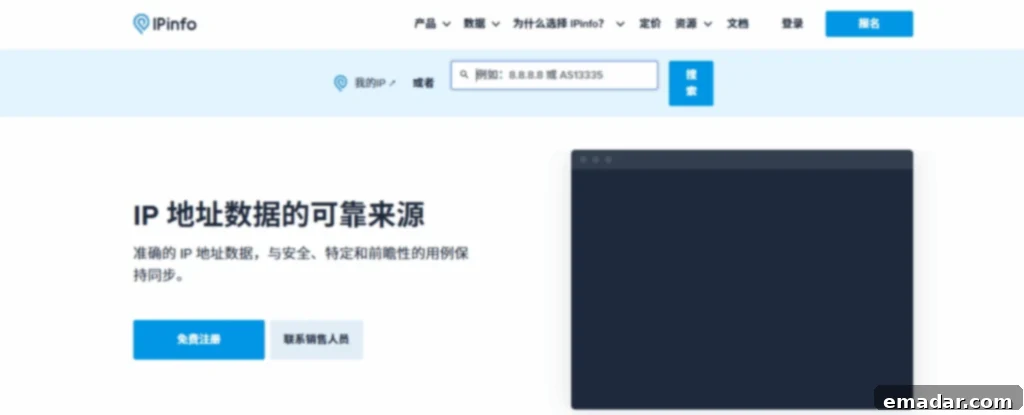
- Alternatively, you’ll see a list of dedicated websites (e.g., ipinfo.io, whatismyip.com, iplocation.net) that provide this service. Click on one of these reliable websites. Upon loading, the site will automatically detect and display your public IP address, often accompanied by additional information such as your approximate geographic location (city, state, country), your Internet Service Provider (ISP), and sometimes even your hostname.
These online IP checkers work by identifying the IP address from which your web request originated. They provide a quick and accurate way to determine your network’s external identifier, which is crucial for tasks like setting up remote access to your home network, troubleshooting online service connectivity, or understanding your geographic location as perceived by websites.
The Critical Importance of Understanding IP Addresses in Today’s Digital Landscape
IP addresses are far more than just strings of numbers; they are the bedrock of network communication and play a pivotal role in almost every aspect of our online experience. Understanding IP addresses and knowing how to find them is not merely a technicality but a fundamental step towards better network management, enhanced security, and improved digital literacy.
Network Troubleshooting and Configuration
For individuals and businesses alike, IP addresses are indispensable for network troubleshooting. When your devices can’t connect, or specific services fail, knowing the IP addresses of your router, computer, and other network devices can help diagnose whether the problem lies with IP conflicts, incorrect configurations, or connectivity issues. It’s also essential for setting up network printers, network-attached storage (NAS) devices, or creating local game servers.
Online Security and Privacy
Your public IP address can reveal a significant amount of information, including your approximate geographical location and your Internet Service Provider. This data can sometimes be used for targeted advertising, content restrictions, or, in more severe cases, malicious tracking. Understanding this connection allows you to take proactive steps to protect your privacy. Using a Virtual Private Network (VPN), for example, works by routing your internet traffic through a server in a different location, effectively masking your real public IP address and encrypting your data, thus enhancing your online anonymity and security.
Geolocation and Content Access
Many online services, streaming platforms, and websites use your public IP address for geo-restrictions, determining what content you can access based on your perceived location. Knowing your public IP allows you to understand why certain content might be unavailable or how to bypass these restrictions using VPNs or proxy services to appear from a different region.
Gaming and Remote Access
For gamers, knowing your IP address is crucial for hosting multiplayer games or connecting to specific game servers. Similarly, if you need to access files or applications on your home computer or network from a remote location, you’ll often need your home network’s public IP address to configure port forwarding or VPN connections. Businesses heavily rely on IP addresses for secure remote access to corporate networks.
Cybercrime Investigation
In the unfortunate event of cybercrime, IP addresses serve as critical pieces of evidence for law enforcement agencies. They can trace malicious activity back to its origin, helping to identify perpetrators and protect victims. This highlights the double-edged sword of IP addresses: while they enable connectivity, they also leave a trail.
Conclusion: Empowering Your Digital Journey
By mastering the three methods discussed—checking local IP addresses on computers (Windows, macOS), mobile devices (Android, iOS), and leveraging online tools for public IP discovery—you gain a fundamental understanding of how your devices connect to the digital world. An IP address, much like a crucial coordinate in the vast expanse of the internet, is indispensable not only for precisely identifying your device’s location but also for enabling seamless communication between devices and facilitating your entire online experience. We hope this deep dive into finding your computer and device IP addresses serves as a reliable guide in your network exploration journey, helping you navigate the complexities of the internet with greater ease and confidence.
Furthermore, it is paramount to recognize the intimate link between your IP address and personal information. The privacy associated with your IP address cannot be overstated. In an era where online security threats are constantly evolving, safeguarding your IP address and, by extension, your personal data, is a critical principle we must always uphold as we traverse the digital landscape. Being informed about your IP address is the first step towards taking control of your online presence and protecting your digital identity in an increasingly interconnected world.