

Are you frequently facing challenges with your online operations? In the dynamic world of digital business, maintaining a stable online presence is paramount. Many individuals and businesses encounter common hurdles when managing multiple accounts, accessing geo-restricted content, or simply striving for consistent online security.
- Do your IP addresses constantly change when trying to link accounts or use international platforms, leading to unwanted flags or access issues?
- Are you using a proxy but struggle to configure it to utilize a fixed IP address, resulting in unpredictable network behavior?
- Do you manage multiple online accounts for e-commerce, social media, or marketing, only to find that a simple network disconnection causes you to “switch identities” or lose established trust?
💡 If these questions resonate with you, don’t worry! This comprehensive guide is designed to help you effortlessly set up a fixed IP address across your computer, mobile phone, and router. By following our clear, step-by-step instructions, you can ensure long-term account stability, prevent unexpected disconnections, and maintain a consistent digital environment, free from IP drifting concerns.
Understanding the Foundation: Fixed IP vs. Dynamic IP
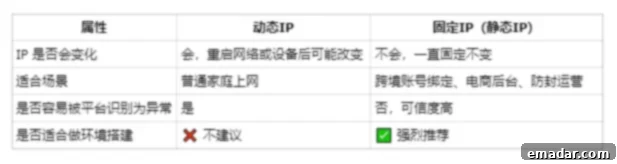
Before diving into configuration, it’s crucial to understand the fundamental difference between fixed (static) and dynamic IP addresses. This distinction will clarify why a fixed IP is often the preferred choice for professional online activities.
What is a Dynamic IP Address?
A dynamic IP address is a temporary numerical label assigned to your device by your Internet Service Provider (ISP) when you connect to the internet. As the name suggests, this address can change periodically. ISPs use Dynamic Host Configuration Protocol (DHCP) servers to automatically assign these IPs from a pool of available addresses. While convenient for most home users, as it requires no manual configuration, dynamic IPs can present significant challenges for businesses and individuals who rely on consistent online identity.
Pros of Dynamic IP:
- Automatic configuration, requiring no user input.
- More efficient use of IP addresses for ISPs.
- Generally sufficient for casual internet browsing and personal use.
Cons of Dynamic IP:
- Lack of consistency, leading to frequent identity changes from the perspective of online platforms.
- Can complicate remote access to personal networks or servers.
- Not ideal for services that require a stable, identifiable network endpoint.
What is a Fixed (Static) IP Address?
In contrast, a fixed IP address, also known as a static IP, is a permanent and unchanging numerical label assigned to a device. Unlike dynamic IPs, a static IP remains the same every time your device connects to the internet. These IPs are typically manually configured or specifically assigned by an ISP or a proxy service provider. For anyone engaging in professional online activities, a fixed IP offers unparalleled stability and control.
Pros of Fixed IP:
- Unmatched Stability: Maintains a consistent online identity, crucial for account management and avoiding security flags.
- Enhanced Reliability: Provides a stable connection for remote access, hosting services, and dedicated online tasks.
- Improved Security: Easier to set up firewall rules and monitor network traffic for a predictable IP.
- Better Geo-targeting: Essential for services that require a specific geographical location, like international e-commerce or localized marketing.
Cons of Fixed IP:
- Requires manual configuration, which can be daunting for beginners.
- May incur additional costs if obtained from an ISP or a dedicated proxy service.
- Potential for increased exposure to security threats if not properly secured, as its constant nature makes it a more consistent target.
Therefore, if you are involved in cross-border e-commerce, extensive social media promotion, multi-account management, or any professional online activity requiring a consistent digital footprint, then a “fixed IP” is an absolute necessity for security, efficiency, and long-term success. It’s the cornerstone of a reliable and trustworthy online operation.
Comprehensive Guide: How to Configure a Fixed IP Address (Computer, Mobile, Router)
Configuring a fixed IP address can seem daunting, but with the right instructions, it’s a straightforward process. The following sections will guide you through setting up a static IP on various devices. Keep in mind that the specific IP address, subnet mask, default gateway, and DNS server details will typically be provided by your ISP or, more commonly for advanced users, by your proxy service provider. Ensure you have these details ready before proceeding.
✅ Windows 10/11 Fixed IP Setup Method:
Setting a static IP on your Windows machine provides granular control over your network connection, crucial for dedicated online tasks. This method ensures your computer always communicates with the internet using the same, assigned IP address.
- Access Network Settings: Begin by navigating to your network settings. You can do this by going to “Settings” → “Network & Internet” → “Advanced network settings” → “More network adapter options” (or simply search for “Control Panel” and then go to “Network and Sharing Center”).
- Select Your Adapter: Right-click on your active network connection (e.g., “Ethernet” for wired connections or “Wi-Fi” for wireless) and select “Properties.” In the properties window, scroll down and double-click on “Internet Protocol Version 4 (TCP/IPv4).”
- Choose Manual IP Configuration: In the TCP/IPv4 Properties window, you will see options for obtaining an IP address automatically or manually. Select the option that says “Use the following IP address.”
- Enter IP Details: Carefully input your specific IP Address, Subnet Mask, Default Gateway, and DNS Server addresses. These details are critical and must be accurate; they are provided by your ISP or your dedicated IP proxy service. For DNS servers, you can often use public ones like Google DNS (8.8.8.8 and 8.8.4.4) if your provider doesn’t specify unique ones.
- Apply and Confirm: Click “OK” to save the changes in the TCP/IPv4 Properties window, and then click “OK” again on the adapter properties window. Your new fixed IP settings should now be active. It’s advisable to restart your network adapter or even your computer to ensure the changes are fully applied.
✅ Mac Fixed IP Setup Method:
Configuring a fixed IP on macOS offers similar benefits for stability and reliability. The process is intuitive and integrated within the System Settings.
- Open System Settings: Go to “System Settings” (or “System Preferences” on older macOS versions) and click on “Network.”
- Select Your Network: In the Network window, select the network interface you are currently using (e.g., “Wi-Fi” or “Ethernet”) from the left-hand sidebar. Then, click the “Details…” button (or “Advanced…” on older versions).
- Configure IPv4 Manually: Navigate to the “TCP/IP” tab. From the “Configure IPv4” dropdown menu, change the setting from “Using DHCP” to “Manually.”
- Input Network Information: Enter the provided IP Address, Subnet Mask, and Router address (which is your Default Gateway). You may also have an option to enter DNS servers; if so, input those details as well.
- Save Changes: Click “OK” to close the network details window, and then click “Apply” in the main Network window to save and activate your new fixed IP configuration.

✅ Android Mobile Fixed IP Setup (Example: Xiaomi/General Android):
For mobile devices, using a static IP within a Wi-Fi network can ensure consistent access to specific services or maintain a stable identity for certain applications. While the exact steps might vary slightly by Android version or manufacturer (e.g., Xiaomi, Samsung, Google Pixel), the core principle remains the same.
- Access Wi-Fi Settings: Go to “Settings” → “Wi-Fi” (or “WLAN”) and long-press or tap on the Wi-Fi network you are currently connected to.
- Modify Network: Look for an option like “Modify network,” “Network details,” or an “i” icon next to the network name.
- Change IP Settings: Within the network modification screen, find the “IP settings” or “DHCP/Static” option. Change it from “DHCP” to “Static.”
- Enter IP Details: Now, input your static IP Address, Gateway, DNS 1, and DNS 2 details. These are typically provided by your network administrator or proxy service. Ensure accuracy.
- Save Configuration: Tap “Save” or the checkmark icon to apply your new static IP settings for that Wi-Fi network.
✅ iPhone Fixed IP Setup:
Similar to Android, configuring a static IP on your iPhone is useful for specific Wi-Fi network environments, allowing for consistent network identification.
- Navigate to Wi-Fi Settings: Open “Settings” → “Wi-Fi.”
- Access Network Information: Tap on the “i” icon (information) next to your currently connected Wi-Fi network.
- Configure IP Manually: Scroll down to the “IPv4 Address” section. Tap “Configure IP” and then select “Manual.”
- Input Network Details: Enter the IP Address, Subnet Mask, and Router (Default Gateway) details provided to you. You’ll also typically have fields for DNS servers where you can enter primary and secondary DNS.
- Save and Complete: Tap “Save” in the top right corner to apply the settings. Your iPhone will now use this fixed IP when connected to this specific Wi-Fi network.
✅ Router Fixed IP Setup (for DHCP Reservation/Global Proxy):
Setting a fixed IP at the router level is distinct from the above methods. Instead of assigning a static IP to a single device *on* the device itself, you’re instructing the router to *always* assign a specific IP address to a particular device based on its MAC address (DHCP Reservation). This is ideal for managing multiple devices on your local network that need consistent internal IPs, or when configuring a router to use a global proxy with a dedicated IP for all connected devices.
- Access Router Admin Page: Open a web browser on a device connected to your router and enter your router’s IP address (commonly 192.168.0.1, 192.168.1.1, or 192.168.1.254). Log in using your router’s administrator username and password.
- Locate DHCP Client List: Once logged in, navigate to the “DHCP Server” or “Network” section. Find the “DHCP Client List” or “Connected Devices” to identify the MAC address of the device you want to assign a fixed IP to. Make a note of its MAC address.
- Enable Static IP Allocation (DHCP Reservation): Look for an option like “Static IP Allocation,” “Address Reservation,” “DHCP Reservation,” or “IP & MAC Binding” within the DHCP settings.
- Bind MAC to IP: Enter the MAC address of your target device and the specific fixed IP address you wish to bind to it. This IP must be within your router’s local IP range but outside its dynamic DHCP pool to avoid conflicts. (If you are configuring a global proxy on the router, this step might be different, involving entering the proxy IP and port directly into the router’s WAN or proxy settings.)
- Save and Reboot: Save your changes and then reboot your router. The specified device should now consistently receive the assigned fixed IP address from your router. For global proxy settings, all devices connected to the router will route traffic through the configured proxy IP.
👀 If the thought of manually configuring these settings for each device feels too complex, or if you’re concerned about maintaining IP stability across a large operation, consider utilizing a dedicated IP solution like IPFLY Static Residential Proxy. With IPFLY, you simply copy the provided IP address and port, then configure it directly within your browser, application, or system’s proxy settings. This eliminates the need for intricate network configurations, offering a truly stable and hassle-free fixed IP experience.
Unlocking Potential: Key Application Scenarios for Fixed IP Addresses
The strategic use of a fixed IP address extends far beyond basic network stability. For businesses and individuals operating in the digital realm, it’s a powerful tool that enables secure, efficient, and reliable execution of various online activities. Here’s an overview of the critical application scenarios where a fixed IP becomes indispensable:
🔹 Cross-border E-commerce Platform Account Management (Amazon, eBay, Shopify): For e-commerce sellers managing multiple storefronts or international operations, account association is a major concern. Using a consistent fixed IP address prevents platforms from flagging accounts for suspicious activity due to frequently changing IPs, reducing the risk of bans and ensuring account longevity. It helps maintain a legitimate digital footprint for each distinct account, crucial for anti-association policies.
🔹 Social Media Matrix and Account Nurturing (TikTok, Instagram, Facebook): Building and growing a strong presence across various social media platforms, especially for marketing or influence, often involves managing multiple accounts. A fixed IP ensures that each social media account consistently originates from the same virtual location. This consistency is vital for “account warming” or “nurturing,” preventing platforms from detecting unusual login patterns or multiple accounts from the same dynamic IP pool, which can lead to account suspension or limitations.
🔹 Stable Access to AI Platforms and Services (Google, ChatGPT, Midjourney): As AI tools become integral to workflows, stable access is crucial. Services like advanced search APIs, large language models (ChatGPT), or AI art generators (Midjourney) often have rate limits or geographical restrictions. A fixed IP ensures uninterrupted, consistent access, allowing automation scripts to run smoothly and preventing issues caused by IP changes that might reset session tokens or trigger security challenges.
🔹 Automated Marketing Script Reliability and Consistent Network Environment: Digital marketers frequently deploy automation scripts for tasks like web scraping, data collection, or automated interactions. These scripts require a highly stable network environment. A fixed IP minimizes network drift and ensures that automated processes always appear to originate from a trusted source, significantly reducing the likelihood of IP bans, CAPTCHAs, or errors that can halt marketing campaigns and data acquisition.
🔹 Overseas Advertising Account Verification and Operation: Managing advertising campaigns in different regions often requires local presence or adherence to specific geographical IP requirements for account verification and ongoing operation. A dedicated fixed IP from the target region provides the necessary legitimacy, allowing advertisers to verify accounts, comply with local ad policies, and consistently manage campaigns without geo-location conflicts or security checks that can impede ad delivery.
🔹 Remote Work and Secure Access to Corporate Networks: For professionals working remotely, a fixed IP can be a security asset. It allows for secure, consistent access to corporate VPNs, internal servers, and confidential resources. By whitelisting a specific static IP, organizations can add an extra layer of security, ensuring that only approved locations can connect to sensitive networks.
🔹 Online Gaming and Dedicated Servers: Gamers who host their own servers or participate in competitive online gaming can benefit from a fixed IP. It ensures consistent connectivity, reduces latency for dedicated servers, and simplifies the process of port forwarding, leading to a smoother and more reliable gaming experience.
Conclusion: Empower Your Digital Operations with Fixed IP + Residential Proxy
In today’s fast-paced digital landscape, the stability and integrity of your online presence are non-negotiable. If you find yourself grappling with any of the following challenges:
- Constantly worrying about fluctuating IP addresses compromising your account security and operational continuity.
- Aspiring to build a stable and robust cross-border operational environment from the ground up, but lacking the right tools for network consistency.
- Needing to efficiently switch between different national networks without triggering alarms or being detected by sophisticated platform monitoring systems.
Then, the solution lies in mastering and deploying the powerful combination of a Fixed IP Address complemented by a High-Quality Residential Proxy. This strategic pairing is your ultimate defense against digital instability.
This dynamic duo is specifically engineered to safeguard and stabilize your cross-border operational accounts. IPFLY is a leading expert in the proxy IP market, dedicated to providing unparalleled solutions:
- ✅ Access to a colossal network of 90 million+ residential IP resources, meticulously spread across more than 190 countries worldwide, offering authentic local presence wherever you need it.
- ✅ The flexibility to choose between exclusive static residential IPs for unwavering consistency and dynamic residential IPs for robust rotation, adapting to all your operational needs.
- ✅ Commitment to high purity, ISP-native IPs coupled with datacenter options, ensuring your digital footprint is legitimate and trusted by even the most vigilant online platforms.
- ✅ Comprehensive multi-protocol support, including HTTP/SOCKS5/HTTPS, guaranteeing strong compatibility and seamless integration with virtually any platform or application you use.
- ✅ Streamlined API integration and full compatibility with leading fingerprint browsers, enabling rapid deployment and quick adaptation to your specific business workflows and operational pace.
By leveraging these advanced features, you can achieve unparalleled account stability, bypass geo-restrictions with ease, and secure your digital assets against evolving online threats. Don’t let unstable IP addresses dictate the fate of your online ventures. Take control of your digital destiny.
👉 Register now with a single click to instantly establish a highly trustworthy and resilient cross-border operating environment!